How to Add Page Numbers to a PDF (Free, No Upload)
Published August 11, 2026
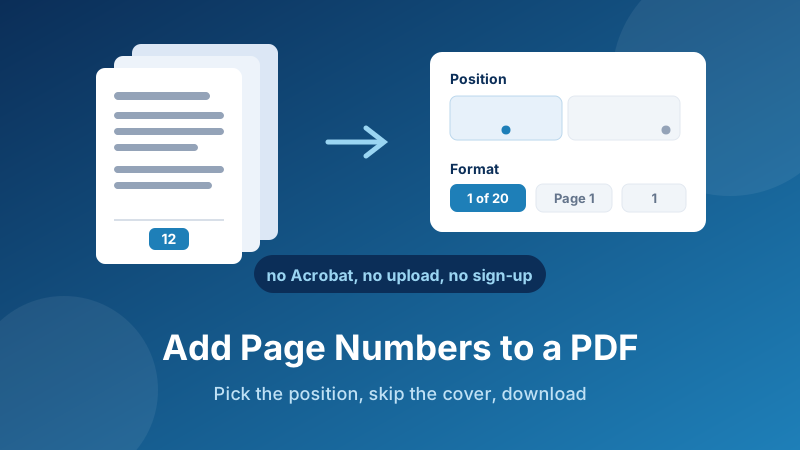
You've merged four documents into one 60-page PDF, sent it off, and now someone is asking "which page is the pricing on?" — and there's no answer, because the pages aren't numbered. Page numbers are the least glamorous part of a document and the first thing anyone misses. The good news: adding them to an existing PDF takes about fifteen seconds and doesn't need Acrobat, a subscription, or uploading a confidential file to a stranger's server.
Number your PDF now
Drop the file in, pick a position and format, download the numbered PDF. Free, no sign-up, and your document never leaves your computer.
Open the PDF Page Numbers tool →Why PDFs so often arrive unnumbered
A PDF is a finished, frozen document. Unlike Word or Google Docs, it has no live "footer" that recalculates — every number you see on a PDF page is just ink that was printed there when the file was made. If the original author didn't add numbers before exporting, the PDF has none, and nothing about opening it later will make them appear.
That's why the problem shows up most in three situations:
- After merging. You combined several PDFs into one. Each source file may have had its own numbering starting at 1, or none at all, so the combined document has no continuous sequence.
- Scans. A scanned contract or a batch of receipts is just a stack of images. There is no text layer and certainly no numbering.
- Exports from tools that don't bother. Plenty of invoicing systems, report builders and slide exports produce clean pages with nothing in the footer.
In all three cases the fix is the same: add the numbers after the fact, straight onto the finished PDF.
How to add page numbers in Toolyard
The Toolyard Add Page Numbers to PDF tool is free, needs no account, and rewrites the file inside your browser — your PDF is never uploaded. Here's the whole process:
- Open the PDF Page Numbers tool and drag your PDF onto the drop area, or click browse files and pick it.
- Choose a position. Bottom center is the standard for reports and contracts; bottom right suits documents that will be printed single-sided and flicked through; top right is useful when the bottom of your pages is already busy with a footer.
- Choose a format. Plain 1 is clean and unobtrusive. Page 1 is more formal. 1 of 20 and Page 1 of 20 tell the reader how much is left, and make it obvious if a page goes missing from a printed stack — worth using for anything legal or contractual.
- Set Start numbering at if you need an offset. Leave it at 1 for a normal document; see the cover-page trick below for the common exception.
- Adjust the font size if you like. The default of 11 matches typical body text. Drop to 9 for something discreet, raise it to 14 for a large-format or accessibility-focused document.
- Tick Skip first page if the document has a cover you want left clean.
- Click Add Page Numbers. The numbered PDF downloads straight to your device — the original file on your computer is untouched.
The cover-page trick everyone gets wrong
Say your document has a title page, then twenty pages of content. You tick Skip first page, and the numbering starts on the second page — which is what you wanted — but that page is labelled 2. Technically correct, and it looks odd when the cover carries no number at all.
The fix is to combine the two settings. Tick Skip first page and set Start numbering at to 0. The numbering still begins on the second page, but the offset shifts everything down one, so the first content page reads 1. That's the convention used by most printed reports: the cover isn't counted, and the body starts at one.
The same offset field solves a second problem. If you split a long report into parts and this file is Part 2, starting at page 43 of the whole set, set the start number to 43 and the numbering picks up exactly where Part 1 finished. Our guide on how to split a PDF covers that side of the workflow.
Merged, split, and now numbered
Add clean, continuous page numbers to any PDF — cover page skipped, custom start number, your choice of position and format.
Open the PDF Page Numbers tool →Choosing a position that doesn't collide
The number is drawn in the page margin, which on a normal document is empty space. But some layouts already use that area, and a number landing on top of existing text looks careless. Before you commit, think about what's in each corner:
- Bottom center — the safest default. Footers usually sit left or right, so the middle is normally free. This is what most reports, theses and contracts use.
- Bottom right — good for documents that get printed and flicked through, because the reader's thumb naturally lands there. Check first that there's no existing footer text on the right.
- Bottom left — useful when the right side already carries a document reference or a confidentiality note.
- Top right — the escape hatch when the bottom margin is fully occupied by footnotes, a footer or a signature block.
If your PDF mixes portrait and landscape pages, or pages of different sizes — common after merging scans with exports — check both orientations in the finished file. The number is placed relative to each page's own margin, so it stays in the right corner, but a very narrow page can put it closer to the content than you'd like. Dropping the font size a point or two usually resolves it.
Can't I just do this in Acrobat?
You can, if you pay for it. Page numbering — Acrobat calls it a header and footer — is a Pro feature, and Acrobat Pro is a monthly subscription. The free Acrobat Reader that most people already have cannot add them. If you have Pro, use it; it gives you fine control over margins and lets you save presets for repeated jobs.
For everyone else, the alternatives are worth knowing:
- A browser tool like the one above: free, instant, nothing to install, and the file never leaves your device. Best for one-off jobs and confidential documents.
- Word or Google Docs: only works if you still have the original editable document. Add the footer there and re-export to PDF. If all you have is the PDF, converting it to Word usually wrecks the layout — not worth it just for numbers.
- Command-line tools such as pdftk or qpdf: powerful for scripted, repeatable jobs across hundreds of files, but overkill if you just need to number one report before a meeting.
A tidy order of operations
If your document needs several steps, the sequence matters. Numbering should almost always come last:
- Assemble. Merge the parts into one file, or split out the section you actually need. Doing this after numbering breaks the sequence.
- Fix the pages. Rotate any sideways scans and delete the blanks. A deleted page after numbering leaves a gap in the sequence.
- Number. Now that the page order is final, add the numbers.
- Mark it, if needed. Add a watermark such as DRAFT or CONFIDENTIAL as the final touch.
Follow that order and you'll never have to redo a step. Go the other way round and you'll be renumbering every time the page count changes.
Is it private and free?
Yes to both. The Toolyard PDF Page Numbers tool is 100% private: your PDF is opened and rewritten inside your own browser, and the numbered file saves directly to your device. It is never uploaded to a server, never stored, and never seen by anyone. That's the deciding factor for most PDFs worth numbering — contracts, invoices, client reports, board packs — the sort of document you shouldn't be handing to an unknown website just to print a number in the corner. It's completely free with no sign-up, no page limit and no watermark, and it keeps working offline once the page has loaded.
Frequently asked questions
How do I add page numbers to a PDF for free?
Open Toolyard's Add Page Numbers to PDF tool, drop the file in, choose a position and format, then click Add Page Numbers and download the result. It runs in your browser — no upload, no sign-up, no watermark.
Can I add page numbers to a PDF without Acrobat?
Yes. Page numbering in Acrobat is a paid Pro feature and the free Reader can't do it. A browser tool adds real numbers to the PDF itself with nothing to install and no cost.
How do I skip the cover page?
Tick Skip first page so the cover stays clean. If you also want the next page to read as page 1, set Start numbering at to 0 — the offset makes the first content page number 1.
Will the numbers cover my existing text?
The number is drawn in the page margin, which is empty on most documents. If your layout already uses that corner, move the number elsewhere — top right is usually free — or reduce the font size.
Can I continue numbering from another document?
Yes. Set Start numbering at to whatever number this file should begin with, and the sequence carries on from your previous part.
Is it safe to add page numbers to a PDF online?
With Toolyard, yes. The file is processed entirely inside your browser and the numbered PDF saves straight to your device. Nothing is uploaded, stored or seen by anyone else.