How to Merge PDF Files Free and Keep Them Private
Published July 17, 2026
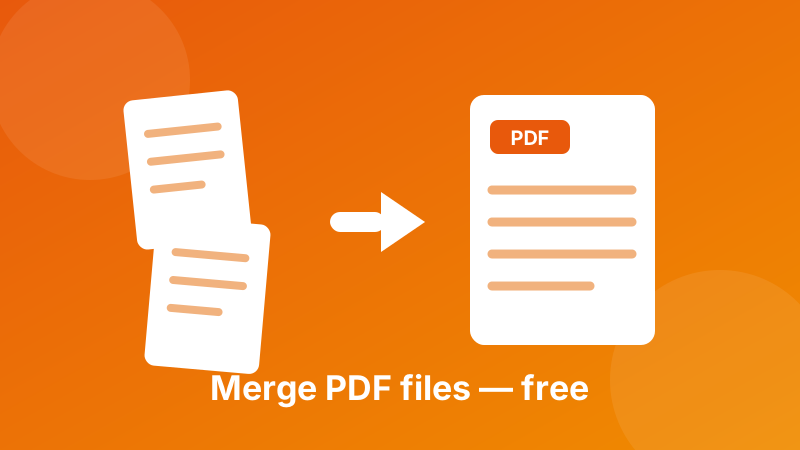
You have a stack of separate PDFs — a scanned contract, three receipts, a few report chapters — and you need them as one clean document to email or file away. The problem is that most "combine PDF" websites want you to upload sensitive files to their servers, and desktop apps like Adobe Acrobat cost money. This guide shows you how to merge PDF files for free, in the right order, without any of that.
Merge your PDFs in seconds
Combine as many PDFs as you like into one document, right in your browser. Nothing is uploaded and there's no sign-up.
Open the Merge PDF →Why you'd want to combine PDFs into one file
Merging isn't just tidiness — a single file is far easier to send, sign, print and store than a folder full of loose pages. Once everything lives in one PDF, page numbers run straight through, nothing gets lost in an email thread, and the person on the other end only has to open one attachment.
The most common reasons people merge PDFs are surprisingly everyday:
- Expense reports — bundle a month of receipts into one file for accounting.
- Scanned documents — your scanner saved each page separately, and you want the whole contract or ID as a single file.
- Reports and proposals — stitch a cover page, body chapters and an appendix into one deliverable.
- Job and rental applications — combine a résumé, cover letter and certificates so nothing is missed.
- Invoices and statements — group related paperwork before archiving or sending to a client.
How to merge PDF files in Toolyard
The Merge PDF tool is free, works in any modern browser, and needs no account. Here's the whole process:
- Open the Merge PDF tool and drag your PDF files onto the box — or click to browse and select several at once.
- Drag the files up or down to set the order you want the pages to appear in the finished document.
- Remove any file you added by mistake, and double-check the sequence from top to bottom.
- Click Merge, then Download to save your single combined PDF.
That's it — no installs, no watermarks, and no waiting for an upload to finish. Because the whole thing runs on your own device, even a large stack of scans is ready almost instantly.
Why the order of your files matters
When you merge, the tool places the files one after another exactly in the order they're listed — the first file's pages come first, then the second file's pages, and so on. If your receipts or chapters end up in the wrong sequence, the finished PDF will read out of order, which looks unprofessional and can confuse whoever receives it.
Before you hit merge, glance down the list and picture the final document. A quick tip: name your files with a leading number (01-cover, 02-body, 03-appendix) before you add them, so the order is obvious at a glance. In Toolyard you can also just drag any file to a new position, so fixing the order takes a second.
Is it safe to merge sensitive PDFs online?
This is the part most people overlook. PDFs are often the most private things you own — contracts, tax forms, medical letters, passports and IDs. With a typical online merger, those files are sent to a company's server, processed there, and you have to trust that they're deleted afterward. That's a real risk you don't need to take.
Toolyard works differently. The Merge PDF tool does everything inside your browser using your own computer. Your files are never uploaded to any server — they don't leave your device at all, so nothing can be stored, read or leaked. Once the page has loaded you can even switch off your internet and it will still work. That makes it genuinely safe for the confidential documents you'd never want floating around online.
How big will the merged PDF be?
A merged PDF is roughly the sum of the files you combine, so it helps to know what drives the size. Exported PDFs — the kind a word processor, browser, or accounting app produces — are mostly text and stay small, so you can merge dozens of them without any trouble. Scanned PDFs are really photographs of pages, and each one can run to several megabytes, so a stack of scans adds up quickly.
If you plan to email the result, most inboxes cap attachments at around 20–25 MB. When your merged file is heavier than that, compress the images before merging, or split the document into two smaller PDFs. For everyday text-based PDFs you'll almost never hit that ceiling.
Tips for a clean, professional result
A few small habits make merged PDFs look polished:
- Put a cover or title page first so the document has a clear beginning.
- Check page orientation — if a scan came in sideways, rotate it before merging so every page reads the same way.
- Keep the file count sensible — merging dozens of high-resolution scans makes a big file, so compress images first if you plan to email it.
- Rename the final file to something the recipient will understand, like "Expenses-July-2026.pdf".
Do those, and a pile of loose pages turns into one tidy document that's easy to send and easy to keep. When you're ready, the tool below handles the actual merging for free.
Ready to combine your PDFs?
Merge, reorder and download in one place — free, private, and with no sign-up required.
Open the Merge PDF →