Pinterest Pin Size: Why 1000 × 1500 (2:3) Wins
Published August 24, 2026
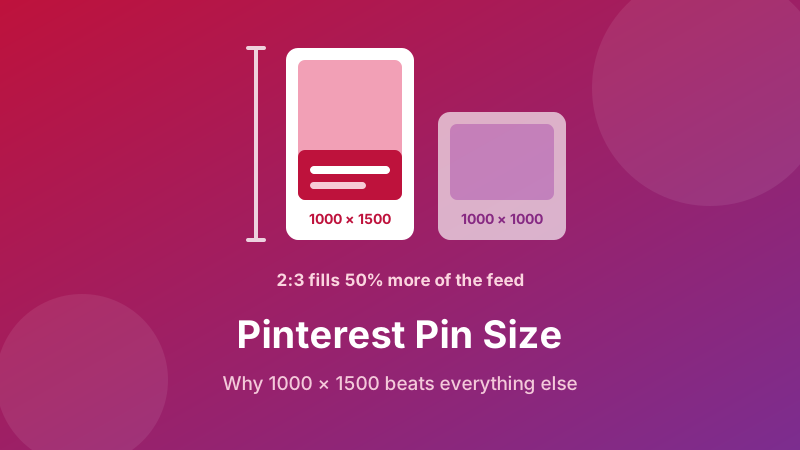
Pinterest is the one platform where image shape isn't a formatting detail — it's the strategy. The feed is a vertical scroll of tiles of differing heights, and a taller tile physically occupies more of the screen for longer as someone scrolls past. That's why 1000 × 1500 is the number every guide repeats. But the ratio behind it matters more than the pixels, and knowing why the limits exist is what stops you making a pin that gets quietly cut in half.
Make a perfect 2:3 pin in seconds
Drop an image, choose the Pinterest Pin preset, download a correctly shaped file. Free, private, nothing uploaded.
Open the Social Media Resizer →The sizes that matter
| Pin type | Size (pixels) | Shape |
|---|---|---|
| Standard pin | 1000 × 1500 | 2:3 — the default, and the safest choice |
| Square pin | 1000 × 1000 | 1:1 — works, but takes less feed space |
| Idea pin (full screen) | 1080 × 1920 | 9:16 — same shape as a story or reel |
| Profile photo | upload 400 × 400 or larger | 1:1, shown as a circle |
The exact pixel counts aren't sacred — 800 × 1200 or 1200 × 1800 are the same 2:3 shape and behave identically. What matters is the ratio, plus being wide enough that Pinterest never has to enlarge your file.
Why 2:3 and not taller
If tall is good, wouldn't taller be better? It's the obvious question, and the answer is no — there's a cliff.
Pinterest shows pins in the feed inside a bounded frame. A 2:3 pin fits it comfortably and displays in full. Go significantly taller — the long, skinny infographic style that was fashionable years ago — and the feed shows a truncated version, requiring a tap to see the rest. Since most people don't tap, your carefully designed conclusion, your call to action, and often your web address are invisible to nearly everyone who sees the pin.
So 2:3 sits at a sweet spot: as much vertical presence as you can claim without getting cut. If you genuinely need a long, step-by-step graphic, you have two decent options. Split it into several 2:3 pins that each stand alone, or design it long but front-load it — put the headline, the payoff and your branding in the top two-thirds, and treat everything below as a bonus for the people who tap through.
What a square pin actually costs you
Square pins aren't broken. They just work harder for less. In a feed where the width of each column is fixed, height is the only variable you control — and a 2:3 pin is 50% taller than a square one in the same column. That's half again as much screen real estate, half again as much time in view during a scroll, and a noticeably bigger target to tap.
The honest case for square is reuse: if the same graphic also has to work as an Instagram post, a square file saves you making two versions. That's a real trade-off, not a mistake — just make it knowingly rather than by accident.
How to resize an image to 1000 × 1500, step by step
The Toolyard Social Media Resizer includes the Pinterest Pin size as a preset and runs entirely in your browser, so nothing is uploaded and there's no account to create.
- Open the Social Media Resizer and drag your image onto the drop area, or click to browse. JPG, PNG and WebP all work, and you can drop a whole batch at once if you're building a set of pins.
- Under Target size, choose Pinterest Pin (1000×1500).
- Choose your Fit mode. Cover fills the tall frame and trims the sides — the right choice for photos, since most photos are wider than 2:3 and losing some left and right edge is fine. Contain fits the entire image inside the frame and pads the space with a background colour you pick — the right choice for a graphic or logo you can't crop.
- Set the Format: JPG for photographs, PNG for pins with text overlaid.
- Click Download, or Download all for a batch, and upload to Pinterest.
Turning a wide landscape photo into a tall pin with Cover discards a lot of the picture, and the automatic centre crop won't always keep the right part. When the subject isn't dead centre, crop first: the Image Cropper has a 2:3 ratio option, so you can drag the selection over the part you want and export something already in the right shape.
Choose the 2:3 crop yourself
Pick the exact part of your photo that becomes the pin, with a locked 2:3 ratio. Free, in your browser.
Open the Image Cropper →Text on pins: designed for a thumbnail, not a monitor
Most pins carry a text overlay, and most of that text is designed at the wrong scale. You're looking at your pin at maybe 400 pixels tall on a laptop; a browsing user sees it in a phone column a few centimetres wide.
Three rules that survive that shrink:
- One message per pin. If a reader can't grasp the point in a second of scrolling, more words won't help.
- Make the type far bigger than feels comfortable. A headline should occupy a real portion of the pin's width, not sit as a delicate caption.
- Guarantee contrast. Text over a busy photo disappears. Put it on a solid band, a darkened overlay, or an area of the image that's genuinely plain.
Keep text a comfortable margin in from every edge as well — different surfaces round the corners of pin tiles slightly differently, and anything hugging the border risks being clipped.
Sharpness and file size
Never enlarge. Taking a 500-pixel-wide image up to 1000 invents detail that was never there, and the softness is permanent. Always start from the biggest original you have and resize down.
Don't upload a giant file either. Pinterest recompresses what it receives, and the more it has to shrink an image, the harder it compresses — which is where soft, haloed text comes from. Resizing to 1000 × 1500 yourself leaves much less for the compressor to do.
Match the format to the content. Pins that are mostly photograph should be JPG, which gives a much smaller file at the same apparent quality. Pins built around text, flat colour or a logo should be PNG, because JPG compression is at its worst around the sharp edges of letterforms — exactly what a text pin is made of.
Is it private and free?
Yes to both. The Toolyard resizer is completely free — no sign-up, no watermark, no limit on how many pins you size. It's also 100% private, because the resizing runs as JavaScript on your own device, so your images are never uploaded to any server. That's genuinely useful when you're sizing unreleased product shots or client work. Once the page has loaded, it keeps working even with your connection off.
Build a whole set of pins at once
Drop several images, pick Pinterest Pin, and download them all correctly sized. Free and private, in your browser.
Open the Social Media Resizer →FAQ
What is the best Pinterest pin size?
1000 × 1500 pixels, a 2:3 ratio. That's the shape Pinterest's feed is designed around: tall enough to take up real space in the grid, but not so tall that it gets truncated.
Why is my Pinterest pin cut off?
Pins much taller than 2:3 are shown truncated in the feed, needing a tap to see the rest. Long infographic-style pins therefore lose their ending for most viewers. Stay at 2:3, or put the key message in the top two-thirds.
Can I use square images on Pinterest?
They work, but a square pin takes up 50% less vertical space in the feed than a 2:3 pin in the same column, so it's easier to scroll past. Square makes sense mainly when you're reusing the same image on other platforms.
What size are Pinterest idea pins?
Idea pins are full-screen and use a 9:16 ratio, 1080 × 1920 pixels — the same shape as an Instagram story or reel. Keep text away from the top and bottom edges where the interface sits.
Does file size affect how a pin looks?
Yes. Very large uploads are compressed harder by Pinterest, which softens fine text. Resize to 1000 × 1500 before uploading, and save as PNG if the pin contains text or JPG if it's mostly photographic.