LinkedIn Image Sizes: Banner, Post & Profile Photo
Published August 24, 2026
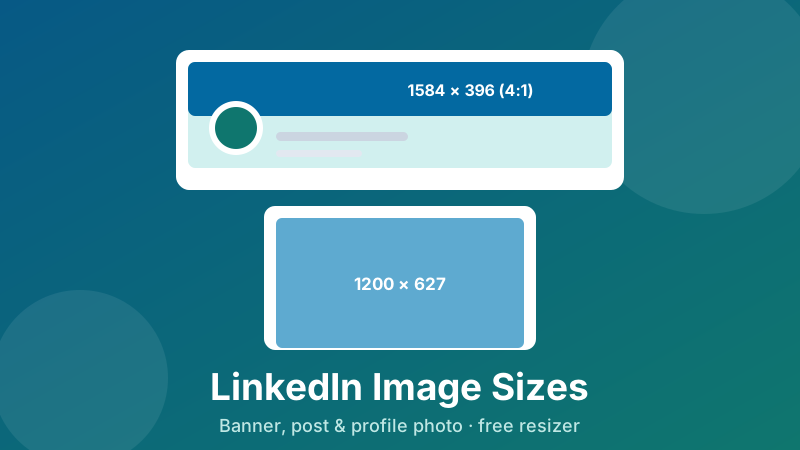
LinkedIn is the platform where a badly sized image costs you the most, because the audience is people deciding whether to hire you, buy from you, or take your call. A stretched banner with your tagline half-hidden behind your own headshot doesn't read as a minor formatting slip — it reads as carelessness. The fix takes a couple of minutes. Here are the exact sizes, the crops that catch people out, and the design rules that make a profile look deliberate.
Resize for LinkedIn in your browser
Drop your image, pick the LinkedIn Post preset, download a correctly sized file. Free, no account, nothing uploaded.
Open the Social Media Resizer →Every LinkedIn image size in one table
| Where it appears | Size (pixels) | Shape |
|---|---|---|
| Personal profile banner | 1584 × 396 | 4:1, very wide |
| Post / shared link image | 1200 × 627 | about 1.91:1 |
| Profile photo | 400 × 400 or larger | 1:1, shown as a circle |
| Company page logo | 300 × 300 | 1:1, shown as a square |
| Company page cover | 1128 × 191 | about 5.9:1, extremely wide |
LinkedIn tweaks its layout periodically, so treat the pixel counts as today's target and the ratio as the part that lasts. A 4:1 banner keeps working through a redesign; a file hand-cropped to a specific old pixel grid usually doesn't.
The profile banner: 4:1 is harder than it looks
1584 × 396 means four times wider than tall. Almost no photograph is that shape, which is why so many banners look like a random horizontal slice of a picture — because that's exactly what they are.
Three things to plan around:
- Your profile photo overlaps the lower-left. On desktop the circular headshot sits over that corner. Anything you put there — a logo, your name, a phone number — is partly hidden behind your own face.
- Mobile shows a narrower slice. The phone app cuts the left and right edges of the same file, so content near either end can vanish for the majority of your visitors.
- Text has very little vertical room. At 396 pixels tall, two lines of readable text with sensible margins is realistically the ceiling. Trying to fit a paragraph produces something no one can read on a phone.
The layout that reliably works: an uncluttered background running the full width, with a short line of text — what you do, or who you help — placed in the upper-right or centre-right, well clear of both the headshot and the side edges. One idea, big enough to read on a phone, beats four small ones.
Post images: 1200 × 627 and why it matters
Feed images are the workhorses. LinkedIn shows a single shared image, and the preview of any link you post, in a frame of roughly 1.91:1 — the same shape as 1200 × 627.
Match that shape and your image appears exactly as you designed it. Ignore it and one of two things happens: a tall image gets trimmed top and bottom in the feed, or a very wide one is shown in a letterbox with the detail shrunk. Either way, the version most people see isn't the version you made.
Two practical notes. First, if you're sharing a chart or a quote card, remember it will most often be viewed on a phone at a few centimetres wide — use large type, high contrast, and no more than one message per image. Second, LinkedIn recompresses uploads, so a screenshot full of small text will soften slightly no matter what you do; give it the best possible start by uploading a properly sized PNG rather than a huge JPG.
The profile photo: crop tighter than you think
Upload a square of at least 400 × 400. It's displayed as a circle, so the corners of your square are always discarded — anything in them is wasted.
The most common mistake is a photo taken from too far away. In the feed your headshot appears at a very small size, and a full-body shot at that scale is an unidentifiable smudge. Crop from about the top of your head to your shoulders, with your face filling most of the frame. A plain, uncluttered background helps enormously at small sizes because there's nothing competing with your face for the few pixels available.
How to resize an image for LinkedIn, step by step
The Toolyard Social Media Resizer handles the feed size directly, and it runs entirely inside your browser — no upload, no account.
- Open the Social Media Resizer and drag your image onto the drop area, or click to browse. JPG, PNG and WebP all work, and you can process several at once.
- Under Target size, choose LinkedIn Post (1200×627).
- Pick a Fit mode. Cover fills the frame and trims the overflow — use it for photos. Contain fits the whole image inside the frame and pads the rest with a background colour you choose — use it for charts, logos and screenshots that must not be cropped.
- Set the Format: JPG for photographs, PNG for anything with text or a logo.
- Click Download, or Download all if you sized a batch.
For the 4:1 profile banner, start by cropping rather than resizing: open the Image Cropper, drag a wide, shallow selection across the part of the photo you want to keep, and export that. Because you chose the strip yourself, you get a banner that looks composed rather than accidentally sliced.
Building a 4:1 banner?
Crop the exact wide strip you want to keep, then upload it straight to LinkedIn. Free and private, in your browser.
Open the Image Cropper →Sharpness, file size and format
Always resize down, never up. Enlarging a 600-pixel image to 1200 invents pixels that were never photographed, and the result looks soft in a way nothing can repair. Start from the largest original you have.
Don't upload straight from the camera either. A 6000-pixel photo gets compressed aggressively on the way down to feed size, which is where blocky skies and haloed edges come from. Resizing to 1200 × 627 yourself leaves far less for LinkedIn's compressor to do, and more of your detail survives.
Choose the format by content. Photographs go to JPG for a much smaller file at the same apparent quality. Graphics, charts, quote cards and screenshots go to PNG, because JPG compression smears the edges of small text — and small text is precisely what a LinkedIn carousel or chart is made of.
Is it private and free?
Yes to both. The Toolyard resizer is completely free: no sign-up, no watermark, no limit on the number of images. And it's 100% private, because the work is done by JavaScript on your own device — your files are never uploaded to a server. For LinkedIn that's worth having, since the images involved are often unannounced product shots, internal figures or company photos that shouldn't be sitting on someone else's server. Once the page has loaded, it works offline too.
Size your whole profile in one sitting
LinkedIn, Instagram, X, Facebook, YouTube and Pinterest presets in one free, private tool.
Open the Social Media Resizer →FAQ
What size is a LinkedIn banner image?
The personal profile background image is 1584 × 396 pixels, a 4:1 ratio. Your profile photo overlaps the lower-left on desktop and the banner is trimmed on phones, so keep text in the upper-right region.
What size should a LinkedIn post image be?
Use 1200 × 627 pixels, roughly 1.91:1. That's the shape LinkedIn shows in the feed for a single shared image or a link preview, so nothing gets cropped away.
What size is the LinkedIn profile photo?
Upload a square image of at least 400 × 400 pixels. It's displayed as a circle, so centre your face and crop from roughly the top of your head to your shoulders — a distant shot is unreadable at feed size.
Why is my LinkedIn banner cropped on mobile?
The phone app shows a narrower slice of the same 4:1 file, so the left and right edges are cut. Design full width, but keep your text, logo and contact details well inside the middle so they survive both layouts.
Should a LinkedIn image be JPG or PNG?
JPG for photographs — much smaller files at the same visual quality. PNG for banners and post images containing text, charts or a logo, where JPG compression blurs the edges of small letters.