Twitter Banner Size 2026: X Header, Post & Profile Photo
Published August 24, 2026
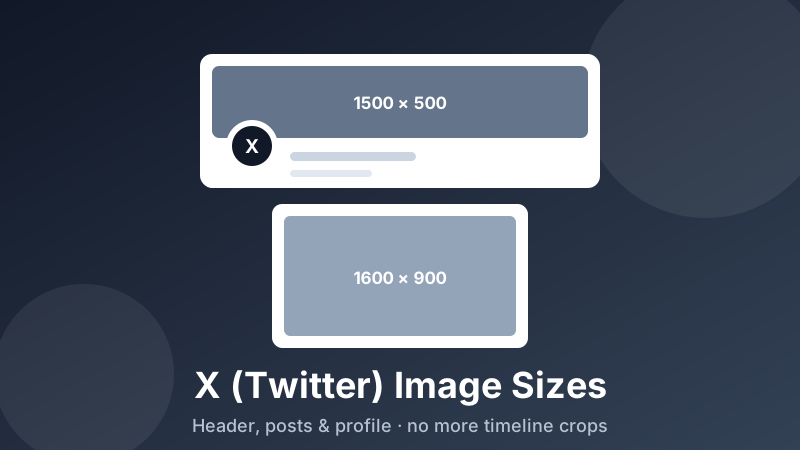
X is unusually harsh on badly sized images. Post something the wrong shape and the timeline shows a cropped preview that cuts the punchline out of your chart. Upload a header that isn't 3:1 and your profile photo lands on top of your own tagline. None of this is random — each slot on X has a fixed shape, and matching it beforehand takes about ten seconds. Here are the sizes that matter and, more usefully, why each one behaves the way it does.
Resize for X without any design software
X Post and X Header presets built in. Drop an image, pick a size, download. Free, private, nothing uploaded.
Open the Social Media Resizer →The sizes, at a glance
| Where it appears | Size (pixels) | Shape |
|---|---|---|
| Profile header / banner | 1500 × 500 | 3:1, very wide |
| Image in a post | 1600 × 900 | 16:9 |
| Profile photo | 400 × 400 or larger | 1:1, shown as a circle |
| Link preview card | 1200 × 628 | about 1.91:1 |
X adjusts its layout regularly, so anchor on the ratio rather than memorising pixel counts. A 3:1 header and a 16:9 post image keep working through redesigns; a file hand-cropped to last year's exact grid usually doesn't.
The Twitter banner (header & profile background image): 3:1, and mind the bottom-left
X calls it the profile header or background image, but most people still search for it as the Twitter banner. Either way the size is 1500 × 500 — three times wider than it is tall. That is a demanding shape. A normal photo is nowhere near that wide, so if you upload one straight from your camera roll, almost everything above and below the middle band gets cut away. Choose a picture that already has a horizontal subject (a skyline, a desk shot from above, a wide landscape) or build a graphic at 3:1 from the start.
Two things routinely eat parts of a header:
- Your profile photo. It sits as a circle overlapping the lower-left of the banner. Put text there and it will be partly hidden behind your own face. Keep the bottom-left quadrant visually calm.
- Narrow screens. On a phone the banner is squeezed and slightly trimmed vertically. Give text a generous margin from the top and bottom edges rather than running it close to the border.
Practical version of both rules: imagine a comfortable rectangle in the centre-right of the banner and keep anything you actually need people to read inside it.
Post images: why 16:9 is the safe bet
This is where most people lose detail without noticing. In the timeline, X shows a preview of your image inside a fixed frame — it isn't necessarily the whole picture. Post something very tall, like a full-page screenshot, and the preview shows a slice; readers only see the rest if they tap.
Since most people never tap, the practical rule is: whatever you want read, put it in a 16:9 frame. At 1600 × 900 the preview and the full image are effectively the same thing, and the file is large enough to stay crisp when someone does expand it.
Attaching multiple images changes the maths again. Two images share the space side by side, three or four are packed into a grid, and each slot is far narrower than a single image would be. A chart that reads perfectly on its own becomes unreadable as one of four thumbnails. If your images carry detail — numbers, small text, fine lines — post them one at a time, or combine them into a single 16:9 layout so nothing depends on the grid.
How to resize an image for X, step by step
The Toolyard Social Media Resizer has both X sizes as presets and runs entirely in your browser — nothing is uploaded, and there's no account to make.
- Open the Social Media Resizer and drag your image in, or click to browse. JPG, PNG and WebP are all accepted, and you can drop a batch at once.
- Under Target size, pick X / Twitter Post (1600×900) or X / Twitter Header (1500×500).
- Choose a Fit mode. Cover fills the frame completely and trims the overflow — the right choice for photos. Contain shrinks the whole image to fit and pads the gap with a background colour you pick — the right choice for a screenshot or chart where cropping would destroy the point.
- Set the Format: JPG for photos, PNG for screenshots and anything containing text.
- Click Download (or Download all for a batch) and attach the result to your post.
For a header, that Contain option is worth remembering. Squeezing a normal photo into 3:1 with Cover discards most of it; padding it with a matching background colour instead often looks far more intentional.
Choose the crop yourself
For a header, pick the exact strip of the photo you want to keep before you resize it — free, in your browser.
Open the Image Cropper →Keeping images sharp: format and file size
X recompresses what you upload, so your job is to hand it a file that needs as little further processing as possible.
Pick the format by content, not habit. Photographs belong in JPG — it gives a dramatically smaller file for the same apparent quality. Screenshots, charts, code snippets and anything with small text belong in PNG, because JPG compression produces fuzzy halos around sharp edges, and thin letterforms are exactly where that shows worst.
Resize down, never up. A 4000-pixel-wide photo squeezed onto a timeline preview gets compressed twice over. Resize it to 1600 × 900 first and far more of the original detail survives. Going the other way — enlarging a 600-pixel image to 1600 — can only invent pixels, and it always looks soft.
Watch the weight of PNGs. Screenshots stay sharp but can run to several megabytes, which is slow to upload on a phone. If a PNG is unwieldy, compress it gently rather than converting text-heavy images to a low-quality JPG.
Is it private and free?
Yes. The Toolyard resizer is completely free — no sign-up, no watermark, no cap on how many images you process. It's also 100% private: the resizing runs as JavaScript on your own machine, so your files are never uploaded to any server. That's genuinely useful when the image is an unpublished screenshot, a client mock-up or an internal dashboard. Once the page has loaded it keeps working offline.
One tool, every platform
X, Instagram, YouTube, Facebook, LinkedIn and Pinterest presets in one place. Free and private, in your browser.
Open the Social Media Resizer →FAQ
What size is the X (Twitter) header image?
The header banner is 1500 × 500 pixels, a 3:1 ratio. Your profile photo overlaps the lower-left corner and the banner is trimmed slightly on narrow screens, so keep important content in the middle and away from the left edge.
What size should images in an X post be?
Use 1600 × 900 pixels, a 16:9 ratio. That's the shape the timeline shows without cropping for a single image, and it's large enough to stay sharp when someone taps to expand it.
Why does X crop my images in the timeline?
The timeline shows a preview inside a fixed frame. Images much taller or wider than that frame are trimmed to fit, and attaching two, three or four images splits the space into narrower slots. Sizing to 16:9 before posting keeps the preview matching the full picture.
What size is the X profile photo?
Upload a square image of at least 400 × 400 pixels. It's displayed as a circle, so keep faces and logos centred and leave a margin around the edges that you can afford to lose.
Should I post images as JPG or PNG on X?
JPG for photographs — much smaller files at the same visual quality. PNG for screenshots, charts and graphics with text, where JPG compression smears the edges of small letters.
What is the X (Twitter) profile background image size?
The profile background image, also called the header or banner, is 1500 × 500 pixels at a 3:1 ratio. It is the same slot people search for as the Twitter banner size, header size or X header dimensions.