PDF Too Big to Email? Split It Into Parts
Published September 7, 2026
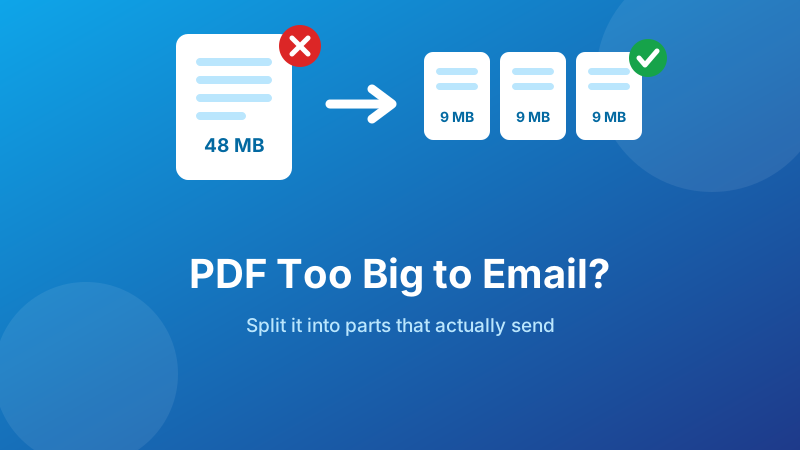
The message bounces, or the send button just refuses. A 48 MB scanned bundle is not going anywhere near an email server, and the deadline is in an hour. There are two honest ways out of this — make the file smaller, or make it into several files — and picking the wrong one wastes the time you do not have.
This guide covers what the real limits are, how to tell which fix your file needs, and the exact steps to break an oversized PDF into parts that send first time.
Split an oversized PDF into parts
Extract page ranges into separate files right in your browser. Nothing is uploaded, so even a large confidential bundle stays on your machine.
Open the free Split PDF tool →What the attachment limits actually are
Everyone quotes 25 MB, but that is only the number for one sender and it is not the number that decides whether your mail arrives.
| Service | Attachment limit | Notes |
|---|---|---|
| Gmail | 25 MB | Larger files are offered as a Google Drive link instead |
| Outlook.com | 20 MB | OneDrive link offered above that |
| Yahoo Mail | 25 MB | |
| iCloud Mail | 20 MB | Mail Drop handles larger files separately |
| Typical company server | 10–25 MB | Often lower for incoming mail than outgoing |
Two things make the effective limit smaller than the headline. First, attachments are base64-encoded for transport, which inflates them by about 33% — a 20 MB PDF weighs roughly 27 MB on the wire. Second, the receiving server has its own limit, and it is frequently stricter than yours. Your mail can leave Gmail happily and be rejected by a law firm's gateway.
The practical rule: if you do not know what the recipient's system allows, aim for under 10 MB per message. That number gets through almost everywhere.
Split or compress? Diagnose the file first
Open the PDF and look at a page. If the text can be selected with the cursor, it is a real text document. If nothing selects and zooming in makes the letters fuzzy, every page is a photograph.
- Scanned or photographed pages → compress. A phone-scanned page runs 2–5 MB by itself. Twenty of them is 60 MB of images, and no amount of splitting changes the total. Reducing image resolution is what actually shrinks it.
- Text with a lot of pages → split. A 300-page typeset report is large because it is long. Splitting is lossless and the recipient loses nothing.
- The recipient only needs one section → split. Do not send 200 pages when they asked for the appendix. This is the case where splitting is not a workaround but the correct answer.
- Both → compress first, then split. Shrink the images, then check whether the result still needs breaking up.
How to split a PDF into parts
The method is simple arithmetic: divide the total size by the limit you are aiming for, and that is how many parts you need. A 48 MB file targeting 10 MB per message needs five parts, so on a 200-page document that is roughly 40 pages each.
- Open the Split PDF tool and drop your file onto the box. The total page count appears.
- Work out your page blocks — for 200 pages in five parts: 1–40, 41–80, 81–120, 121–160, 161–200.
- Set from 1 and to 40, click Extract range, and save the result.
- Repeat for each block. The tool keeps your file loaded, so it is one range change and one click per part.
- Check the size of each part in your file manager before attaching — page counts are even, file sizes rarely are.
If any part comes out heavier than the rest, it contains the image-heavy pages. Split that one part again rather than redoing the whole document.
Name the parts so nothing gets lost
This matters more than it sounds. The recipient is getting several emails and has to reassemble a document from them, possibly weeks later. Use a name that sorts correctly and states the contents:
Smith-application-Part-1-of-5-pages-1-40.pdfSmith-application-Part-2-of-5-pages-41-80.pdf
The zero-padded or explicit “of 5” tells them immediately if one message never arrived. Including the page range means they can verify nothing was skipped without opening every file. And say in the email body how many parts are coming and what is in each — a single line saves a round of confused replies.
Break it up in under a minute
No sign-up, no watermark, no page limit — and your document never leaves your device.
Split my PDF →Before you split — the quick wins
Sometimes a file is oversized for a fixable reason, and five minutes here saves the recipient five emails:
- Compress the images. If the pages are scans, dropping them to a sensible resolution often cuts the file by 70–90% with no visible difference on screen. Photos exported straight from a phone can also be compressed before they go into a PDF.
- Remove pages nobody needs. Blank separator sheets from a scanner, duplicate cover pages, the “this page intentionally left blank” filler — deleting them is free size.
- Re-scan at a lower setting. Most scanner apps default to a resolution meant for archival printing. 200–300 dpi is plenty for a document that will be read on a screen.
- Check for an original. A PDF exported from Word is a fraction of the size of the same document printed and scanned. If the original file still exists, use it.
Splitting versus sending a link
Cloud services offer to replace a big attachment with a download link, and mail clients push this hard. It is convenient, but it is not always the right call:
- Links expire, sometimes after 30 days. Split attachments sit in the recipient's mailbox as long as the mailbox does.
- Links can be blocked. Strict corporate filters strip external file-sharing URLs, and some government and legal portals refuse them outright.
- Links may require sign-in, which is a barrier if the recipient does not have an account with that service.
- Links put the document on a third party's servers. For a contract, medical record or ID scan, that may be exactly what you were trying to avoid.
- Links are simpler for one genuinely huge file — a 400 MB print-ready bundle is not an email attachment under any arrangement.
For submissions, applications and anything with a paper trail, split attachments are the safer default. For sharing a large file with a colleague you trust, a link is fine.
Is it private and free?
Uploading a 48 MB bundle to a web splitter is slow and hands the whole document to someone else's server before you have even solved the problem. Toolyard's Split PDF tool works entirely inside your browser: the file is never uploaded, so there is no waiting on your upload speed, no size cap imposed by a server, no sign-up, no watermark and no daily limit. If it turns out compression is what you needed, the image compressor works the same way, and the PDF Merger can put the parts back together at the other end.
FAQ
What is the maximum PDF size I can email?
Gmail allows 25 MB, Outlook.com 20 MB, and many company servers cap incoming mail at 10 MB. Attachments are base64-encoded in transit, inflating them by about a third, so a 20 MB PDF is nearer 27 MB on the wire. Aim for under 10 MB when you do not know the recipient's limit.
Should I split a big PDF or compress it?
Compress when the size comes from scans or photos and the recipient needs every page. Split when the file is simply long, or when they only need one section. Splitting is lossless; compressing trades image quality for size.
How do I split a PDF into two parts?
Extract the first half as one range and the second half as another — 1 to the midpoint, then midpoint+1 to the last page. Name them “Part 1 of 2” and “Part 2 of 2” so the recipient knows what to expect.
Why is my PDF so large in the first place?
Almost always scanned images — a phone-scanned page can be 2–5 MB on its own. Embedded fonts, high-resolution logos repeated on every page and retained editing history add to it.
Is splitting into parts better than a download link?
For submissions and anything with a paper trail, yes — attachments survive archiving and strict firewalls, and links can expire or require sign-in. For one genuinely huge file shared with a colleague, a link is simpler.