How to Compress Images for Email (Without Losing Quality)
Published July 17, 2026
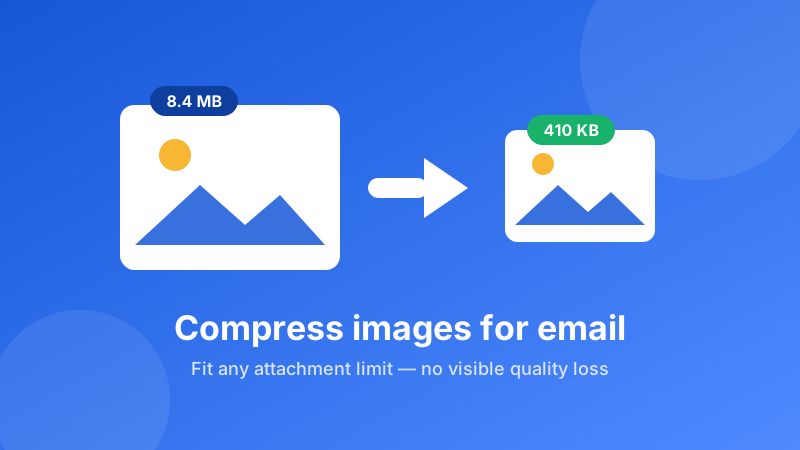
You attach a few photos, hit send, and the email bounces back — or worse, it never arrives because the other person's inbox quietly rejected it. The problem is almost always file size. The fix is compression: shrinking your images so they slide comfortably under every mail server's limit while still looking sharp. Here's exactly why photos get so big, how compression works, and how to squeeze them down in seconds — for free, and without your pictures ever leaving your computer.
Need it done right now?
Drop your photos in, drag the quality slider, and download email-ready files in seconds. Free, private, no sign-up.
Open the Image Compressor →Why email attachments get rejected
Every email service caps how large an attachment can be. Gmail lets you attach up to 25 MB, and Outlook.com allows around 20 MB. That sounds generous — until you realize the limit applies to the whole message, and email encoding actually inflates attachments by roughly a third on the way out. So a "25 MB" allowance really only fits about 18–20 MB of real files.
The bigger trap is the person receiving your email. Many company mail servers reject anything over 10 MB, and some older systems choke at 5 MB. Your message can leave your outbox perfectly fine and still bounce at the other end. That's why the safest habit isn't "stay under Gmail's limit" — it's "make each photo small in the first place."
Why your photos are so large
Modern phone and camera photos are enormous by design. A single shot from a recent smartphone can be 12, 24, or even 48 megapixels, which means tens of millions of individual color dots packed into one image. Cameras also save with light compression to preserve every detail for editing and printing. Great for a photo album — overkill for email, where the picture will usually be viewed on a screen at a fraction of that resolution.
A handful of holiday photos can easily total 30–50 MB straight off the camera. Attach five of them and you've blown past every limit above before you've written a word. Compression trims that weight down to something an inbox is happy to accept.
What compression actually does (quality vs. size)
Compressing a JPEG doesn't crop your photo or shrink what's in the frame. It re-saves the image using a smarter, lossy method that throws away tiny details your eyes can't notice — subtle shifts in color and texture in areas where you'd never spot the difference. The lower the quality setting, the more it discards, and the smaller the file.
The sweet spot for email sits around 75–85% quality. At that level the photo looks identical to the original on any screen, but the file is often 60–90% smaller. Push the slider below about 60% and you'll start to see blocky patches and fuzziness, especially in skies and skin tones. The trick is to lower quality only until the file is small enough — no further.
JPEG is your friend here
For emailing photographs, JPEG almost always gives the smallest files and opens on every device without a second thought. WebP can be even smaller and is great for the web, but a few older email programs still don't preview it. When in doubt, stick with JPEG for attachments.
What size should an email image be?
Here are practical targets that keep you clear of every limit:
- A single photo: aim for under 1 MB — ideally 200–500 KB. That looks crisp on any screen and sends instantly.
- A few photos together: keep the whole email under 10 MB so cautious mail servers still accept it.
- Lots of photos: if the total is still heavy after compressing, send them in two or three separate emails rather than one giant message.
These aren't rigid rules — they're the numbers that mean you can stop worrying about bounces and blocked inboxes.
How to compress images for email in Toolyard
- Open the Image Compressor and drag your photos onto the box — or click to browse. You can add several at once.
- Leave the format on JPEG for email, then drag the Quality slider to around 80%. The new file size updates live as you move it.
- Watch the size readout until each photo is comfortably under 1 MB. Nudge the slider lower only if you need to.
- Click Download on each image, or Download all to grab everything at once.
- Attach the downloaded files to your email and send with confidence.
The whole thing is free, needs no account, and works even after your internet drops, because the tool runs entirely inside your browser.
Your personal photos stay private
Email photos are often personal — family, kids, documents, receipts, screenshots of private messages. Most "free online compressor" sites work by uploading your files to their servers, processing them there, and sending them back. That means your private pictures briefly live on someone else's computer.
Toolyard doesn't do that. Every image is compressed on your own device using your browser's built-in tools. Your photos are never uploaded anywhere, so nothing can be stored, scanned, or leaked. There's no sign-up, no watermark, and no catch — you get the small file, and your originals stay exactly where they are.
Send that email now
Compress your photos to email-ready sizes in seconds — 100% private, right in your browser.
Open the Image Compressor →