Facebook Cover Photo Size (2026) — And the Mobile Safe Zone
Published August 24, 2026
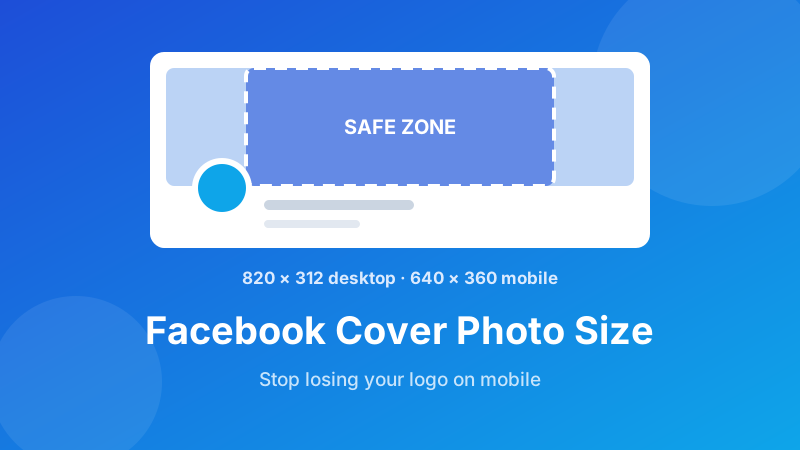
You upload a cover photo, it looks perfect on your laptop, and then you open Facebook on your phone and the left third of your logo is gone. This is the single most common Facebook design complaint, and it isn't a bug. Desktop and mobile show different crops of the same file. Once you know the shape of each crop and the strip where they overlap, the problem disappears for good.
Size your cover in about ten seconds
Drop in your image, pick the Facebook Cover preset, download a file that fits. Free, no sign-up, and nothing is uploaded.
Open the Social Media Resizer →The numbers, in one table
These are the display dimensions Facebook currently uses for personal profiles and Pages. The cover is the big banner across the top; the other sizes are the ones people usually ask about in the same breath.
| Where it appears | Size (pixels) | Shape |
|---|---|---|
| Cover photo — desktop | 820 × 312 | about 2.63:1, a wide letterbox |
| Cover photo — mobile | 640 × 360 | 16:9, noticeably less wide |
| Profile photo | upload 400 × 400 or larger | 1:1, displayed as a circle |
| Feed / shared link image | 1200 × 630 | 1.91:1 |
Facebook does adjust these from time to time, so treat the pixel counts as the current target and the shape as the durable part. A cover that is correctly proportioned survives a layout tweak; one that was hand-cropped to fit last year's pixel grid usually doesn't.
Why mobile cuts your cover — and by how much
Here is the part almost nobody explains properly. Facebook doesn't shrink your cover for phones; it takes a taller, narrower slice out of the middle and throws away the sides.
Line the two crops up. Desktop is 820 wide by 312 tall. Mobile is 640 wide by 360 tall. Mobile is 48 pixels taller but 180 pixels narrower. Since the crop is centred, that means roughly 90 pixels vanish from the left edge and 90 from the right when someone views your profile on a phone.
Ninety pixels out of 820 doesn't sound like much until you realise it's where people habitually put things: a logo in the top-left, a website address in the bottom-right, the edge of a product shot. Those are exactly the elements that disappear for the majority of your audience, because most Facebook viewing happens on a phone.
The safe zone: the middle 640 pixels
The safe zone is the overlap — the band that both crops include. On an 820-pixel-wide cover it is the central 640 pixels, leaving a 90-pixel margin on each side that only desktop users see.
The working rule is simple: design edge to edge, but put everything that matters in the middle. Your background photo, gradient or texture can run the full width, because losing its edges costs you nothing. Your logo, tagline, phone number, call to action and any faces should sit comfortably inside the central band, with a little breathing room so nothing kisses the crop line.
There's a second bite to plan for. On desktop, your circular profile photo overlaps the bottom-left corner of the cover, and on mobile it sits centred over the bottom edge. Either way, keep the lower strip of your cover visually quiet — no text in the bottom-left on desktop layouts, and nothing you'd hate to have a circle sitting on. A calm gradient or an out-of-focus area down there looks deliberate on every device.
How to resize your cover photo, step by step
You don't need Photoshop or a design subscription for this. The Toolyard Social Media Resizer has the Facebook Cover size built in and runs entirely inside your browser, so your image is never uploaded anywhere.
- Open the Social Media Resizer and drag your image onto the drop area, or click to browse. JPG, PNG and WebP all work, and you can drop several at once if you're testing options.
- In Target size, choose Facebook Cover (820×312). The preview updates immediately.
- Pick your Fit mode. Cover fills the whole banner and trims the overflow — right for photos, where losing a little sky or floor doesn't matter. Contain shrinks the entire image to fit and pads the rest with a background colour you choose — right for a logo or graphic you cannot afford to crop.
- Set the Format. JPG for photographs; PNG if your cover is a flat graphic with text, where JPG compression tends to fuzz the letter edges.
- Click Download, then upload the result to Facebook.
- Check it on your phone before you call it done. Thirty seconds now beats discovering next week that your web address is invisible to most of your visitors.
Need the shape before you resize?
Crop your photo to the right region first — choose the area that matters, then send it to the resizer.
Open the Image Cropper →Why covers come out blurry (and how to avoid it)
Blurry covers almost always come from one of two mistakes, and they pull in opposite directions.
Uploading something too small. If your file is 500 pixels wide, Facebook has to stretch it to fill an 820-pixel slot. Enlarging invents pixels that were never captured, and the result is soft and slightly mushy. You cannot fix this after the fact — always start from an original that is at least as wide as the target.
Uploading something enormous. Hand Facebook a 6000-pixel-wide photo straight from a camera and it will compress it hard on the way down, which is where you get blocky skies and haloed text. Resizing to the cover shape yourself, before uploading, leaves far less for Facebook's compressor to do — and less compression means more of your original detail survives.
If you want a little extra sharpness on high-density screens, upload at exactly double the target: 1640 × 624. It's the same 2.63:1 shape, so it drops into the same slot, but retina displays get more real pixels to work with. Keep the file under a couple of megabytes and you get the benefit without a slow upload.
Is it private and free?
Yes to both. The Toolyard resizer is completely free — no account, no watermark, no limit on how many images you run through it. And it is 100% private, because the resizing is done by JavaScript on your own device. Your photo is never uploaded to a server, which matters more than people assume: cover photos are often family pictures, staff shots or unreleased product images. Once the page has loaded, it even works with your connection off.
Get a cover that works on every device
Facebook Cover, Facebook Post, Instagram, X, LinkedIn and Pinterest presets — free and private, in your browser.
Open the Social Media Resizer →FAQ
What size should a Facebook cover photo be?
Facebook displays cover photos at 820 × 312 pixels on desktop. Upload at that shape — or a larger image with the same 2.63:1 proportions, such as 1640 × 624 — so Facebook has to scale it down rather than stretch it up.
Why is my Facebook cover photo cropped on mobile?
The phone app shows a taller, narrower slice of the same file, roughly 640 × 360 pixels. Facebook keeps the height and cuts the sides, so around 90 pixels disappear from the left and right edges on a phone. Keep logos and text in the middle of the frame.
What is the Facebook cover photo safe zone?
The safe zone is the central strip that survives on both desktop and mobile: roughly the middle 640 pixels of an 820-pixel-wide cover. Anything outside it is visible on one device but not the other, so place your key message inside that band.
Why does my Facebook cover look blurry?
Usually the file was smaller than 820 pixels wide and Facebook stretched it up, or it was a very large photo that got heavily compressed on upload. Resize to the exact cover shape first, and save as JPG at good quality — or PNG if the cover is a graphic with text.
Is the Toolyard resizer free and private?
Yes. It's completely free with no sign-up and no watermark, and the resizing happens in your own browser, so your photo is never uploaded to a server.