Instagram Profile Picture Size: 320×320, but Upload 1080
Published September 29, 2026
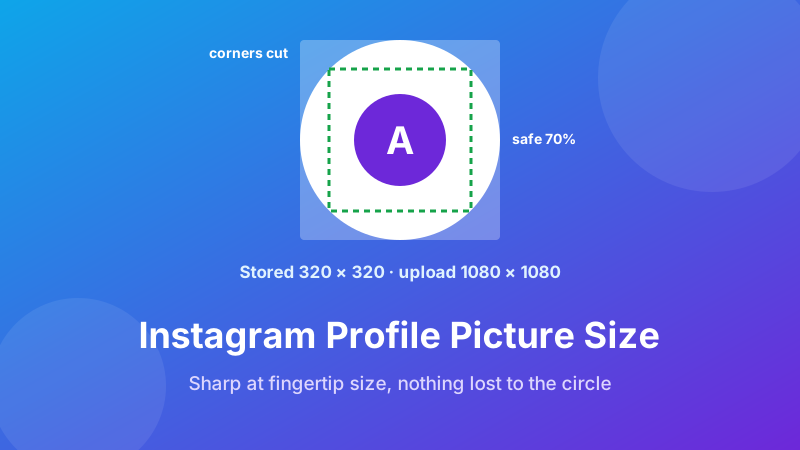
Your Instagram profile picture is the most-seen image you will ever post. It appears next to every post, every comment, every Story ring and every DM — usually at the size of a fingertip. Yet it is the image most accounts spend the least time on, and it shows: logos with their edges sliced off by the circle, headshots that look fuzzy, text nobody can read.
This guide gives the real numbers (there are three, and they are often mixed up), explains exactly how much of a square image the circle removes, and walks through preparing a profile picture that stays sharp at every size.
Make a perfect square profile picture
Resize your logo or headshot to a crisp 1080×1080 square — with padding if it is wide. Runs in your browser; nothing is uploaded.
Open the Social Media Resizer →The three numbers, explained
| Number | What it means |
|---|---|
| 110 × 110 | How big the circle appears on your profile page, in screen points |
| 320 × 320 | The resolution Instagram stores and serves your picture at |
| 1080 × 1080 | What you should upload: a square with detail to spare |
The 110 figure confuses people. It is measured in points, not pixels, and modern phones pack two or three pixels into each point. A 110-point circle on a typical iPhone is drawn with about 330 real pixels — which is why Instagram stores 320×320 and why a 150-pixel upload looks soft.
Uploading 1080×1080 costs you nothing. Instagram scales it down to 320 itself, and scaling down from a large, clean image gives a sharper result than scaling up from a small one. It is also the size you already use for square posts, so one export covers both.
How much the circle cuts off
Instagram takes your square and masks it to a circle. A circle fills only 78.5% of the square around it (π/4, if you like the maths), so the four corners — 21.5% of your image — are thrown away.
The useful consequence is the 70% rule. The largest square that fits inside a circle is about 70.7% of the circle's width. So if your logo sits entirely inside the central 70% of the square, no part of it can ever touch the mask. On a 1080×1080 canvas, that is a centred box of roughly 760×760 pixels.
Round logos and faces can go bigger, because they are circle-shaped already. Wide wordmarks and square logos are the ones that need the 70% box — their corners are exactly what the circle removes.
Logos: what works at fingertip size
Next to a comment, your profile picture is drawn at about 32 points across. At that size:
- Use the icon, not the full wordmark. A long company name becomes a grey line. If your brand has a symbol or monogram, use that.
- Choose one strong background colour. A solid fill makes the circle read as a distinct badge in a crowded feed.
- Avoid thin lines and small text. Anything under about 5% of the image width disappears.
- Flatten transparency. Transparent PNG areas may turn black or white after upload; pick the colour yourself.
Test it honestly: shrink your design to the size of a fingernail on screen. If you can still tell what it is, it works.
Headshots: framing for a circle
For a personal account, a head-and-shoulders crop works best. Put the eyes about a third of the way down the frame, leave a little space above the head so the circle does not clip your hair, and let the shoulders run off the bottom edge. A plain, contrasting background helps your face stand out at small sizes much more than a busy scene does.
Face the light. At 110 points, the difference between a well-lit face and a dim one is the difference between recognisable and not.
How to prepare your profile picture
- If your photo is not square, first crop it around the subject with the Image Cropper so the face or logo sits in the centre.
- Open the Social Media Resizer, drop in the image and choose Instagram Post (1080×1080).
- For a wide logo, pick Contain and a solid background colour, so the whole logo fits with padding around it. For a photo, Cover fills the square by trimming evenly from the centre.
- Download and preview it as a circle with the Circle Crop tool to check nothing important touches the edge, then upload the square version to Instagram.
Upload the square, not a pre-cut circle. Instagram applies its own mask, and a pre-cut circle on a transparent background can end up with a visible ring or dark corners.
Changing it without losing followers' recognition
Your profile picture is how people spot you in a list of Stories. Change it too often and regulars stop recognising you at a glance. When you do update, keep the same dominant colour or framing so the new version still feels familiar, and avoid swapping it in the middle of a campaign.
Quick answers
Upload size? 1080×1080 square. Minimum? 320×320. Safe area for a logo? The central 70%, about 760×760 on a 1080 canvas. File type? High-quality JPEG for photos, PNG flattened onto a solid colour for logos. For posts and Stories, see Instagram post size and Instagram Story & Reels size.
A sharp square in seconds
Resize or pad your logo or headshot to a clean 1080×1080 — free, private and without a watermark.
Open the Social Media Resizer →