How to Share a Password Safely
Published September 27, 2026
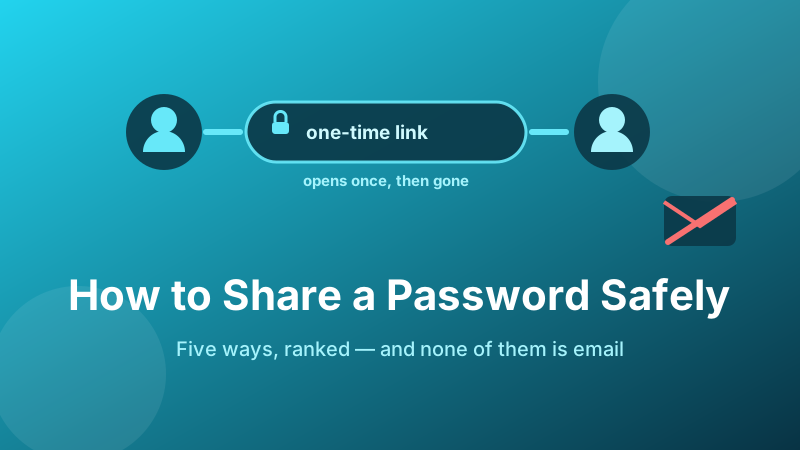
Sooner or later you have to give someone a password. A colleague needs the analytics login, a family member needs the streaming account, a contractor needs access to the CMS for two weeks. So you type it into a chat window, because what else are you going to do.
The problem with that is not that someone is intercepting your messages. It is that the password is now permanent — sitting in two chat histories, two cloud backups, and every device signed into either account, waiting for the day one of those is compromised. Below are five better options, ranked, plus the cleanup step almost everyone skips.
Generate a fresh password to share
Never share a password you also use. Generate a new, random one for the account you are handing over — created in your browser, never uploaded.
Open the Password Generator →Why email and chat are the wrong channel
Worth being precise about the risk, because the usual explanation is slightly wrong. Email between major providers is generally encrypted in transit, so nobody is plucking it off the wire. The danger is persistence:
- The message lives in your sent folder forever, and in the recipient's inbox forever.
- It is included in backups and in every cloud sync, including services you have forgotten you connected.
- It is searchable. Anyone who later gains access to either mailbox types "password" and receives a tidy list.
- It is copied to every device that mailbox is signed into, including old phones in a drawer.
- Recipients forward messages. The password can travel onward with no notification to you.
Chat is the same shape of problem with a slightly better wire. Work chat is worse in one respect: on a business plan the messages are typically retained and exportable by administrators, and they show up in legal discovery.
Option 1: don't share the password at all
The best option and the one most often overlooked. Nearly every service built in the last decade supports multiple users on one account. Google Workspace, Slack, Shopify, Xero, WordPress, Netflix profiles, Microsoft 365, AWS, GitHub — all let you invite a person with their own login.
That completely removes the problem. Nothing secret is transmitted, so nothing can leak in transit or linger in an inbox. And crucially you gain two things sharing can never give you:
- Revocation. When the contractor finishes, you remove their access. You do not have to change a password and redistribute it to five other people.
- An audit trail. Actions are attributed to a person, so "who deleted that" has an answer.
Before reaching for any sharing method, spend thirty seconds checking the settings for "Users", "Team", "Members" or "Invite". The answer is yes more often than people expect.
Option 2: a password manager's sharing feature
When a genuine shared credential exists — a router admin login, a domain registrar, a bank portal with no multi-user support — this is the correct tool. 1Password, Bitwarden, Dashlane, Keeper and Apple's Passwords all support shared vaults or per-item sharing.
What makes this better than a message is that the password is never transmitted in readable form and is never pasted into a channel that keeps history. It also stays live: when you rotate the password, everyone with access gets the new one automatically, which is what makes rotation practical at all. And you can withdraw access to the item without touching the password.
The usual objection is that the other person has to use the same manager. For one-off external sharing, most managers now also generate a link that works without an account — which is essentially option 3, built in.
Option 3: a one-time, self-destructing link
The best method for a stranger, a client or anyone outside your setup. Services like 1Password's item sharing, Bitwarden Send, PrivateBin or Yopass store the secret encrypted and give you a link that works once and then destroys itself, with an expiry time as a backstop.
This solves the persistence problem directly. Once the recipient has opened the link, the copy is gone; if the link later leaks from someone's inbox, it is a dead URL. Used properly:
- Create the secret with a short expiry — an hour or a day, not a week.
- Set it to be readable once, and add a passphrase if the service offers one.
- Send the link by email or chat, and the passphrase by a different channel such as a phone call.
- Tell the recipient to open it once, save the password into their own manager, and not to forward the link.
- If the link expires unused, generate a new secret. Do not extend the old one.
One caveat, since the whole point of this article is being precise about trust: these services hold the encrypted secret on their server, so you are trusting their implementation. Prefer ones that encrypt in the browser before upload, which several of the above do.
Option 4: an encrypted message you actually delete
Pragmatic and often good enough for a family member. Signal, WhatsApp and iMessage are end to end encrypted, so the provider cannot read the content. To make it reasonable:
- Turn on disappearing messages for the conversation first, with a short timer.
- Send the password on its own, with no username and no site name in the same message. A bare random string found later is not a usable credential.
- Once the recipient confirms it works, delete for everyone — not just for yourself.
- Ask them to delete their copy too, and to save it in a manager rather than a notes app.
If you must use email, split it: username by email, password by SMS. An attacker then needs two separate systems to assemble one login. It is a meaningful improvement over one message containing everything, and it costs you nothing.
Option 5: say it out loud
Underrated. A phone call or a face-to-face handover leaves no searchable copy anywhere, which is more than any digital channel can claim. A generated password like gT7#kQ2vLp9$xRm4 is admittedly painful to read out, so for spoken handover it is worth generating a passphrase-style password — several random words — which is easy to say and still strong if the words were chosen randomly.
What not to do is the paper note. It is fine for the ninety seconds it takes to type the password in, and a liability every hour after that. If you write it down, watch it get typed, then destroy it.
Sharing a Wi-Fi password
A special case with a genuinely elegant answer: a QR code. Guests point a camera and join, with nobody reading out a 20-character key. It works well printed and stuck on a wall in an office or a cafe, and the QR Code Generator will build one from your network settings. Remember that anyone who photographs the code keeps access indefinitely, so use a guest network rather than your main one. On iPhone and Android you can also share a saved network directly to a nearby device with no code at all.
The step everyone skips: clean up afterwards
Sharing is not finished when the other person is in. Two things need to happen:
- Delete the message on both sides once access is confirmed, including from your sent folder. Clear your clipboard by copying something harmless over the top.
- Rotate the password when the sharing ends. When the contractor's work is done or the arrangement changes, generate a new password. A shared password is only shared until someone leaves; after that it is an unrevoked key held by someone who no longer needs it.
This is also why every shared password should be unique to that account. If the password you hand over is one you use elsewhere, you have not shared access to one account — you have shared access to all of them, and you cannot take it back without changing them all.
Is generating a password here private?
Yes. The Toolyard generator creates the password inside your own browser using its cryptographic random source, and it is never uploaded to any server — no account, no logging, nothing stored. Generate a fresh, unique password for the account you are handing over, share it by one of the methods above, and rotate it when the arrangement ends.
Make a unique password for the account you're sharing
One click, fully random, never reused anywhere else. Free, private and no sign-up.
Open the Password Generator →