How to Make a QR Code for a Business Card
Published September 14, 2026
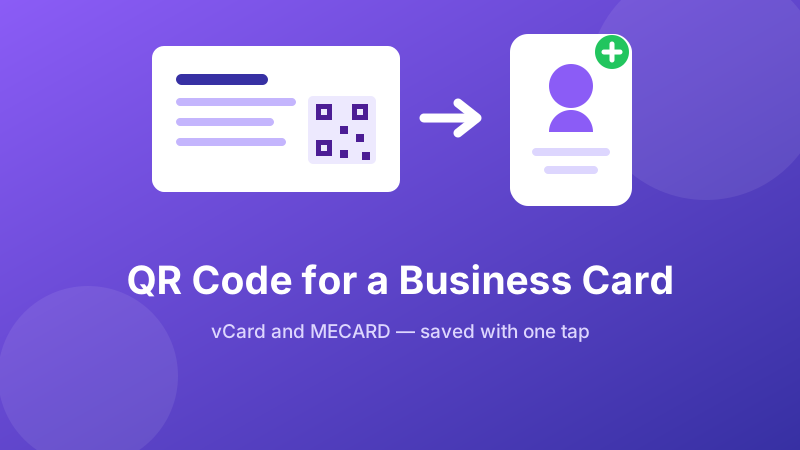
A business card has one job: to still be useful next Tuesday. Most fail, because getting the details off the card and into a phone means typing them, and nobody types them. A contact QR code fixes exactly that step — the other person scans the card, taps Add contact, and you are in their phone before the conversation ends.
The code does not need an app, a subscription, or a “digital business card” service. It is a normal QR code containing your details in one of two standard text formats. This guide shows you both, tells you which to pick, and covers the practical part everyone gets wrong: how much to put in and how big to print it.
Make your contact QR code
Paste your contact string into the generator and download a print-ready PNG. Free, no sign-up, and your details are never uploaded to a server.
Open the free QR Code Generator →Two formats: MECARD and vCard
Both make a phone offer to save a new contact. They differ in how much they carry and how dense the resulting pattern is.
MECARD — short, dense-free, reliable
One line, minimal punctuation, and it produces a small clean code that scans beautifully at business-card size. Use it when you want name, phone, email and website and nothing more:
MECARD:N:Kim,Sungchul;TEL:+821012345678;EMAIL:[email protected];URL:https://isearch.co.kr;;
Notes on the fields:
N:takes surname first, then a comma, then the given name —N:Kim,Sungchulsaves as Sungchul Kim. Getting this backwards is the most common mistake.TEL:should be in international form with the country code (+82,+1,+44) so the number works when the person travels or calls from abroad. Leave out spaces, dashes and brackets.- Everything ends with two semicolons. One closes the last field, one closes the record.
- Optional extras:
ORG:for company andNOTE:for a short line of text.
vCard — the full standard
vCard is what Outlook, Apple Contacts and Google Contacts use natively, and it carries job title, company, address, and separate work and mobile numbers. It is written over several lines:
BEGIN:VCARD

        VERSION:3.0

        N:Kim;Sungchul;;;

        FN:Sungchul Kim

        ORG:iSearch Marketing

        TITLE:CEO

        TEL;TYPE=CELL:+821012345678

        EMAIL:[email protected]

        URL:https://isearch.co.kr

        END:VCARD
Key points:
- Use VERSION:3.0. It is the version with the broadest support across phones and desktop address books. 4.0 exists but gains you nothing here.
N:is structured as surname;given;middle;prefix;suffix with semicolons, and trailing semicolons for the empty parts.FN:is the plain display name and should be the way you would write it on the card.- Every line ends with a real line break. If you paste it into a single-line box, the line breaks disappear and the card will not parse — use a text area that accepts multiple lines.
TEL;TYPE=CELLmarks it as a mobile;TYPE=WORKmarks a desk line. You can have both on separate lines.
Which should you use?
If your details fit in name, phone, email, company and website — MECARD. The code is noticeably less dense, which matters enormously when it is printed 2 cm across and scanned in bad light. If you need job title, an office address or multiple numbers, use vCard 3.0 and print the code slightly larger.
Keep it short — this is the part that decides whether it works
A QR code grows in steps. Every time your text crosses a threshold, the pattern gains another ring of rows and columns, and the individual squares get smaller at the same printed size. Smaller squares mean the camera needs to be closer, steadier and better lit.
A code holding 60 characters is a coarse, friendly grid that scans from across a table. The same physical square holding 400 characters is a fine mesh that fails half the time on a three-year-old phone in a dim restaurant.
So be ruthless about what goes in:
- Include: name, one phone number, one email, company, website.
- Leave out: postal address (nobody posts anything), fax, a second email, social handles, and any
NOTE:text. - Shorten the URL if yours is long.
URL:https://isearch.co.kris fine; a 90-character tracking link is not. - Drop
https://only if you must — it saves eight characters but some scanners then treat it as plain text rather than a link.
Aim for under 300 characters. Under 150 is better.
Making the code, step by step
- Write your MECARD or vCard text in a plain text editor. Not in Word or Google Docs — they convert straight quotes to curly ones and can insert non-breaking spaces, both of which break parsing invisibly.
- Open the QR Code Generator and paste the whole block, including
BEGIN:VCARDandEND:VCARDif you are using vCard. - Set Error correction to M for a business card. Higher levels add redundancy but also add density, and a card in a wallet needs readability more than damage tolerance. Choose Q or H only if you are placing a small logo over the centre.
- Choose Large so the downloaded PNG has plenty of pixels. You will scale it down for print; scaling a small image up produces blurred edges that scanners hate.
- Download the PNG and scan it from the screen with your own phone. Check that the name appears the right way round and that the phone number is complete.
- Place it in your card design, then print one proof card and scan the paper before ordering five hundred. Paper, ink spread and the printer's resolution all change the result.
Ready to make yours?
Paste your contact string, pick a size, download a watermark-free PNG. Nothing is uploaded and there is no account to create.
Make my contact QR code →Putting it on the card
Design decisions that determine whether the code actually gets scanned:
- Size: at least 2 cm (0.8 inch) square. On a standard 85 × 55 mm card that is roughly a fifth of the width — larger than most designers want it, and worth arguing for.
- Quiet zone: leave empty space around all four sides, about four modules' worth (a “module” is one of the small squares). Text or a border pressed up against the code is the single most common cause of failed scans.
- Contrast and polarity: dark code on a light background. Inverting it — white code on black — fails on many scanners, and a pale grey code on cream fails on all of them.
- Finish: matte or uncoated stock. High-gloss and spot-UV finishes throw camera glare straight back and can make a perfectly good code unreadable under a ceiling light.
- Back, not front: put the code on the reverse with a two-word label such as Scan to save my contact. People do not scan an unlabelled square.
- Keep the printed details too. The code is a shortcut, not a replacement — your name, number and email should still be readable by a human.
Embed the details, or link to a page?
There are two philosophies, and the trade-off is real:
- Embedded contact details (what this guide describes) work forever, with no website, no service and no subscription. The card in someone's drawer still works in five years. The catch: once printed, the details are fixed. Change your number and you reprint.
- A link to a contact page means you can update the details later without reprinting, and the code stays small because it only holds a URL. The catch: it depends on that page existing. If the site moves, the domain lapses, or the “digital card” company you used shuts down or starts charging, every card you handed out goes dead.
For a printed card with a life of a year or two, embedded details are the more reliable default. If you do link, link to your own domain, never to a third-party redirect you do not control — this is the same reasoning behind static versus dynamic QR codes.
Is it private and free?
Your contact details are personal data, and plenty of QR sites send whatever you type to their servers — some keep it. Toolyard's QR Code Generator builds the code entirely inside your browser, so your name, number and email are never uploaded. It is free, needs no account, adds no watermark, and the codes are static, so they keep working with no subscription and nothing to renew. Commercial use on printed cards is fine.
FAQ
vCard or MECARD — which should I use?
MECARD if name, phone, email, company and website is enough; it makes a much simpler code that scans reliably at card size. vCard 3.0 if you need job title, address or multiple numbers — print that one a little larger.
How much can I put in the code?
Technically thousands of characters, practically stay under about 300. Every extra character makes the pattern finer, and a dense code printed at 2 cm defeats average phone cameras in poor light.
How big should the code be on the card?
At least 2 cm (0.8 inch) square, with clear empty space on all four sides. Dark code on a light background, on matte stock — gloss finishes cause glare that blocks scans.
Should the code hold my details or link to a page?
Embedded details work forever with nothing to maintain but are fixed once printed. A link can be updated later but dies if the page or service goes away. For printed cards, embedded is usually safer.
Does the person need an app to scan it?
No — the built-in camera on current iPhones and Android phones offers to create the contact. Older phones may just show the text, which is another reason to keep your details printed on the card as well.