How to Convert JSON to CSV for Excel
Published August 6, 2026
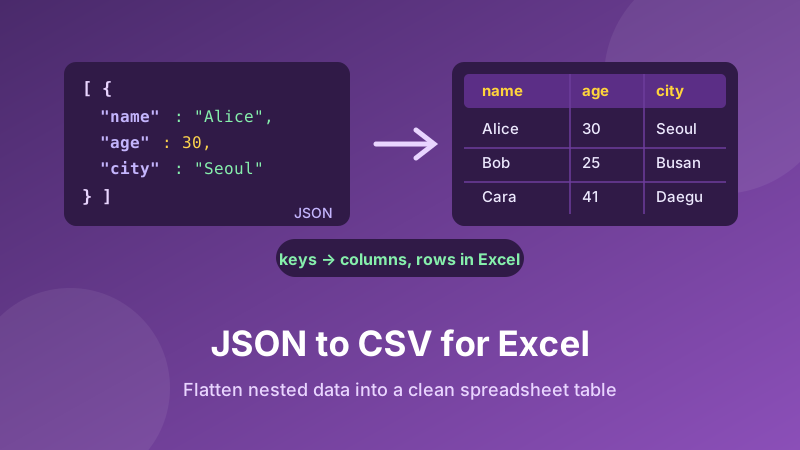
An API hands you a JSON file. Your boss wants it in a spreadsheet by lunchtime. Between those two facts sits a conversion that people routinely do by hand — copying values into columns, one row at a time — when it takes about ten seconds to do properly. This guide explains exactly what happens when JSON becomes CSV, how nested data gets flattened into columns, and the two settings that decide whether Excel opens your file cleanly or turns it into a wall of question marks.
Convert JSON to CSV now
Paste your JSON array and get a clean, Excel-ready CSV table you can copy or download. Runs in your browser — no sign-up, no watermark.
Open the JSON to CSV Converter →JSON and CSV are two different shapes
JSON ("JavaScript Object Notation") is how programs talk to each other. It stores data as named key–value pairs, understands numbers and true/false as real types, and can nest a list inside an object inside another list, as deep as you like. It's a tree.
CSV ("Comma-Separated Values") is how spreadsheets think. One line per row, columns split by commas, everything flat. It's a grid.
So converting JSON to CSV is fundamentally an act of flattening — squashing a tree into a grid. For most real-world data this works beautifully, because most real-world data is a list of similar things: orders, users, products, survey responses. The interesting part is what happens to the bits that don't fit, and we'll get to those.
What the conversion actually does
The rule is easy to see with a small example. Take this JSON:
[
  { "name": "Alice", "age": 30, "city": "Seoul" },
  { "name": "Bob",   "age": 25, "city": "Busan" }
]
Every key becomes a column heading, and every object becomes one row. The result is:
name,age,city
Alice,30,Seoul
Bob,25,Busan
That's the whole idea, reversed from what happens when you convert CSV to JSON. Once the data is shaped like this, Excel, Numbers and Google Sheets can all open it directly, and you can sort, filter, pivot and chart it like any other spreadsheet.
Nested objects: how flattening works
Real API responses are rarely that tidy. More often you get something like this:
[
  { "name": "Alice",
    "address": { "city": "Seoul", "zip": "04524" } }
]
A spreadsheet has no way to put an object inside a cell. The standard solution is dotted column names: the nested path becomes the heading.
name,address.city,address.zip
Alice,Seoul,04524
This is what the Flatten nested objects option does, and it's on by default because it's almost always what you want — you get real, sortable columns instead of a cell full of braces. Turn it off and the nested object is written into a single cell as raw JSON text, which is occasionally useful if you plan to feed the file back into a program later.
Two related cases are worth knowing:
- Objects with different keys. If row 1 has a
phonefield and row 2 doesn't, the converter still needs one consistent set of columns. It collects every key it finds across all objects, and leaves the cell empty where a row has no value. - Arrays inside a row. A field like
"tags": ["red","sale"]can't become columns without inventing a row per tag. It's written into the single cell instead, so the information survives even though it isn't split out.
How to convert JSON to CSV in Toolyard
The Toolyard JSON to CSV Converter is free, needs no account, and does everything inside your browser — your data is never uploaded. Here's the full process:
- Open the JSON to CSV Converter and paste your JSON, or drop in a
.jsonfile. It should be an array of objects — that's the shape a table needs. - Leave Include header row ticked so your column names land in row 1. Untick it only if you're appending to a sheet that already has headings.
- Keep Flatten nested objects ticked to get
address.city-style columns. Untick it to keep nested data as raw JSON in one cell. - Choose your Delimiter. Comma is standard CSV. Pick Semicolon if your Excel is set up for a decimal comma (common across Europe), or Tab if you'd rather paste straight into a sheet.
- Make sure Excel-friendly UTF-8 output is on — this is the setting that stops Excel mangling accents and non-Latin characters. More on why below.
- Click Convert. Check the preview table, then Copy the text or hit Download .csv to save the file and open it in Excel.
Because it all runs on your device, even a large export converts instantly, and the page keeps working offline once it's loaded.
The Excel quirks nobody warns you about
A CSV is a plain text file, which sounds simple until Excel gets involved. Three things go wrong regularly, and all three are avoidable.
Garbled accents and non-Latin text
You open the CSV and José reads as José, or Korean and Japanese text becomes rows of question marks. This is the single most common complaint, and it isn't your data's fault. Excel on Windows tries to guess the file's character encoding and often guesses a legacy regional one instead of UTF-8. The fix is a byte order mark — three invisible bytes at the very start of the file that tell Excel plainly, "this is UTF-8." That's exactly what the Excel-friendly UTF-8 option adds. Leave it on and your accents, umlauts and Hangul survive the trip.
Everything crammed into column A
You double-click the file and every row appears in one cell. This means Excel's expected list separator doesn't match your delimiter — typical on a European Windows install, where Excel wants semicolons. Either re-convert using the Semicolon delimiter, or import the file via Data → From Text/CSV, where you can state the delimiter and encoding yourself.
Excel "helpfully" rewriting your values
This one bites hardest. Excel auto-detects cell types on import and will happily destroy perfectly good data:
- Leading zeros vanish. A zip code like
04524or a product code like007becomes4524and7. - Long numbers turn into scientific notation. A 16-digit ID shows up as
1.23457E+15— and the last digits are genuinely gone, not just hidden. - Text becomes dates. The classic case is a value like
3-10silently becoming March 10th.
The CSV on disk is correct in every one of these cases; Excel is misreading it. To protect the values, import with Data → From Text/CSV instead of double-clicking, and in the import preview set the affected columns to Text before loading.
Need to go the other way?
Turn a spreadsheet export back into clean, formatted JSON — headers become keys, rows become objects. Free and private, right in your browser.
Open the CSV to JSON Converter →When you'll actually use this
This conversion turns up far more often than its nerdy reputation suggests:
- Reporting on an API export. Pull orders, ad spend or analytics as JSON, convert, and build the pivot table your client actually asked for.
- Handing data to a non-developer. Nobody outside engineering wants a .json file. A spreadsheet is a universally readable deliverable.
- Data exports and account downloads. "Download your data" buttons overwhelmingly produce JSON — CSV is what makes it browsable.
- Bulk uploads. Plenty of platforms accept CSV imports for products or contacts but won't take JSON.
- Eyeballing a mess. Sometimes you just want to see 500 records as rows and columns to spot what's missing.
If your JSON won't parse at all, fix that first — a JSON formatter will point at the missing comma or bracket, and our guide on formatting and validating JSON walks through the common syntax errors.
Is it private and free?
Yes to both. The Toolyard converter is 100% private because it parses your JSON and builds the CSV entirely inside your browser with JavaScript — your data is never uploaded to any server. That matters when the file holds customer names, emails or order details. It's completely free with no sign-up and no watermark, and once the page has loaded you can convert offline.
FAQ
What does converting JSON to CSV do?
It turns a JSON array of objects into a spreadsheet table. Every key becomes a column heading and every object becomes one row, so the data opens directly in Excel, Numbers or Google Sheets.
What happens to nested objects in JSON?
A spreadsheet has no concept of nesting, so nested objects are flattened into dotted column names — a field like address.city becomes its own column. Toolyard's converter does this automatically, and you can switch it off if you prefer.
Why does Excel show strange characters in my CSV?
Excel on Windows guesses the character encoding and often guesses wrong, turning accents and non-Latin text into garbage. The fix is a UTF-8 byte order mark at the start of the file, which tells Excel exactly how to read it. Toolyard adds this when the "Excel-friendly UTF-8" option is on.
My JSON isn't an array — can I still convert it?
A CSV needs a list of rows, so the JSON should be an array of objects. If your data sits under a wrapper key such as results or data, point the converter at that array. A single object simply becomes a one-row table.
Should I use a comma or a semicolon?
Use a comma for the standard CSV that most tools expect. If you're in a region where Excel is configured for a decimal comma, such as much of Europe, choose the semicolon delimiter so columns split correctly on double-click.
Is converting JSON to CSV online safe?
With Toolyard, yes. The conversion runs entirely inside your browser, so your data is never uploaded to a server and nothing leaves your device.