How to Format and Validate JSON (Free Online Formatter)
Published July 19, 2026
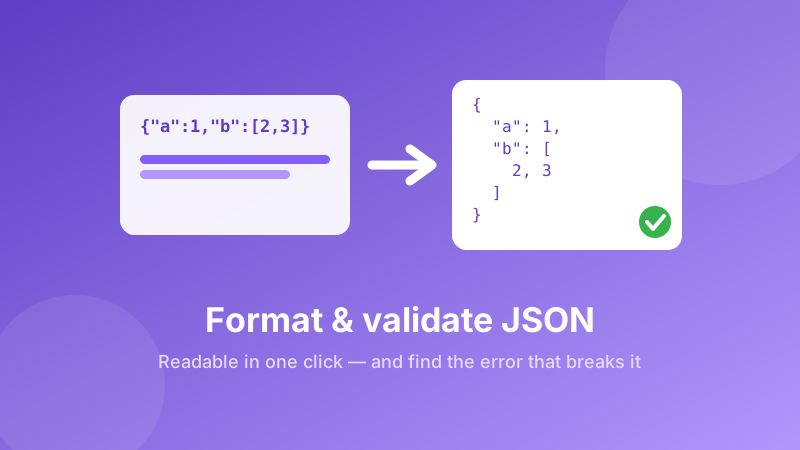
You copy a response out of an API, a log file, or a config field, and what lands in your editor is one endless line of braces and quotes with no line breaks anywhere. Somewhere in there is the value you actually need — or the single missing comma that is making everything fail. Reading it by eye is miserable, and counting brackets by hand is worse.
Formatting JSON fixes that in one click: the same data, re-printed with indentation and line breaks so the structure is obvious. Validating it tells you whether the text is legal JSON at all, and if not, exactly where it breaks. This guide covers both, plus the handful of syntax rules that cause almost every JSON error you will ever see.
Format your JSON now
Paste it in, hit Format, and get clean indented output — or a clear error message pointing at the problem. Runs entirely in your browser; nothing is uploaded.
Open the JSON Formatter →What JSON is, in one minute
JSON (JavaScript Object Notation) is a plain-text way of writing structured data. Almost every web API speaks it, most config files use it, and it is the default format for moving data between programs. It has only a few building blocks:
Objects are wrapped in curly braces and hold "key": value pairs separated by commas: {"name": "Ada", "age": 36}. Arrays are wrapped in square brackets and hold an ordered list: [1, 2, 3]. Values can be a string in double quotes, a number, true, false, null, or another object or array — which is how JSON nests to any depth.
That nesting is exactly why formatting matters. A three-level-deep structure is perfectly clear when indented and completely unreadable on one line.
Formatting vs. minifying — what's the difference?
Formatting (also called beautifying or pretty-printing) adds line breaks and indentation so a human can read it. Minifying strips every optional space and newline so the file is as small as possible for a machine to transmit.
The important part: both produce identical data. Whitespace between JSON tokens carries no meaning, so formatting and minifying are perfectly reversible. Format when you are reading or debugging; minify when you are shipping the file over a network or pasting it into a field with a length limit. Minifying a typical API payload often cuts 20–30% of its size.
How to format JSON in your browser
- Open the JSON Formatter. No sign-up, nothing to install.
- Paste your JSON into the input box — a single minified line is fine, and so is already-indented text you want re-indented consistently.
- Pick your indent: 2 spaces (the most common convention, and what most style guides expect), 4 spaces, or tabs.
- Click Format. Valid JSON comes back cleanly indented. Invalid JSON produces an error message telling you what the parser found and roughly where.
- Use Copy result to take the output straight to your editor, or click Minify to collapse it back to one compact line.
Validating JSON: the errors you'll actually hit
JSON is famously strict. Almost every error comes down to one of these:
A trailing comma
The number one cause. {"a": 1, "b": 2,} is invalid — that last comma before the closing brace is not allowed, even though JavaScript itself tolerates it. Same for arrays: [1, 2, 3,] fails.
Single quotes instead of double
{'name': 'Ada'} looks fine and is completely invalid JSON. The spec allows double quotes only, for both keys and string values. This bites constantly when copying object literals out of JavaScript or Python code.
Unquoted keys
{name: "Ada"} is valid JavaScript but not valid JSON. Every key must be a quoted string.
Comments
JSON has no comments. A // note or /* block */ anywhere in the file will fail to parse, no matter how helpful it is. If you need annotated config, that is what formats like JSONC or YAML are for.
Unescaped characters inside strings
A literal double quote, backslash, tab or newline inside a string must be escaped: \", \\, \t, \n. Pasting a Windows file path such as C:\Users\me straight into a JSON string is a classic failure — it needs C:\\Users\\me.
Mismatched brackets
One missing } or an extra ]. This is the one that is genuinely hard to spot by eye and trivial once the document is indented — the wrong nesting level jumps out immediately.
Not-quite-JSON values
NaN, Infinity, undefined and single-quoted 'null' are not JSON values. Numbers also cannot have leading zeros or a trailing decimal point: 01 and 1. both fail.
A quick trick for finding the broken bracket
If the error message points somewhere unhelpful, format the document anyway if it will let you, then scan the indentation. Correctly nested JSON forms a neat staircase; a missing or extra bracket makes an entire block jump to the wrong depth, and the spot where the staircase breaks is your bug. If the parser refuses outright, cut the document in half and format each half separately — you will narrow the error down in a couple of rounds.
Where JSON formatting comes in handy
Debugging API responses. Pasting a raw response into a formatter is usually faster than setting up any tooling, and it immediately answers "is this even valid, and what shape is it?"
Reading log lines. Structured logs are one JSON object per line — unreadable until formatted, obvious afterwards.
Fixing config files. package.json, tsconfig.json, VS Code settings, GitHub Actions inputs. When an app says "invalid configuration" with no detail, a validator finds the character it hated.
Cleaning up a file before committing. Consistent 2-space indentation makes diffs readable and keeps your teammates from reformatting the whole file in the next commit.
Preparing data for something else. Once the JSON is valid, converting it is easy — the JSON to CSV converter turns an array of objects into a spreadsheet, and CSV to JSON goes the other way.
Is it private?
This matters more than people expect, because JSON payloads routinely contain API keys, tokens, customer records and internal identifiers. Many online formatters send whatever you paste to a server to process it. Toolyard's formatter does not. Parsing and re-printing happen entirely inside your browser using its built-in JSON engine, on your own machine — nothing is uploaded, logged or stored, and once the page has loaded it works with the network switched off. That makes it safe to use on data you would never paste into a random website.
Readable JSON in one click
Format, validate, minify and copy — with 2-space, 4-space or tab indentation. Free, private, no sign-up.
Open the JSON Formatter →