Base64 Images Are 33% Bigger: Should You Inline Them?
Published October 5, 2026
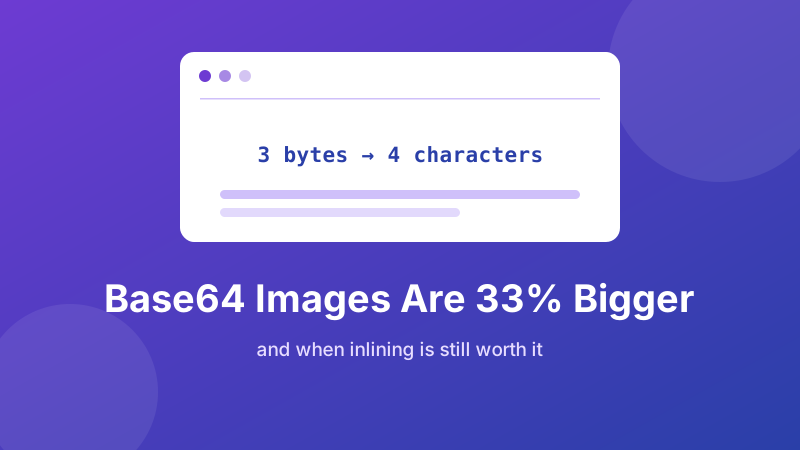
Embedding an image as Base64 feels like a free performance win: one fewer file to fetch, one fewer request to wait for. But the trade is not free. Base64 makes every image about one third bigger, it stops the browser from caching the image on its own, and it makes your HTML or CSS slower to read. Whether it is worth it depends almost entirely on one number — the size of the image.
This guide explains where the 33% comes from, how much compression gives back, and gives you a simple rule you can apply in five seconds.
Where the 33% comes from
Computers store files as bytes, and a byte can hold 256 different values. Text that is safe to paste into an HTML file can only use a smaller alphabet — Base64 uses 64 characters: A–Z, a–z, 0–9, plus + and /. Each character can therefore represent only 6 bits of information, not 8.
To carry the same data, Base64 takes 3 bytes (24 bits) and writes them as 4 characters (4 × 6 bits). Four out for every three in is a 4:3 ratio — 33.3% bigger. A little padding (=) at the end rounds the length up to a multiple of four. Here is what that looks like with real numbers:
| Original file | As Base64 text | Extra bytes |
|---|---|---|
| 1 KB icon | ~1.37 KB | +0.37 KB |
| 10 KB logo | ~13.4 KB | +3.4 KB |
| 100 KB photo | ~133 KB | +33 KB |
| 1 MB photo | ~1.33 MB | +0.33 MB |
Notice the overhead is a fixed percentage. The bigger the image, the more absolute waste you add — which is why Base64 is for small things.
What compression gives back
Web servers usually compress text with gzip or Brotli, and Base64 is very compressible because it uses only 64 distinct characters. In practice, the 33% penalty often shrinks to roughly 5–15% over the wire for images that were already compressed (JPEG, PNG, WebP). It does not fully vanish, because the original image data is already close to random and cannot be squeezed further.
Two caveats. First, the result varies from image to image, so measure it if it matters. Second, compression only helps the download; once the file arrives, the browser still has to hold the full-size string in memory and decode it back to bytes before it can draw the picture.
The hidden costs besides file size
- No separate caching. A normal image is downloaded once and reused across pages for days or months. A Base64 image inside an HTML page is re-downloaded every time the page is, because it is part of the page. Inside a stylesheet it is cached with the stylesheet, which is better — but a change to one colour in the CSS then invalidates the image too.
- Blocked rendering. A browser must download and parse the whole stylesheet before it paints anything. A fat embedded image in the CSS delays the first paint of the whole page, not just that image.
- No lazy loading. Normal images can be loaded only when they scroll into view. Embedded ones always load immediately.
- Hard to maintain. A 40,000-character string in the middle of your template makes diffs unreadable and edits error-prone.
- Memory. The browser holds the text and the decoded pixels.
When inlining is still the right call
None of that makes Base64 bad. It is the right choice in a handful of situations:
- Tiny images. A 1–3 KB icon, bullet or loading spinner where the request would cost more than the bytes.
- Placeholders. A 20-pixel blurred preview inlined into the page that shows instantly while the real image loads — a common pattern in modern image components.
- Single-file deliverables. A report, a demo or an offline HTML page that must work as one file with nothing else to download.
- APIs and JSON. Sending a small image inside a JSON body when there is nowhere to host a file.
- Code snippets and tutorials. A sample you want readers to paste and run without hunting for assets.
A five-second rule of thumb
| Image size (before encoding) | Verdict |
|---|---|
| Under 2 KB | Inline it — the request costs more than the overhead |
| 2–10 KB | Borderline: inline only if it is used on every page and lives in the stylesheet |
| Over 10 KB | Keep it as a separate file |
These cut-offs are rules of thumb, not laws. The older advice to inline everything under 10 KB made sense when every request carried a heavy cost; with HTTP/2 and HTTP/3 multiplexing many files over one connection, the threshold has fallen.
How to measure it yourself
- Note the original file size of your image (right-click the file and check Properties or Get Info).
- Open the Image to Base64 converter, drop the file in, and copy the result into a text file. The size of that text file is your encoded size.
- Divide the new size by the old size; you should see about 1.33.
- Shrink the image first — run it through the image compressor or the image resizer — and encode it again. Cutting 50 KB to 8 KB before encoding saves far more than any amount of clever delivery.
Smaller alternatives to Base64
If the goal is a small, self-contained icon, check whether it can be an inline SVG or a URL-encoded SVG data URI. SVG is plain text, so you skip the 33% penalty entirely, and it stays sharp at every size. For photos, a modern format such as WebP is typically noticeably smaller than JPEG at similar quality, which can cancel the Base64 overhead — convert first, encode second. For the actual syntax of embedding the result, see how to use a Base64 image in HTML and CSS.