How to Convert an Image to Base64 (Data URI Guide)
Published July 31, 2026
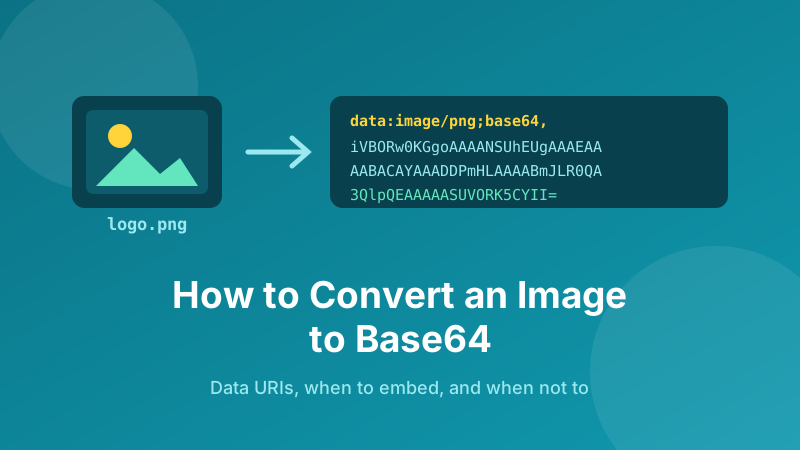
Sometimes you don't want an image to be a file. You want it to be text — a long string you can paste directly into a stylesheet, an HTML template, a JSON payload or an email, with no separate upload and no second request to a server. That string is called a Base64 data URI, and creating one takes about three seconds. This guide explains what it actually is, when embedding an image beats linking to it, when it's a bad idea, and how to convert any image in your browser without uploading it anywhere.
Convert an image right now
Drop in a PNG, JPG, WebP, SVG or GIF and get a copy-ready data URI instantly. It runs in your browser — your image is never uploaded.
Open the Image to Base64 converter →What Base64 actually is
An image file is binary data — raw bytes that mean nothing as text. Many places you'd like to put an image only accept plain text: a CSS file, an HTML attribute, a JSON field, a YAML config, the body of an email. Paste raw bytes into any of those and you get corruption, not a picture.
Base64 solves that. It's an encoding that rewrites arbitrary binary data using only 64 safe characters — A–Z, a–z, 0–9, plus + and /, with = as padding at the end. Every three bytes of the original become four characters of text. Nothing is compressed and nothing is hidden; the image is simply re-spelled in an alphabet that survives being copied and pasted anywhere.
The cost of that convenience is size. Because three bytes become four characters, Base64 output is roughly 33% larger than the original file. A 12 KB icon becomes about 16 KB of text. That single fact drives almost every decision about when to use it.
The data URI wrapper
Raw Base64 on its own is just a blob of characters — a browser has no idea it's a picture. To make it usable you wrap it in a data URI, which looks like this:
data:image/png;base64,iVBORw0KGgoAAAANSUhEUg…
Three parts, each doing a job:
data:— the scheme, telling the browser "the content is right here, don't go fetch it".image/png— the MIME type. Get this wrong (sayimage/pngon a JPEG) and some browsers refuse to render it.;base64,— the marker saying everything after the comma is Base64-encoded.
Once wrapped, that string can go anywhere a URL can go: src on an <img>, url() in CSS, even the browser address bar. It is a complete, self-contained image.
When embedding is the right call
Data URIs are a genuinely useful tool in a handful of situations:
- Small icons and logos in CSS. A 2 KB arrow or checkmark embedded in your stylesheet loads with the CSS itself instead of triggering a separate request.
- HTML email. Many mail clients block linked images until the reader clicks "show images". Embedding sidesteps the block for some clients and avoids hosting the file anywhere.
- Single-file deliverables. An HTML report, a dashboard export or a self-contained demo page that has to work when emailed as one file, with no folder of assets beside it.
- Favicons. A tiny SVG favicon as a data URI means one less request and one less file to lose. (The favicon on this very page is a data URI.)
- APIs and config files. Sending an image inside a JSON request body, or storing a placeholder avatar in a config file.
- Offline and air-gapped pages. Nothing to fetch means nothing to break when there's no network.
When it's the wrong call
Embedding a large photo is almost always a mistake, and here's why. A linked image gets cached by the browser — visit a second page and it's already there. An embedded image is part of the HTML or CSS, so it's re-downloaded every single time that file is, and it can't be cached separately. Add the 33% size penalty and you can easily make a page slower rather than faster.
A practical rule of thumb: embed below roughly 5–10 KB, link above it. Beyond that threshold the extra bytes and the lost caching outweigh the saved request. Photographs, hero images and anything appearing on multiple pages should stay as normal files.
Two more limits worth knowing. Base64 strings are unreadable in source code, so a stylesheet full of them becomes hard to maintain — keep them at the bottom or in a separate file. And some older email clients, notably certain versions of Outlook, ignore data URIs entirely, so test before you rely on one in a campaign.
How to convert an image to Base64 in Toolyard
The Toolyard Image to Base64 converter is free, needs no account, and encodes everything on your own device.
- Open the Image to Base64 converter and drop in your image — PNG, JPG, WebP, SVG and GIF all work. You can add several at once.
- Choose your Output: Full data URI gives you the ready-to-use
data:image/…;base64,…string, while Raw Base64 only gives you the bare characters for cases where something else adds the prefix (an API field, for example). - Pick a Wrap as format so the result arrives in the shape you need — a plain string, a CSS
background-imagerule, or a complete HTML<img>tag. - Click Copy next to the image you want and paste it straight into your stylesheet, template or config file.
- Check it worked by pasting the data URI into your browser's address bar — the image should render on its own. If it doesn't, the MIME type is usually the culprit.
Shrink the image first
This is the step most people skip, and it matters more here than anywhere else. Because Base64 inflates whatever you feed it by a third, every kilobyte you remove before encoding saves you 1.33 KB in the final string.
So resize the image to the size it will actually be displayed at, and compress it, before converting. A 900×900 logo being shown at 60×60 is carrying about 200 times more pixels than it needs. Resizing it first can turn a 40 KB embed into a 2 KB one — the difference between a sensible data URI and one that bloats your stylesheet.
Make the image smaller first
Resize to the exact dimensions you'll display, then encode. Free, instant, and your photo never leaves your device.
Open the Image Resizer →Going the other way
Decoding is just as easy. If you've been handed a data URI and want the file back, paste the whole string into your browser's address bar, then right-click the image that appears and save it. For raw Base64 with no data: prefix, add one yourself — data:image/png;base64, in front of the string — and do the same.
If what you're holding is Base64-encoded text rather than an image, that's a different job with the same encoding behind it, and the Base64 Encoder / Decoder handles it directly.
Is it private and free?
Yes. The Toolyard Image to Base64 converter is 100% private because the encoding happens in your browser with JavaScript — nothing is uploaded to any server. That matters more than it sounds: the images people convert are often logos, signatures, screenshots of internal dashboards or client artwork under NDA, and none of that should be passing through a stranger's server just to become a string. It's completely free with no sign-up, no watermark and no file limit, and it keeps working offline once the page has loaded.
Convert your image now
Drop in an image and get a copy-ready data URI, CSS rule or HTML tag in seconds — free, private, no account.
Open the Image to Base64 converter →