Twitch Banner, Panel and Profile Image Sizes
Published August 31, 2026
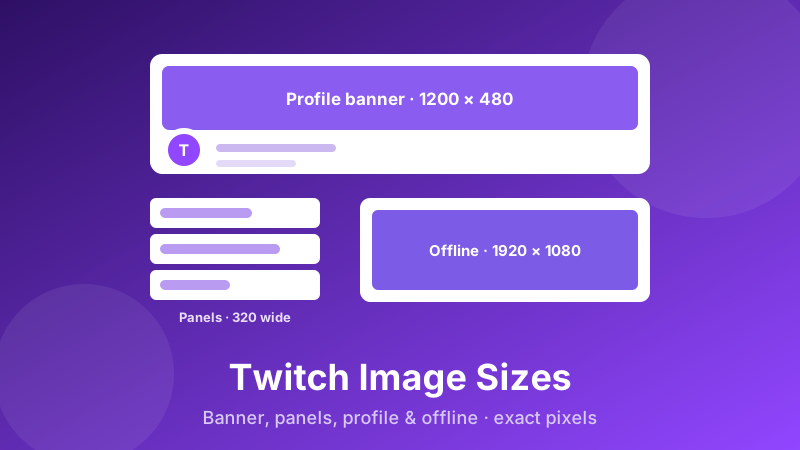
A Twitch channel is really a stack of separate image slots, and every one of them is a different fixed shape. The profile banner is a wide strip; the offline screen fills a 16:9 video player; panels sit in a narrow 320-pixel column; and your profile picture is a square that Twitch shows as a circle. Drop the wrong size into any of them and Twitch stretches, pillarboxes or crops it — the classic mistake being a profile banner uploaded into the offline slot, where it floats in the middle of a black player. Here is every Twitch image size that matters in 2026, what each slot actually does, and how to hit the exact pixels in a few seconds.
Resize for Twitch without any design software
Drop an image, set the exact size — 1200×480, 1920×1080, a square avatar or a 320-wide panel — and download. Free, private, nothing uploaded.
Open the Social Media Resizer →The sizes, at a glance
| Where it appears | Size (pixels) | Shape & notes |
|---|---|---|
| Profile banner | 1200 × 480 | 5:2, wide strip across the top |
| Profile picture (avatar) | 256 × 256 or larger | 1:1, shown as a circle |
| Info panel | 320 wide × flexible | fixed 320px width, stacks in a column |
| Offline / video-player banner | 1920 × 1080 | 16:9, fills the player |
Two quick rules before the details. First, file types: Twitch accepts JPEG, PNG and GIF for these images. Use PNG for anything with text or a logo, JPG for photos. Second, file size: the profile picture is capped at 10 MB, and panel images should be kept small — well under a megabyte is a safe target. Anchor your designs on the ratio as much as the pixel count, so they keep working through Twitch layout tweaks.
The profile banner: 1200 × 480 (5:2)
This is the image most people mean by “Twitch banner size”. Your profile banner is 1200 × 480 pixels — a 5:2 strip that runs across the top of your channel page, behind and above your name. It is a wide, short shape, so a normal photo straight from your camera loses most of its top and bottom when it is fitted in.
Two things routinely cover parts of a profile banner:
- Your profile picture and channel name. They sit near the lower-left of the banner. Put text or a logo there and it will collide with your own avatar. Keep the bottom-left calm and push key content toward the centre and right.
- Responsive trimming. The banner is scaled to the visitor's window and phone screen, so a little is shaved off the top and bottom at some widths. Give anything important a comfortable margin from every edge rather than running it to the border.
Practical version: imagine a safe rectangle in the centre of the banner and keep the parts you actually need people to read inside it.
The profile picture: 256 × 256, shown as a circle
Your profile picture — the avatar that appears on your channel, in chat and in search — is a square image, at least 256 × 256 pixels. That is the minimum; uploading a larger square such as 800 × 800 or 1000 × 1000 looks noticeably sharper on high-resolution and retina screens, and Twitch scales it down cleanly.
The key detail is that it is displayed as a circle almost everywhere on the site, even though you upload a square. So centre your face, mascot or logo, and leave a margin of breathing room around the edges — the corners of your square will be clipped away. The file must be under 10 MB, and JPEG, PNG and GIF are all accepted (an animated GIF will even move in some places).
Info panels: 320 pixels wide, stacked in a column
Panels are the clickable info boxes below your stream, on the channel's About tab — the ones creators use for a schedule, socials, gear list, Discord invite or donation link. This is where “Twitch panel size” matters: Twitch renders every panel image at exactly 320 pixels wide. The height is up to you and flexible; most panels run from about 100 pixels upward.
Because the width is fixed at 320, keep each panel simple and its text large — fine print vanishes at that size. Layout-wise, panels flow in a grid that is up to three across on a wide desktop and collapses to a single stacked column on narrow windows and phones. That means every panel has to make sense on its own, since you can't rely on a neighbour sitting beside it. A panel is really an image plus an optional title and link, so the image usually just needs a clear label (“Schedule”, “Discord”) and matching colours. Keep the files small so the About tab loads quickly.
The offline banner: 1920 × 1080 (16:9)
The offline banner — also called the video player banner — is what viewers see inside the player when you are not live. It fills the whole 16:9 frame, so it is a full 1920 × 1080 image. This is the answer to “Twitch offline banner size”, and it is the slot people most often get wrong.
The single most common mistake is reusing the 1200 × 480 profile banner here. At 5:2 it does not fit a 16:9 player, so Twitch either pillarboxes it — parked in the middle with black bars down the sides — or crops it awkwardly. Give the offline screen its own dedicated 1920 × 1080 design: a “back soon” message, your schedule, or your social handles. Keep essential text away from the extreme bottom edge, where the player overlays its controls.
How to resize an image for Twitch, step by step
The Toolyard Social Media Resizer runs entirely in your browser — nothing is uploaded, and there's no account to make. You can set any of the Twitch sizes exactly:
- Open the Social Media Resizer and drag your image in, or click to browse. JPG, PNG and WebP are all accepted, and you can drop several at once.
- Under Target size, open the Twitch group: the profile banner (1200 × 480), offline banner (1920 × 1080) and profile picture (256 × 256) are built in. For a panel, choose Custom size and type 320 wide with the height you need.
- Choose a Fit mode. Cover fills the frame completely and trims the overflow — the right choice for photos. Contain shrinks the whole image to fit and pads the gap with a background colour you pick — the right choice for a logo, screenshot or panel graphic where cropping would ruin it.
- Set the Format: PNG for logos, panels and anything with text; JPG for photographs.
- Click Download (or Download all for a batch) and upload each file to the matching slot in your Creator Dashboard or channel settings.
For the profile banner, that Contain option is worth remembering. Squeezing a normal photo into a 5:2 strip with Cover discards most of it; padding it with a matching background colour instead often looks far more intentional.
Choose the crop yourself
For a banner or offline screen, pick the exact strip of the photo you want to keep before you resize it — free, in your browser.
Open the Image Cropper →Keeping Twitch images sharp: format and file size
Twitch recompresses what you upload, so your job is to hand it a clean file that needs as little further processing as possible.
Pick the format by content, not habit. Photographs belong in JPG — it gives a dramatically smaller file for the same apparent quality. Logos, panel graphics, screenshots and anything with text belong in PNG, because JPG compression produces fuzzy halos around sharp edges, and thin letterforms are exactly where that shows worst.
Resize down, never up. A 4000-pixel-wide photo squeezed into a 1920 × 1080 offline screen gets compressed twice over. Resize it first and far more of the original detail survives. Going the other way — enlarging a 600-pixel image to fill 1920 — can only invent pixels, and it always looks soft.
Mind the slot limits. The profile picture must be under 10 MB, and panels should be small so your About tab loads fast. If a PNG is unwieldy, compress it gently rather than converting a text-heavy graphic to a low-quality JPG.
Is it private and free?
Yes. The Toolyard resizer is completely free — no sign-up, no watermark, no cap on how many images you process. It's also 100% private: the resizing runs as JavaScript on your own machine, so your files are never uploaded to any server. That's genuinely useful when the image is unreleased channel art, a sponsor's logo or a work-in-progress overlay. Once the page has loaded it keeps working offline.
One tool, every platform
Twitch, YouTube, Instagram, X, Facebook and more presets in one place — or any custom size you type. Free and private, in your browser.
Open the Social Media Resizer →FAQ
What size is a Twitch banner (profile banner)?
The Twitch profile banner is 1200 × 480 pixels, a 5:2 ratio. It runs as a wide strip across the top of your channel page, with your profile picture and name near the lower-left, so keep important content centred and clear of that corner.
What size should Twitch panels be?
Twitch displays every panel image at exactly 320 pixels wide. Height is flexible — most panels run from about 100 pixels upward. Panels flow in a grid up to three wide on desktop and collapse to a single stacked column on phones, so design each one to stand on its own, and keep the file small.
What size is the Twitch profile picture?
Upload a square image of at least 256 × 256 pixels; 800 × 800 or larger looks sharper on high-resolution screens. It's shown as a circle across the site, so centre your face or logo and leave margin. The maximum file size is 10 MB and JPEG, PNG and GIF are accepted.
What size is the Twitch offline banner?
The offline (video player) banner is 1920 × 1080 pixels, 16:9, and fills the player when you're not live. Don't reuse the 1200 × 480 profile banner here — at 5:2 it won't fill a 16:9 frame, so Twitch pillarboxes or crops it.
What format should Twitch images be, JPG or PNG?
Use PNG for graphics, logos and anything with text so edges stay crisp, and JPG for photographs to keep the file small. Twitch accepts JPEG, PNG and GIF; keep each image within the slot's file-size limit — 10 MB for the profile picture, and small files for panels.