Spotify Playlist Cover Size (and How to Make One That Isn't Blurry)
Published August 31, 2026
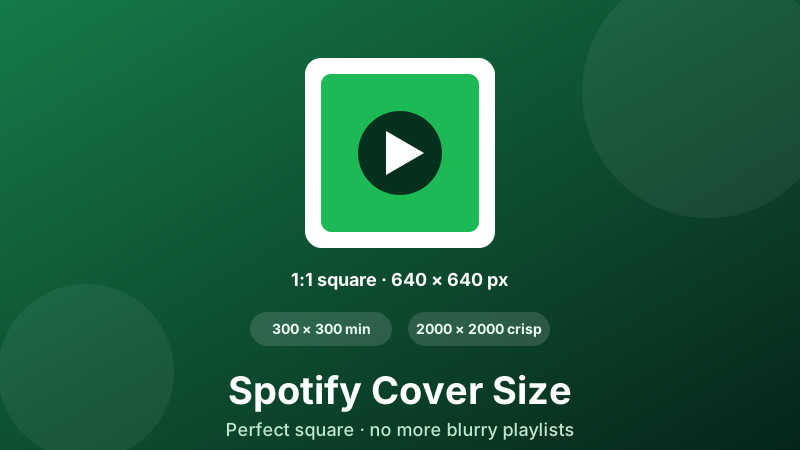
A good playlist cover is the difference between a playlist people tap and one they scroll past. Spotify gives you a single square slot for it, and it is fussy: upload the wrong shape or a too-small file and Spotify stretches your picture into a soft, pixelated mess. The fix takes about a minute. This guide covers the exact size and format Spotify wants, why covers turn out blurry, and how to export a perfect square for free without uploading your image anywhere.
Make a perfect square cover in your browser
Built-in Spotify cover presets (640×640 and 1000×1000), cover and contain fit modes, JPEG export. Drop an image, pick the size, download. Free, private, nothing uploaded.
Open the Social Media Resizer →Spotify playlist cover size, at a glance
| Setting | What to use | Notes |
|---|---|---|
| Shape / ratio | 1:1 square | Width and height equal — non-negotiable |
| Minimum size | 300 × 300 px | The smallest Spotify accepts |
| Recommended size | 640 × 640 px | Sharp on modern phones and tablets |
| Best for crispness | up to 2000 × 2000 px | Future-proof on large screens and TV |
| Format | JPEG (RGB) | Save in sRGB colour |
| File size | under 4 MB | Larger files are rejected |
The one rule that never changes is the square shape. Everything Spotify shows — the grid in Your Library, the "Now playing" card, the search results — is built around a 1:1 tile. If you hand it a rectangle, Spotify crops it to a square for you, usually losing the part you cared about. Start square and you control what stays.
Why your playlist cover looks blurry
Blurry covers nearly always come from one mistake: uploading an image that is too small, and letting Spotify scale it up. Say you screenshot a photo at 240 pixels wide and set it as your cover. Spotify has to fill a frame that is 300 pixels, 640 pixels, or larger depending on the device — so it stretches your 240-pixel image to fit. Enlarging can only invent pixels by smearing the ones you have, and the result is the soft, slightly muddy look you have probably seen on your own playlists.
The second cause is shape. Upload a wide photo and Spotify crops a square out of the middle, then displays that square. If the square it keeps happens to be the low-detail part of the photo — a patch of sky, a blurred background — the whole cover looks flat even though your original picture was fine.
Both problems have the same cure: start from a large square. Export your cover at something like 1000 × 1000 or 1500 × 1500 pixels, already cropped to the square you want, and Spotify has to shrink it to fit rather than stretch it. Shrinking keeps detail; stretching destroys it. That single habit is what separates a crisp cover from a fuzzy one.
Which playlists you can actually customise
Before you design anything, check that the playlist even allows a custom cover — because many don't. You can only set your own image on playlists you created yourself. Spotify's own algorithmic and editorial playlists — Discover Weekly, Release Radar, your Daily Mixes, Wrapped, and the curated mood playlists — keep their automatic artwork and give you no option to change it.
There is one more quirk worth knowing. If your playlist has a handful of songs and you have not set a custom cover, Spotify shows an automatic collage of the four album arts inside it. The moment you upload your own image, that collage is replaced. So a custom cover is also the only way to stop Spotify from picking your artwork for you.
How to make a correctly sized square cover, step by step
You don't need Photoshop or a design account for this. The Toolyard Social Media Resizer runs entirely in your browser, so your photo is never uploaded to a server, and it has Spotify playlist-cover presets ready to go.
- Open the Social Media Resizer and drag your photo in, or click to browse. JPG, PNG and WebP are all fine.
- Under Target size, open the Spotify group and pick the 1000 × 1000 cover so the result stays sharp everywhere (or 640 × 640 for a smaller file). For something larger such as 1500 × 1500, choose Custom size and type it.
- Choose a Fit mode. Cover fills the whole square and trims the overflow, which is right for most photos. Contain shrinks the entire image inside the square and pads the edges with a background colour you choose — use it when cropping would cut off something important, like text or a logo.
- Set the Format to JPEG, the format Spotify reliably accepts for playlist covers.
- Click Download, then upload that file as your playlist cover. Because it is already a large square, Spotify displays it crisply instead of stretching it.
If you want to choose the exact part of a photo that becomes the square — rather than letting an automatic crop decide — do that first with the cropper below, then run the square through the resizer.
Crop to a perfect square first
Pick precisely which part of your photo becomes the 1:1 cover, with a locked square ratio. Free, in your browser, nothing uploaded.
Open the Image Cropper →Format, colour and file size
Use JPEG. For a custom playlist cover, a JPEG saved in the standard RGB (sRGB) colour space is the format that uploads without trouble. If you designed your artwork as a PNG, simply export or re-save a JPEG copy for the upload — that avoids the odd rejected upload and keeps the file small.
Stay under 4 MB. Spotify caps the cover file at roughly four megabytes. A well-exported JPEG at 1000–1500 pixels square lands far below that, so you almost never hit the limit unless you export an enormous uncompressed image. If a file is too heavy, lower the JPEG quality slightly rather than shrinking the pixel dimensions.
Keep text away from the edges. Your cover appears at many sizes, from a tiny library thumbnail to a large "Now playing" card, and the corners can sit under play buttons or rounded masks. If your design includes a title, keep it centred with a comfortable margin so nothing important gets clipped on the smallest view.
How to change the cover inside Spotify
Once your square JPEG is ready, setting it takes seconds. On the desktop app, open one of your own playlists, click the three-dots menu, choose Edit details, then click the artwork area and select your file. On the mobile app, open your playlist, tap the three dots, tap Edit, then tap the cover and choose Change image. Save, and the new artwork usually appears within a few seconds — occasionally it takes a minute to refresh across your devices.
Is it private and free?
Yes to both. The Toolyard resizer and cropper are completely free — no sign-up, no watermark, no limit on how many covers you make. They are also 100% private: all the work happens as JavaScript on your own device, so your image is never uploaded to any server. That matters when the photo is personal or unreleased. Once the page has loaded, it even keeps working offline.
Design covers for every platform
Spotify cover presets plus Instagram, YouTube, X, Facebook and Pinterest in one place — or any custom size. Free and private, right in your browser.
Open the Social Media Resizer →FAQ
What size should a Spotify playlist cover be?
It must be a 1:1 square. The minimum Spotify accepts is 300 × 300 pixels, but a larger square such as 640 × 640, or up to about 2000 × 2000, stays much sharper across phones, tablets and TVs. Keep the file under 4 MB.
Why does my Spotify playlist cover look blurry?
Almost always because the image you uploaded was small or not square, so Spotify stretched it up to fill a square frame. Enlarging pixels can only guess at detail, which looks soft. Start from a large square image, for example 1000 × 1000 pixels, and it stays crisp.
What format does Spotify accept for playlist covers?
JPEG is the reliable format for a custom playlist cover. Save it in the standard RGB (sRGB) colour space and keep the file under 4 MB. Exporting a square JPEG is the safest way to avoid an upload being rejected.
Can I add a custom cover to any playlist?
No. You can only set a custom image on playlists you create yourself. Spotify-generated and algorithmic playlists such as Discover Weekly, Release Radar and the Daily Mixes keep their automatic artwork and cannot be changed.
How do I change a Spotify playlist cover?
Open one of your own playlists, then on desktop click the three dots and choose Edit details, or on mobile tap the three dots and tap Edit. Select the cover area to choose a new photo, then save. The new image appears within a few seconds.