How to Make a Transparent Signature for PDFs and Documents
Published August 9, 2026
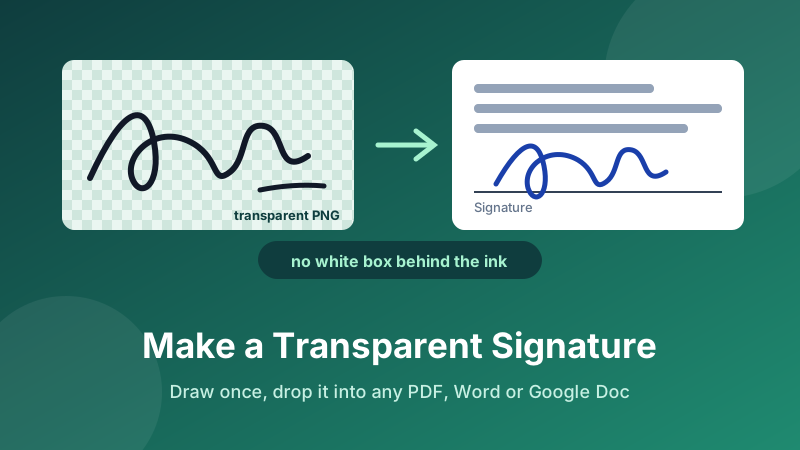
Somebody emails you a contract and asks you to "just sign and send it back." The old routine was painful: print the page, sign it, hunt for a scanner, and email back a crooked grey photo. The modern version takes about sixty seconds — you draw your signature once, save it as a transparent PNG, and drop that same file into every document you ever need to sign. This guide shows you how, why transparency is the part that matters, and how to place it neatly in a PDF, Word or Google Doc.
Draw your signature now
Sign with your mouse, finger or stylus and download a transparent PNG instantly. It runs in your browser — no sign-up, no upload, nothing to install.
Open the Signature Maker →Why "transparent" is the whole trick
Picture your signature as a sticker. If you save it as a JPG, the sticker comes on a solid white square, because the JPG format has no way to record "nothing here." Paste that onto a contract and the white square blots out the signature line, part of the printed date, and any coloured letterhead behind it. It looks obviously pasted-on, and on a shaded background it looks broken.
A PNG can store a fourth channel called alpha, which is simply a per-pixel note saying how see-through that pixel is. Where you didn't draw, the alpha is zero — genuinely empty, not white. The result is a sticker cut precisely around the ink. Drop it on a contract line and the line runs behind the strokes exactly as it would with a pen. That is the single reason a signature image should always be a PNG.
The same logic applies to logos and watermarks, which is why designers reach for PNG whenever an image needs to sit on top of something else rather than fill a rectangle of its own.
How to make your signature in Toolyard
The Toolyard Signature Maker is free, needs no account, and runs entirely in your browser — your signature is never uploaded anywhere. Here is the whole process:
- Open the Signature Maker. You'll see a wide blank panel — that's your signing area.
- Sign inside the box. Use a finger or stylus on a phone or tablet (much closer to your real handwriting), or hold the mouse button down and sign in one smooth motion on a laptop. A trackpad works too, it just takes a couple of tries.
- Pick a pen colour — black for scans and printing, blue if you want it to read as clearly hand-signed rather than photocopied, red for initials or corrections.
- Adjust the thickness slider. Around 2.5 looks natural at document size; go thinner for a delicate signature, thicker if yours is large and looping.
- Not happy with a stroke? Press Undo to remove the last one, or Clear to start over. Most people need two or three attempts to get one they like — that's normal.
- Click Download PNG (transparent). The file saves straight to your device with a clean, see-through background, ready to place in any document.
There's also a Download JPG (white) button. Use that one only when a system explicitly refuses PNG uploads — some older HR or banking portals do. For everything else, take the PNG.
Getting a signature that actually looks like yours
A mouse-drawn signature can look shaky compared to pen on paper. A few habits fix most of it:
- Sign fast, not carefully. Real signatures are fast gestures. Drawing slowly to "be accurate" produces the wobbly look that gives away a mouse signature. One quick confident sweep beats a careful crawl.
- Use a touchscreen if you have one. Open the tool on your phone, sign with a finger, and email the PNG to yourself. The difference is dramatic.
- Sign bigger than you think. Use most of the width of the box. The PNG is scaled down when you place it in a document, and shrinking hides small imperfections while enlarging exaggerates them.
- Simplify. If your signature has a long tail or tight loops, a slightly simplified version reads better at small sizes.
- Save it once, reuse it forever. Keep the PNG somewhere sensible —
signature.pngin your documents folder — so the next contract takes ten seconds instead of a minute.
One file, every document
Draw it once, download the transparent PNG, and reuse the same file in every PDF, contract and form you sign from now on.
Open the Signature Maker →How to place it in a PDF, Word or Google Doc
In a PDF
Open the PDF in Adobe Acrobat Reader (free) and choose Fill & Sign → Sign yourself → Add signature → Image, then select your PNG. On a Mac, Preview does the same job through the Markup toolbar. Drag the signature onto the line, resize it by a corner handle so the height roughly matches the printed text, and save. Save as a flattened PDF if the recipient shouldn't be able to drag the image around.
In Word
Go to Insert → Pictures → This Device and choose the PNG. Then set the wrap style to In Front of Text so you can position it freely over the signature line rather than having it push paragraphs around. Word preserves PNG transparency, so nothing behind it is covered.
In Google Docs
Use Insert → Image → Upload from computer, then click the image and choose the wrap option In front of text. Drag it into place on the line.
One rule for all three: resize by dragging a corner, never a side handle. Side handles stretch the image and a stretched signature looks unmistakably fake.
Is a drawn signature legally valid?
For most everyday agreements, yes. Electronic signatures are recognised in the US under the ESIGN Act and UETA, in the EU under eIDAS, and by comparable laws in the UK, Canada, Australia and many other countries. A drawn image placed on a document counts as a simple electronic signature, which is generally enough for NDAs, service agreements, consent forms, invoices and internal paperwork.
There are exceptions. Wills, some property transfers, certain court filings and a handful of family-law documents may still require a witnessed wet signature or a notary. High-value contracts sometimes call for a qualified digital signature backed by a certificate, which is a different technology from a signature image. If the document is significant, check the requirements — or ask the other party what they accept — before relying on a PNG. This is general information, not legal advice.
One practical caution: your signature image is a small piece of personal data. Don't post it publicly, don't leave it in a shared team folder, and don't upload it to random websites that offer to "process" it. Which brings us to the last point.
Is it private and free?
Yes on both counts. The Toolyard Signature Maker is 100% private because your signature is drawn on an HTML canvas inside your own browser and saved directly to your device — it is never uploaded to a server, never stored, and never seen by anyone. That matters more here than for almost any other tool, because a signature is exactly the kind of thing you don't want sitting on someone else's server. It's completely free with no sign-up and no watermark, and it keeps working offline once the page has loaded.
Frequently asked questions
Why does my signature need a transparent background?
A JPG signature always carries a solid white rectangle behind it, which covers the contract line and any text underneath. A transparent PNG stores "no colour" instead of white, so only the ink shows and the document behind stays visible.
How do I make a transparent signature without a scanner?
Draw it on screen. Open Toolyard's Signature Maker, sign inside the box with your mouse, finger or stylus, and download it as a transparent PNG. No printing, scanning or photographing — it takes under a minute.
Is a drawn signature legally valid?
In most countries an electronic signature, including a drawn image placed on a document, is legally binding for everyday agreements under laws such as the US ESIGN Act and the EU eIDAS regulation. Some documents — wills, property deeds, certain court filings — still require a witnessed wet signature, so check the rules for your document type.
Is it safe to make a signature online?
With Toolyard, yes. The Signature Maker draws on a canvas inside your browser and saves the PNG straight to your device. Your signature is never uploaded, never stored, and never seen by anyone else.
Can I use it on my phone?
Yes, and it's the best way to do it. Signing with a finger or stylus on a touchscreen gives a far more natural result than a mouse. Sign on the phone, download the PNG, then email or AirDrop it to your computer.