How to Extract One Page From a PDF
Published September 7, 2026
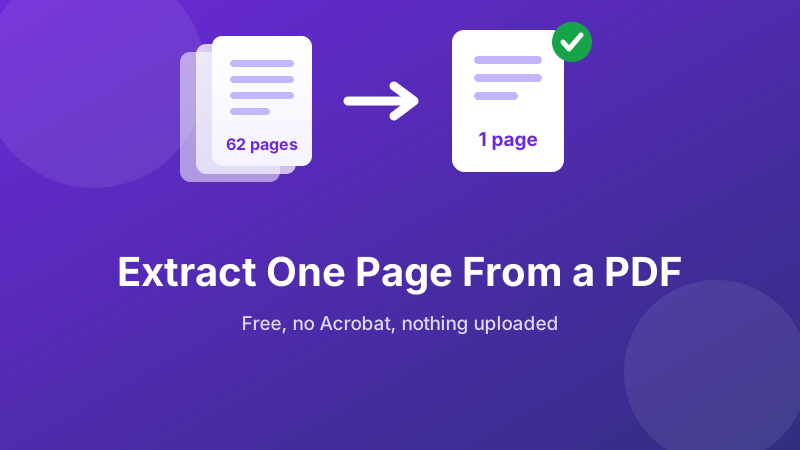
A 62-page tenancy agreement lands in your inbox and the letting agent needs one thing back: page 41, the page with the signature block. You open the PDF, scroll to page 41, hit Save As — and end up with a second copy of all 62 pages. It is one of those tasks that feels like it should take three seconds and instead sends people searching for software.
The good news is that pulling a single page out of a PDF is genuinely quick and genuinely free. The confusing part is only that PDF readers hide the operation, and the fix depends on knowing which of two very different approaches you are using.
Pull out the page you need — nothing uploaded
Drop your PDF, set the range to a single page, download it as its own file. Everything runs on your own device.
Open the free Split PDF tool →Why Save As will never do this
It helps to know what a PDF actually is. A reader shows you one page at a time, so it feels like you are looking at a stack of separate sheets. The file is nothing of the kind — it is one container holding every page plus a shared pool of resources: embedded fonts, colour profiles, images used more than once, the document outline, metadata. Save As is a file-system operation. It copies the container. There is no version of it that means “copy only the part I happen to be looking at.”
To get one page you need an operation that builds a new PDF and copies a single page into it. That is what extracting does, and it is the reason the feature lives in editors and splitters rather than in the File menu of a viewer.
Method 1 — extract the page in your browser
This is the fastest route on any machine, and the only one that keeps a confidential document on your own computer. There is nothing to install and it behaves identically on Windows, macOS, Linux and ChromeOS.
- Open the Split PDF tool and drop your file onto the box, or click to browse for it. The page count appears once it has loaded.
- In Extract pages, set from and to to the same number — from 41, to 41 — which is how you ask for exactly one page.
- Click Extract range. A new one-page PDF downloads immediately.
- Rename it before you forget what it is.
tenancy-signature-page.pdfbeatsdocument-1.pdfnext Tuesday.
There is no upload bar because there is no upload: the PDF is read by the browser tab itself and the new file is assembled on your device. Once the page has loaded you can disconnect from Wi-Fi entirely and the extraction still works.
Method 2 — the print-to-PDF trick
Every operating system can print to a PDF file, and the print dialog has a page-range box. That combination extracts pages without any extra software, which makes it a useful fallback on a locked-down work computer.
- Open the PDF in any viewer and press Ctrl + P (Cmd + P on a Mac).
- Set the destination or printer to Microsoft Print to PDF on Windows, or use the PDF → Save as PDF menu at the bottom left of the macOS print sheet.
- Under Pages, choose Custom and type the single page number.
- Print, and choose where to save the new file.
It works, but understand the trade-off. Printing re-renders the page rather than copying it. In practice that means interactive elements are flattened: filled form fields become static text, hyperlinks stop being clickable, and digital signatures are invalidated because the bytes they signed no longer exist. Some printer drivers also rasterise the page into an image, which makes the text unselectable and the file larger. For a page you are going to read or print, none of that matters. For a page someone needs to fill in, sign or click through, extract properly instead.
| Extracting | Print to PDF | |
|---|---|---|
| Text stays selectable | Always | Usually, but some drivers rasterise |
| Links and form fields | Preserved | Flattened |
| Digital signatures | Preserved on the page | Broken |
| Needs extra software | No — a browser tool is enough | No |
| Non-consecutive pages in one go | Merge two extracts | Yes — type 3,7,12 |
Get the page number right the first time
The single most common mistake is typing the number printed on the page. PDF tools count physical sheets, starting at 1 with whatever you see when the file opens. A report with a cover, a blank verso and a contents page will print “1” on what the file considers page 4.
Your viewer already tells you the right number. The toolbar indicator that reads 41 of 62 is the physical position, and that is the figure to type. Check it on the page you actually want rather than counting forward from somewhere else, because a single unnumbered insert throws the whole count out.
One more thing worth knowing: ranges are inclusive at both ends. From 12 to 15 gives you four pages, not three. It follows that from 41 to 41 gives you exactly one, which is why a single page is expressed as a range with the same number twice.
Extracting several pages that are not next to each other
Say you need pages 3, 7, 8, 9 and 12 from a long submission. The reliable approach is to treat it as three jobs and then reassemble:
- Extract 3 to 3. Save it as
01-page3.pdf. - Extract 7 to 9. Save it as
02-pages7-9.pdf. - Extract 12 to 12. Save it as
03-page12.pdf. - Open the PDF Merger, add the three files in that order, and merge.
The numeric name prefixes are not decoration — they remove any ambiguity about the order when you add the files. Splitting and merging are both lossless operations, so the finished document is byte-for-byte as good as the original pages. If the goal is instead to remove a handful of pages from a long file, it is quicker to work from the other direction and delete the pages you do not want.
One page, one click
No sign-up, no watermark, no page limit — and your document never leaves your computer.
Extract my page →What the extracted file inherits — and what it does not
An extracted page is a proper PDF, but it is not a perfect miniature of the original. A few things are worth checking before you send it on:
- Size is not proportional. Embedded fonts and colour profiles are copied in full, so one page out of a 5 MB report will not be 5 MB ÷ 62. Expect it to be small, but do not be surprised if it is a few hundred kilobytes.
- The document outline usually goes. Bookmarks are a document-level structure and most lightweight tools drop them — rarely an issue for a single page.
- Headers, footers and page numbers come along. Your extract will still say “Page 41 of 62” in the footer, because that is printed content, not metadata. If it matters, re-number the new file.
- Metadata travels. Author, title and creation date are copied over, which occasionally reveals more than you intended about where a document came from.
- Rotation is preserved. A landscape page extracted from a portrait document stays landscape. Fix it with a PDF rotator if it looks odd on its own.
Is it private, and is it really free?
The pages people extract are almost never trivial: contract signature pages, a single payslip from a bundle, one page of a medical letter, an ID scan. With a typical online tool the whole document — all 62 pages, not just the one you wanted — is uploaded to a server, processed there, and kept until a deletion timer fires. You are trusting a policy.
Toolyard's Split PDF tool works entirely inside your browser. The file is never uploaded, there is no account, no watermark on the output and no daily limit. Nothing is stored anywhere because nothing is ever sent.
FAQ
Why can't I just use Save As to save one page of a PDF?
Save As copies the whole document. A reader shows one page at a time, but the file is a single container holding every page, so saving it writes all of them. Getting one page requires building a new PDF containing only that page — extracting, or printing a page range to PDF.
How do I extract page 3 of a PDF for free?
Open a PDF splitter, load the file, set the range to from 3 to 3, and extract. You get a one-page PDF of page 3. A browser-based splitter does this locally, so nothing is uploaded and no account is needed.
How can I extract several pages that are not next to each other?
Extract each block separately — 3 to 3, then 7 to 9, then 12 to 12 — then merge the results in order. Both operations are lossless, so the finished file matches the original pages exactly.
Does extracting a page reduce quality or shrink the file?
No quality is lost — page objects are copied as they are, so text stays selectable and images keep their resolution. The new file is much smaller, though not proportionally: shared resources such as embedded fonts are copied across in full.
Which page number should I type — the one printed on the page?
Use the physical position in the file. A report with a cover and contents page usually prints “1” on what the file counts as page 3. The toolbar indicator in your viewer, such as “14 of 40”, shows the number to use.