How to Crop an Image to a Specific Aspect Ratio
Published August 11, 2026
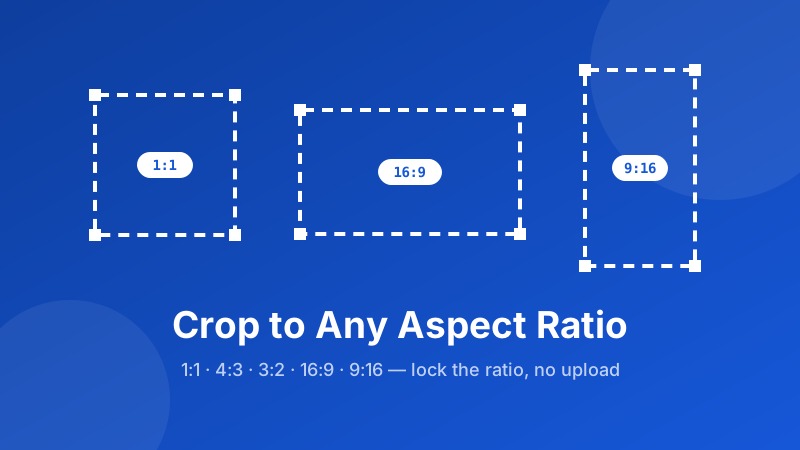
Upload a wide holiday photo as an Instagram profile picture and the platform chops off the sides. Post a tall phone snap as a YouTube thumbnail and you get ugly black bars. The fix is almost always the same: crop the image to the right aspect ratio first. Aspect ratio is about the shape of your picture, not its exact pixel size — and once you learn to crop to a specific ratio like 1:1 or 16:9, your images will fit wherever you put them without stretching or awkward cropping.
Crop to an aspect ratio now
Load a photo, pick a ratio like 1:1 or 16:9, drag the crop box (it stays locked to the shape), and download. It runs in your browser — no upload, no sign-up, no watermark.
Open the Crop Image tool →What does aspect ratio mean?
Aspect ratio is simply the proportion of width to height, written as two numbers separated by a colon: width:height. A 1:1 image is a perfect square — its width and height are equal. A 16:9 image is much wider than it is tall (the classic widescreen shape). A 9:16 image is the same numbers flipped, so it's tall and narrow, like a phone screen held upright.
The key idea is that a ratio describes shape, not size. A 400×400 square and a 2000×2000 square are both 1:1. A 1280×720 video and a 1920×1080 video are both 16:9. That's the difference between aspect ratio and resolution: the ratio is the shape, the resolution is how many pixels fill it. If you need to hit precise pixel numbers instead, see our guide on cropping to an exact size — this article is only about locking the proportion.
Landscape, square, or portrait?
Every ratio falls into one of three families, and picking the right one is half the battle:
- Landscape (wide) — the width is bigger than the height, like 16:9 or 3:2. Best for video, desktop wallpapers, and anything viewed on a horizontal screen.
- Square — width equals height, i.e. 1:1. The safest all-rounder for profile pictures and social feeds because it looks balanced anywhere.
- Portrait (tall) — the height is bigger than the width, like 9:16 or 4:5. Made for phones held upright — Stories, Reels, and Shorts all live here.
Notice that 16:9 and 9:16 use the same two numbers in a different order. Flipping a ratio turns a landscape shape into a portrait one, which is exactly why a horizontal video never fills a vertical phone screen without cropping.
Common aspect ratios and where each is used
You almost never have to invent a ratio — most tasks map to a well-known one. Keep this quick reference handy when you're deciding what to crop to:
| Ratio | Shape | Where it's used |
|---|---|---|
| 1:1 | Square | Profile pictures, avatars, Instagram feed posts, album art |
| 4:3 | Slightly wide | Standard photo prints, older cameras and screens, some slides |
| 3:2 | Classic photo | DSLR & mirrorless photos, 4×6 inch prints |
| 16:9 | Widescreen | YouTube videos and thumbnails, TVs, presentation slides, wallpapers |
| 9:16 | Tall / vertical | Instagram & TikTok Stories and Reels, YouTube Shorts, phone wallpapers |
When you're unsure, match the destination: a video thumbnail wants 16:9, a story wants 9:16, and a profile picture wants 1:1. Cropping to the shape the platform expects is what stops it from trimming your image for you — usually in the worst possible place.
Why crop to a ratio instead of stretching?
Here's the mistake that ruins so many images: dragging a photo's corners to stretch it into a new shape. Stretching keeps every pixel but squashes or elongates them, so faces get fat or thin and circles turn into ovals. It always looks wrong.
Cropping is the correct fix. When you crop to a locked aspect ratio, you don't distort anything — you simply cut away the pixels outside the frame, and everything you keep holds its natural proportions. A locked ratio means the crop box can only grow and shrink in that exact shape as you drag it, so it's impossible to end up with a stretched result. That's why "lock aspect ratio" is the setting you want: it guarantees the shape while you decide which part of the image to keep.
How to crop an image to an aspect ratio in Toolyard
The Toolyard Crop Image tool is free, needs no account, and does everything inside your browser — your photo is never sent anywhere. Here's the whole process:
- Open the Crop Image tool and drag your photo onto the page (or click to browse for a JPG, PNG, or WebP).
- Open the Ratio menu and choose your shape — Square 1:1 for a profile picture, 16:9 for a thumbnail, or 4:3 and 3:2 for prints. This locks the crop box to that proportion.
- Drag the crop box over the part of the image you want to keep. Because the ratio is locked, the box always stays in shape no matter how you resize it — you can only choose what's inside, never distort it.
- For a tall portrait crop, pick a portrait preset like 3:4 or 2:3, or switch the menu to Freeform and drag a narrow, tall box for a 9:16 story.
- Position your subject nicely, then click Crop (or Download) to save the result. There's no watermark, and the file is yours to use anywhere.
Because it all runs on your device, cropping is instant even for large photos, and it works offline once the page has loaded. Nothing is uploaded, so it's a genuinely private way to crop an image online.
Ready to lock a ratio?
Crop to 1:1, 16:9, 4:3, 3:2 and more with the ratio locked, so your image is never stretched. Free and private, right in your browser — no upload.
Open the Crop Image tool →Tips for a clean aspect-ratio crop
A few habits keep your ratio crops sharp and well-framed:
- Don't upscale a small crop. Cropping keeps only the pixels you select. If that selection is tiny and you later blow it up, it will look soft — start from the highest-resolution copy you have.
- Keep the subject centered (or on a third). With the ratio locked, your only job is placement. Center the subject, or use the rule of thirds, and leave a little breathing room so nothing important sits on the very edge.
- Choose landscape vs. portrait on purpose. Decide whether the final home is a wide screen (16:9) or a tall phone (9:16) before you crop, so you frame for the right shape.
- Crop to ratio first, resize second. Fix the shape by cropping, then, if a platform demands exact pixels, resize the cropped image to that number.
Aspect ratio vs. exact pixel size
These two goals get confused constantly. Cropping to an aspect ratio locks the shape but lets the pixel count vary — perfect when you just need the image to fit a space without stretching. Cropping to an exact size locks the literal numbers, like 1080×1080, which matters when an uploader rejects anything else. If your task is the second kind, hop over to how to crop to an exact size; if you just need the right proportions, the ratio presets above are all you need.
Is it private and free?
Yes to both. The Toolyard cropper is 100% private because it processes your image entirely inside your browser with JavaScript and Canvas — the photo is never uploaded to any server. It's completely free with no sign-up and no watermark, and once the page has loaded you can even crop offline. That "no upload" design is what makes it safe for personal photos, screenshots, and work images alike.
FAQ
What does aspect ratio mean?
Aspect ratio is the proportion between an image's width and height, written as width:height. A 1:1 image is a square, a 16:9 image is wide, and a 9:16 image is tall. It describes the shape, not the pixel size, so 1280×720 and 1920×1080 are both 16:9.
How do I crop an image to 16:9 or 1:1?
Open a cropper that has ratio presets, load your image, pick the ratio (1:1 for a square, 16:9 for widescreen), drag the crop box — it stays locked to that shape — and download. Toolyard's Crop Image tool does this in your browser with no upload.
What is the difference between aspect ratio and resolution?
Aspect ratio is the shape (the proportion of width to height). Resolution is the actual pixel count, like 1080×1080. Two images can share the same 1:1 ratio while having completely different resolutions. Crop to fix the ratio first, then resize if you need exact pixels.
Will cropping to an aspect ratio distort my photo?
No. Cropping to a locked ratio removes the pixels outside the box without stretching what remains, so the subject keeps its natural proportions. Distortion only happens when you stretch or squash an image to force it into a shape instead of cropping.
Can I crop to an aspect ratio online with no upload?
Yes. Toolyard's cropper runs entirely in your browser, so cropping to a ratio happens on your device and the photo is never uploaded to a server. It is free, private, and needs no sign-up.