How to Crop an Image to an Exact Size
Published July 24, 2026
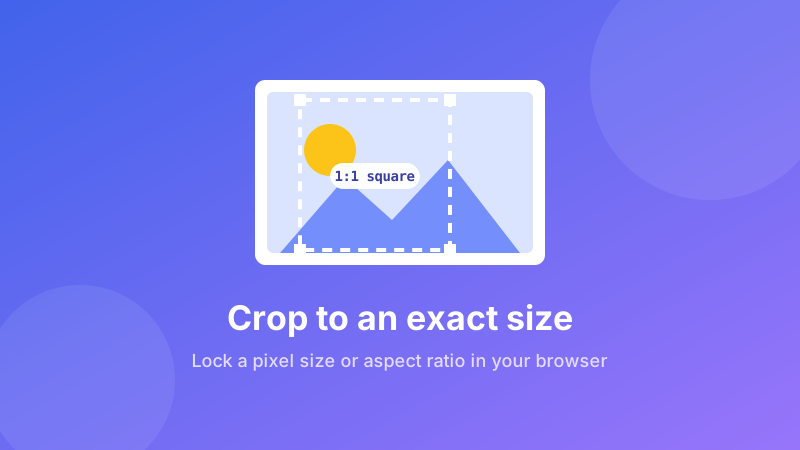
Sometimes "close enough" isn't good enough. A profile photo has to be a perfect square, a banner has to be exactly 1500×500 pixels, a passport photo has to hit a fixed ratio, or a product image has to match every other one in your shop. Dragging a crop box by eye won't get you there. This guide shows you how to crop an image to an exact size — either precise pixel dimensions or a locked aspect ratio — quickly and without installing anything.
Crop to an exact size now
Load a photo, type the width and height (or pick a ratio like 1:1 or 16:9), position the box, and download. It runs in your browser — no sign-up, no watermark.
Open the Crop Image tool →Cropping vs. resizing: know the difference
These two words get mixed up constantly, but they do opposite things. Cropping cuts away the outside of an image — you throw pixels away to change the framing or shape. Resizing keeps the entire picture but scales how many pixels it contains, making the whole thing larger or smaller.
A simple way to remember it: cropping changes what is in the frame, resizing changes how big the frame is. In practice you often do both — crop first to get the right shape (say, a square), then resize to a final target if you need an exact pixel count and a smaller file. If your only goal is to make a photo smaller without changing its shape, you want the image resizer instead of a cropper.
Two ways to be "exact"
There are two different meanings of "exact size," and mixing them up is the usual reason people get frustrated. Decide which one you need before you start:
- Exact aspect ratio — you care about the shape: 1:1 (square), 16:9 (widescreen), 4:5 (Instagram portrait). The final pixel count can vary, but the proportions are locked so the image won't look stretched wherever it's displayed.
- Exact pixel dimensions — you care about the literal numbers: 1080×1080, 1280×720, 400×400. This matters when a system rejects anything that isn't precisely those values, like some ID-photo uploaders or ad platforms.
The good news is a proper cropper handles both. You can lock a ratio to drag freely while keeping the shape, or type in hard numbers when only exact pixels will do.
How to crop to an exact size in Toolyard
The Toolyard Crop Image tool is free, needs no account, and does all the work inside your browser — your photo is never uploaded to a server. Here's the full process:
- Open the Crop Image tool and drag your photo onto the page (or click to browse for a JPG, PNG, or WebP).
- Choose your mode. To lock the shape, pick a ratio preset like 1:1 or 16:9. To hit exact numbers, type the target width and height in pixels.
- Drag and resize the crop box over the part of the image you want to keep. With a ratio locked, the box always stays in proportion no matter how you drag it.
- Nudge the box until your subject is framed well — keep faces slightly above center, and leave a little breathing room around the edges.
- Click Crop (or Download) to save the result. There's no watermark, and the cropped file is yours to use anywhere.
Because everything happens on your device, it's instant even for large photos, and it works offline once the page has loaded.
Common exact sizes worth bookmarking
You rarely need to invent dimensions — most tasks map to a well-known size. Here are the ones people crop to most often:
Profile pictures and avatars
Nearly every platform wants a 1:1 square. Crop to 1:1 and the site will mask it into a circle or rounded square without squashing your face. A safe pixel target is 400×400 or larger; going bigger just gives the platform room to downscale cleanly.
Social banners and covers
Cover images are wide, so they use ratios like 16:9 or platform-specific ones such as a Twitter/X header at 3:1. Crop to the ratio first so nothing important gets chopped off when the site trims the edges on different screens.
Passport and ID photos
Official photos demand strict proportions — a US passport photo is a 1:1 square (2×2 inches), while many other countries use a 35×45 mm ratio. Crop to the exact ratio, keep the head centered and correctly sized, and you'll pass the automated checks.
Product and thumbnail images
For a tidy shop or gallery, every image should share one ratio (often 1:1 or 4:3). Cropping them all to the same shape is what makes a grid look professional instead of ragged.
Need to shrink the file too?
After cropping to the right shape, drop the file size for email or the web without visible quality loss — free and private, right in your browser.
Open the Image Compressor →Tips for a clean, high-quality crop
A few small habits make the difference between a sharp crop and a disappointing one:
- Don't crop tiny and then enlarge. Cropping keeps the pixels you select — but if that selection is very small and you scale it up, it will look soft. Start from the highest-resolution version you have.
- Follow the rule of thirds. Place your subject a third of the way in rather than dead center; it usually looks more natural and balanced.
- Leave a safety margin. Different screens and platforms trim edges slightly, so don't push key details right to the border.
- Save as PNG for graphics, JPG for photos. Cropping a JPG and re-saving at high quality is fine; just avoid re-saving the same JPG many times at low quality, which slowly degrades it.
Does cropping reduce quality?
Cropping on its own does not blur or degrade the pixels you keep — it simply discards the ones outside the box, so what remains is exactly as sharp as the original. Quality only suffers in two situations: if you enlarge a small crop beyond its real resolution, or if you export a JPG at a low quality setting. Keep your crop reasonably large and save at high quality and the result will look crisp.
Is it private and free?
Yes to both. The Toolyard cropper is 100% private because it processes your image entirely inside your browser with JavaScript and Canvas — the photo is never uploaded to any server. It's completely free with no sign-up and no watermark, and once the page has loaded you can even crop offline.
FAQ
How do I crop an image to an exact pixel size?
Use a cropper that lets you type a target width and height in pixels, load your image, enter the numbers, position the crop box, and export. Toolyard's Crop Image tool lets you lock exact dimensions and does all of it in your browser.
What is the difference between cropping and resizing?
Cropping cuts away part of the image to change its framing and shape. Resizing keeps the whole image but changes how many pixels it contains. You often crop first to fix the aspect ratio, then resize to hit a final dimension.
What aspect ratio should a profile picture be?
Almost every profile picture is a 1:1 square. Crop to 1:1 and the platform will display it as a circle or rounded square without distorting your face.
Does cropping reduce image quality?
Cropping itself doesn't blur the pixels you keep — it only removes the ones outside the box. Quality drops only if you then enlarge a small crop, or re-save a JPG at low quality.
Is cropping online private?
With Toolyard, yes. The cropper processes your image entirely inside your browser, so the photo is never uploaded to a server and nothing leaves your device.