How to Combine PDFs on iPhone and Android
Published September 4, 2026
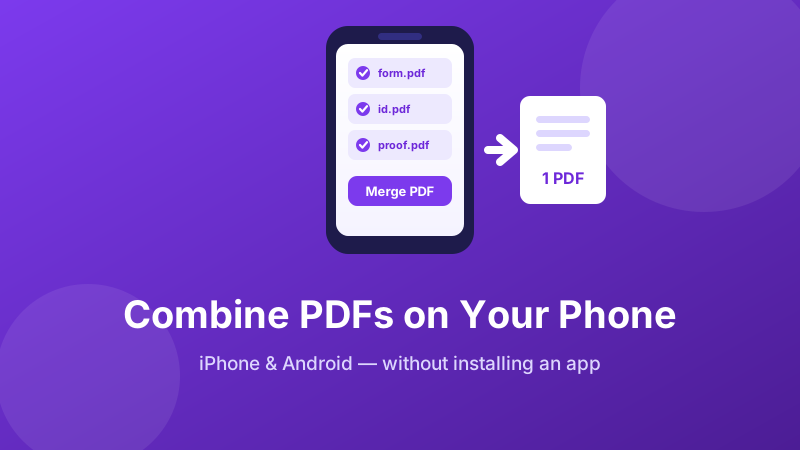
Someone needs three documents in one file and you are standing in a queue with only a phone. It is an increasingly common situation — landlords, schools, insurers and visa portals all want a single PDF — and the answer is different on each platform. iPhone has a genuinely good merge feature hidden in a menu almost nobody opens. Android has nothing at all. And there is one method that works identically on both without installing a thing.
Merge PDFs on any phone — no app install
Works in Safari and Chrome on iPhone and Android. Your files stay on the phone; nothing is uploaded.
Open the free PDF Merger →iPhone and iPad: the hidden Files trick
iOS can merge PDFs on its own, and the feature is buried where few people look. It lives in the Files app under the three-dot More menu — not in the share sheet, and not in Photos.
- Open Files and navigate to the folder holding your PDFs. Move them into one folder first if they are scattered.
- Set the sort order you want (Name or Date) from the view menu. Merge order follows this sort, so it matters.
- Tap Select at the top right, then tap each PDF you want to include.
- Tap the … (More) button in the bottom-right corner.
- Choose Create PDF. A new combined file appears in the same folder, usually named after the first document.
Two limitations to know. There is no preview before it commits — you find out the order afterwards. And if the combined name clashes with an existing file, iOS silently appends a number, which produces confusing duplicates when you merge the same folder twice. This same feature also works on images, which makes it the fastest way to turn phone photos of documents into one PDF.
Android: there is no built-in merge
This is the short section, because there is nothing to describe. Files by Google can view, rename, move and share PDFs but not combine them. Google Drive's PDF viewer is read-only. The Android print system offers “Save as PDF,” which turns a single open document into a PDF but cannot concatenate two existing ones. Samsung's My Files behaves the same way.
So on Android your realistic choices are an app from the Play Store, or a website. And the app route deserves caution: free PDF utilities on mobile are a heavily monetised category, and the common pattern is aggressive ads, a subscription prompt after two free merges, and permission requests for storage access far wider than the task requires. A web page asks for none of that.
The method that works on both phones
A browser-based merger behaves the same on iPhone and Android, needs no install, and takes no storage permissions.
- Open the PDF Merger in Safari or Chrome.
- Tap the drop zone. Your phone's file picker opens — on iPhone choose Browse to reach the Files app, on Android pick Downloads or Drive.
- Select your PDFs. You can tap the zone repeatedly to add more from different places, and each one joins the end of the list.
- Check the on-screen order, removing anything that should not be there.
- Tap Merge PDF. The combined file downloads to your phone.
On iPhone the download lands in Files → Downloads; on Android in the Download folder and the notification shade. From either, the standard share button sends it to Mail, WhatsApp, Drive or an upload form.
Which method to use
| Your situation | Best method |
|---|---|
| iPhone, files already in one Files folder | Files → Select → More → Create PDF |
| iPhone, order matters or files are scattered | Browser merger — you can see the order |
| Android, any situation | Browser merger |
| Sensitive documents on any phone | Browser merger that processes locally |
| Merging every week for work | Do it on a computer; phones make ordering fiddly |
Three documents, one file, from your phone
No app, no account, no watermark — and the documents never leave your device.
Combine my PDFs →Why the upload question matters more on a phone
Phones carry the most sensitive documents most people own. The PDFs sitting in your Files app are typically bank statements, payslips, tenancy agreements, passport scans, insurance claims and medical letters — precisely the material you would never hand to an unknown company.
Most free web merge services are server-based. Your file is uploaded, processed on their infrastructure and deleted on a schedule. Even where the operator is entirely honest, that is a copy of your passport scan travelling across a network and resting on a disk you do not control, for a task your own phone is perfectly capable of doing. A tool that assembles the PDF inside the browser removes the question: with no upload, there is no copy, no retention period and no breach to worry about. Before using any web tool with a document you care about, check whether it says the work happens in your browser — and treat “we delete your files after an hour” as confirmation that they were uploaded.
Practical phone tips
A few things make mobile merging much less painful. Gather first, merge second — move every PDF into one folder in Files or Downloads before you start, because hunting for a stray attachment mid-merge is where the process falls apart. Rename with numbers if order matters: 1-form.pdf, 2-id.pdf, 3-proof.pdf makes the sequence unambiguous on both the iOS route and the browser route. Watch the file size when the pages came from your camera, since ten photographed pages can easily exceed a 10 MB upload limit on a government portal — if that happens, compressing the source images before converting is far more effective than anything you can do to the merged PDF afterwards. And open the result before you send it: a ten-second scroll through the merged file catches wrong order, a missing page or an upside-down scan while you can still fix it.
Is it private and free?
Toolyard's merger runs entirely in your phone's browser. Your PDFs are never uploaded, there is no app to install, no sign-up, no watermark and no daily limit. It needs no storage permissions beyond the file you pick yourself.
FAQ
Can an iPhone merge PDFs without an app?
Yes. In the Files app, tap Select, choose your PDFs, tap the … More button and choose Create PDF. The pages follow the folder's sort order, so set that before selecting.
Why can't I find Create PDF on my iPhone?
It appears only in the Files app, only after tapping Select and highlighting a file, and only under the More menu — not in the share sheet, Photos or Mail.
Does Android have a built-in PDF merge?
No. Files by Google and Drive's viewer cannot combine PDFs, and print-to-PDF handles one document at a time. Merging on Android means an app or a website.
Is it safe to merge PDFs on a phone using a website?
It is safe when the site processes files inside the browser instead of uploading them. Phones hold unusually sensitive documents, so local processing matters more here than anywhere else.
Where does the merged PDF get saved?
On iPhone, in Files → Downloads (iCloud Drive or On My iPhone, per your Safari setting). On Android, in the Download folder and the notification shade. Share it onward from there.