Discord Banner, Avatar and Server Image Sizes
Published August 31, 2026
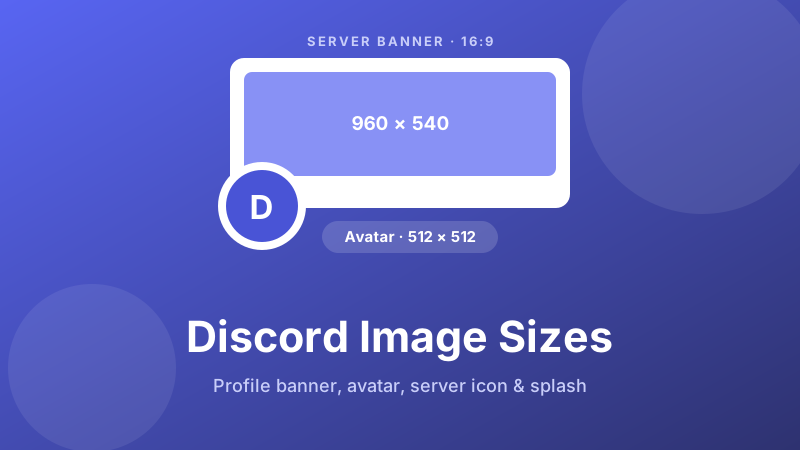
Discord has more image slots than most apps — a profile banner, an avatar, a server icon, a server banner, and the big invite splash — and each one has its own size and its own quirks. Get them wrong and Discord crops your face out of a circle, squashes your banner, or leaves a blurry logo at the top of your server. None of it is guesswork once you know the numbers. This guide lists every Discord image size in one place, explains which ones need Nitro or Server Boosts, and shows how to hit the exact shape with a free tool that never uploads your file.
Get the exact Discord pixels
Match the shape Discord wants — square avatar, 16:9 banner — then download. Free, private, nothing uploaded.
Resize your image →Every Discord image size, at a glance
| Where it appears | Upload size (pixels) | Shape | Unlock |
|---|---|---|---|
| Profile banner | 680 × 240 (min 600 × 240) | 5:2 (~2.5:1) strip | Nitro |
| Avatar / profile picture | 512 × 512 | 1:1, shown as a circle | Free |
| Server icon | 512 × 512 | 1:1, shown as a circle | Free |
| Server banner | 960 × 540 | 16:9 | Boost Level 2 |
| Invite background / splash | 1920 × 1080 | 16:9 | Boost Level 1 |
Two things save you a lot of trial and error. First, anchor on the ratio, not the exact pixel count: Discord accepts images bigger than the recommended size and scales them down for you, so a correctly shaped image always fits, while a wrongly shaped one gets cropped no matter how many pixels it has. Second, remember that avatars and server icons are masked into circles — the corners of your square are thrown away, so nothing important can live there.
Profile banner: 680 × 240, and a Nitro perk
The banner across the top of your personal profile card is 680 × 240 pixels (Discord will accept a minimum of 600 × 240). That is a wide 5:2 strip, roughly 2.5:1, so a normal photo straight from your phone loses almost everything above and below the middle band. Pick a picture that is already horizontal, or build a graphic at that shape from the start. This banner is a Discord Nitro feature — without a Nitro subscription the slot does not appear. Your circular avatar sits over the lower-left corner of the banner, so keep that area visually calm and push any text or logo toward the centre-right. If you also set a different banner per server (another Nitro extra), design at 680 × 240 and it works in both places with only minor edge trimming.
Avatar: upload 512 × 512, think in a circle
Your avatar — the profile picture that shows next to every message you send — should be uploaded as a 512 × 512 square. Discord displays it much smaller than that (as tiny as a chat thumbnail, up to around 128 pixels on your profile) and always crops it to a circle. Upload bigger than the display size on purpose: it keeps the picture crisp on high-resolution screens, and Discord does the shrinking. Because of the circular mask, centre the face or logo and leave a comfortable margin all around — anything in the corners is cut off. A static avatar is free for everyone; only animated GIF avatars require Nitro.
Server icon: 512 × 512, readable when tiny
The server icon is the round badge in the left-hand server rail and at the top of the member list. Upload it as a 512 × 512 square; like the avatar, Discord shows it as a circle and often very small. That small size is the real design constraint: fine detail and long words disappear. A single bold letter, a simple monogram, or a clean logo on a high-contrast background reads far better than a busy illustration. Any server owner can set an icon for free — no boosts required.
Server banner: 960 × 540, needs Boost Level 2
The server banner is the wide image that sits above the channel list at the top of a community. It is 960 × 540 pixels, a clean 16:9 rectangle. Unlike the icon, this one is not automatically available: the server has to reach Boost Level 2 (seven boosts from members) before the banner slot unlocks. The server name is overlaid across the lower part of the image, so treat the bottom strip like a caption zone and keep your key artwork in the upper two-thirds where the text will not sit on top of it.
Invite background (splash): 1920 × 1080, needs Boost Level 1
The invite splash is the full-bleed background people see on the invite screen before they join — a first impression for your server. Use 1920 × 1080, a 16:9 image, and upload it at that full resolution because it is displayed large. It unlocks at Boost Level 1 (two boosts). Discord layers a dark gradient and the join button over it, so busy or text-heavy images get muddy fast; a simple, high-contrast scene with the important part away from the centre works best.
Why circles and overlays crop your art
Two Discord habits catch people out. The first is the circle mask on avatars and server icons: you upload a square, but Discord hides everything outside the inscribed circle, quietly removing the four corners. The second is text overlays — the server name on a banner, the join button on an invite splash. Neither is a bug; both are fixed parts of the layout. The fix for both is the same: decide what absolutely must be seen, and keep it in the safe centre, away from corners and away from the bottom strip.
How to resize an image for Discord, step by step
The Toolyard Social Media Resizer runs entirely in your browser — nothing is uploaded and there is no account to make. It has a Discord group of presets for the sizes above — profile banner 680×240, avatar or server icon 512×512, server banner 960×540 and invite splash 1920×1080 — plus a Custom size option for anything else.
- Open the Social Media Resizer and drop your image in — JPG, PNG or WebP. It loads on your device; nothing leaves your computer.
- Under Target size, open the Discord group and pick the slot you are filling: the profile banner (680×240), avatar or server icon (512×512), server banner (960×540) or invite splash (1920×1080). For any other size, choose Custom size and type the width and height.
- Choose a Fit mode. Cover fills the frame and trims the overflow — best for photos. Contain shrinks the whole image to fit and pads the gap with a background colour you pick — best when nothing can be cropped, like a logo.
- Set the Format: PNG for logos, flat graphics and anything with text or transparency; JPG for photographs. Click Download.
- In Discord, add it under User Settings → Profile (avatar and profile banner) or Server Settings → Overview (server icon, banner and splash).
The profile banner is an unusual 5:2 strip, and the Discord preset produces it directly. If you want to choose exactly which strip of a larger photo to keep, use the Image Cropper below first: drag a Freeform selection and watch the live pixel readout until it reads about 680 × 240, then crop and download.
Crop to the exact shape yourself
Choose precisely which square or strip of a photo to keep — ideal for the circular avatar and the 5:2 profile banner. Free, in your browser.
Open the Image Cropper →Nitro vs Server Boosts: who unlocks what
It is easy to mix these up, because both are “paid” but they do different jobs. Nitro is a personal subscription tied to your account; it unlocks your profile banner and animated (GIF) avatars, among other perks. Server Boosts are contributed by members to level up a whole community: reaching Level 1 (two boosts) unlocks the invite splash, and Level 2 (seven boosts) unlocks the server banner. The server icon and a static avatar need neither — they are free. So if a banner slot is missing, check whether you are looking for a Nitro feature (your profile) or a Boost feature (the server).
Keeping images sharp: format and file size
Because Discord downscales whatever you upload, your job is to hand it a clean, correctly shaped file. Upload a little larger than the target rather than smaller — a 512-pixel square shown at 128 pixels stays sharp, while a 128-pixel image blown up to a bigger view looks soft. Pick the format by content: use PNG for logos, icons, flat colour and anything with text or transparency (a server icon with a transparent background sits neatly on any theme), and JPG for photographs, where it gives a much smaller file at the same visual quality. Keep files in the standard sRGB colour space so the colours you see are the colours Discord shows.
Is it private and free?
Yes. The Toolyard resizer and cropper are completely free — no sign-up, no watermark, no cap on how many images you process. They are also 100% private: the work runs as JavaScript on your own machine, so your files are never uploaded to any server. That matters when the image is a personal photo or an unreleased logo. Once the page has loaded it even keeps working offline.
One tool, every size
Discord, Twitch, Spotify and Substack presets plus Instagram, YouTube and more — or any custom size. Free and private, right in your browser.
Resize your image →FAQ
What size is a Discord profile banner?
Upload 680 × 240 pixels (600 × 240 is the minimum) for the banner on your profile card. It is a wide 5:2 strip, roughly 2.5:1, and it is a Nitro perk. Your avatar overlaps the lower-left corner, so keep important art out of that area.
What size is a Discord server banner?
The server banner is 960 × 540 pixels, a 16:9 ratio, shown above the channel list. A server needs to reach Boost Level 2 (seven boosts) before the banner can be set.
What size should a Discord avatar or profile picture be?
Upload a square image of 512 × 512 pixels. Discord displays it small and masks it into a circle, so centre the face or logo and leave a margin around the edges you can afford to lose.
What size is a Discord server icon?
The server icon is 512 × 512 pixels, a square that Discord shows as a circle in the server list. Any owner can set one for free — use a simple, high-contrast mark because it is displayed very small.
What size is the Discord invite background or splash?
The invite splash is 1920 × 1080 pixels, a 16:9 image behind the invite screen. It requires Boost Level 1 (two boosts), and Discord darkens it behind text, so keep it simple.