Lossy vs Lossless Image Compression, Explained
Published August 18, 2026
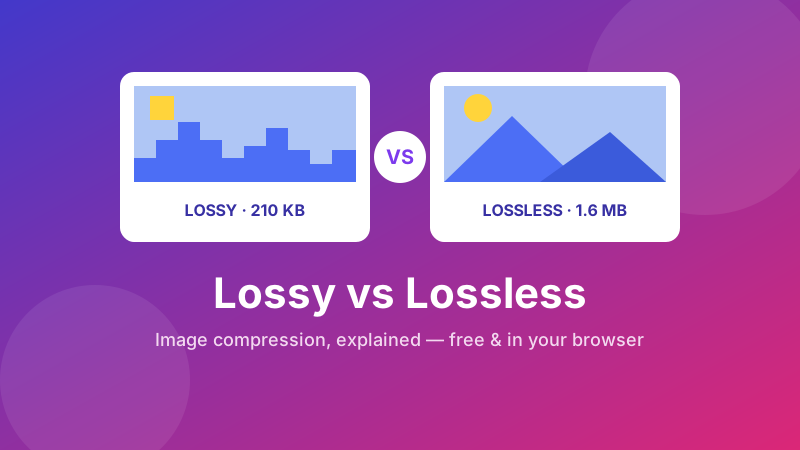
Every JPEG on your phone, every logo on a website, and every screenshot you share has been compressed — shrunk down so it takes less space. But not all compression works the same way. There are two fundamentally different approaches, and knowing which one you're using explains why some images look flawless at a tiny size while others fall apart into blocky smudges. This guide explains lossy and lossless compression in plain English: what each one actually does to your image, when to reach for which, and how to try it yourself in a few seconds — right in your browser.
See compression in action
Drop in a photo, drag the quality slider, and watch the file size shrink while the picture stays sharp. It runs entirely in your browser — no upload, no sign-up, no watermark.
Try the Image Compressor →What is image compression?
Image compression is simply making an image file smaller. A raw, uncompressed photo stores a color value for every single pixel — a 12-megapixel photo has 12 million pixels, and writing all of that out honestly would produce a file of 30 MB or more. Compression finds clever ways to store the same picture in far less space, so it loads faster on a web page, sends quicker in an email, and takes up less room on your device.
Every compression method belongs to one of two families. Lossy compression makes files small by permanently throwing some image data away. Lossless compression makes files smaller without discarding anything at all. That single difference — whether data is discarded or preserved — is the whole story, and everything else follows from it.
Lossy compression: smaller files, some data gone for good
Lossy compression shrinks a file by deleting information the format decides you're least likely to miss. It leans on the limits of human vision: your eyes are very sensitive to overall brightness and large shapes, but far less sensitive to tiny variations in color and the finest detail. Lossy formats exploit that — smoothing out subtle differences and merging near-identical patches of color into one. The result can be dramatic: a 20 MB photo dropping to 1 or 2 MB while still looking, to your eye, essentially identical.
The catch is right there in the name: the discarded data is lost. You can't press a button to get it back, because it no longer exists in the file. Push lossy compression too hard and you start to see the damage — blocky squares, muddy patches, and faint halos around sharp edges, known as compression artifacts. JPEG is the classic lossy format; WebP and the newer AVIF also have lossy modes. For photographs, lossy is the right tool the vast majority of the time.
Lossless compression: perfectly reversible, every pixel intact
Lossless compression makes a file smaller without throwing anything away — the image that comes back out is bit-for-bit identical to the one that went in. Instead of deleting detail, it looks for patterns and repetition and records them more efficiently. If a graphic contains a run of 500 pixels of the exact same blue, a lossless format doesn't write "blue" 500 times; it writes, in effect, "blue, repeated 500 times." Unpack it and you get every original pixel back, perfectly.
Because nothing is discarded, you can save, open, and re-save a lossless image as many times as you like and it will never degrade. The trade-off is size: for a detailed photograph, lossless can't do much — photos contain very little exact repetition — so the file stays large. PNG is the most common lossless format, and GIF and WebP's lossless mode are lossless too. Lossless shines for images built from flat colors and sharp edges: logos, icons, screenshots, charts, and anything containing text.
A simple way to picture it
Think about summarizing a book. Lossy compression is like writing a one-page summary — it's tiny and captures the story well enough that most readers won't feel they missed much, but the exact wording is gone forever and you could never rebuild the original novel from it. Lossless compression is like shorthand or abbreviations: every word is still fully recoverable, so you lose nothing, but the space you save is limited because you can only abbreviate so far.
Here's an everyday version: lossy is a photograph of a spreadsheet — it looks about right, but if it's blurry you can't recover the exact numbers. Lossless is a ZIP file of the spreadsheet — smaller to send, and it unzips to the perfect original. Zipping a file, in fact, is lossless compression, which is exactly why you'd never accept a ZIP tool that only "mostly" restored your documents.
Lossy vs lossless: the key differences
| Lossy | Lossless | |
|---|---|---|
| Data | Permanently discards some | Keeps every pixel |
| Reversible? | No — original can't be rebuilt | Yes — perfectly reversible |
| File size | Much smaller | Larger |
| Re-saving | Quality drops each time | Never degrades |
| Best for | Photographs | Logos, text, screenshots |
| Examples | JPEG, WebP (lossy), AVIF | PNG, GIF, WebP (lossless) |
Is JPEG lossy or lossless?
JPEG is lossy — it's the most widely used lossy format in the world. Every time you export a JPEG, it discards some image data to reach a smaller size, and the quality setting (usually a number from 0 to 100) controls how much: a higher number keeps more detail and produces a bigger file, a lower number throws away more and produces a smaller one. PNG, by contrast, is lossless — it never discards pixels, which is why screenshots and logos are typically saved as PNG.
One important consequence: because JPEG is lossy, each re-save runs the compression again and loses a little more, an effect called generation loss. Editing and re-exporting the same JPEG a dozen times will visibly soften it. PNG has no such problem — re-save it as often as you like and it stays pixel-perfect.
Which one should you use?
The rule of thumb follows directly from what each method does:
- Photographs → lossy. Photos are full of smooth gradients and subtle detail your eye won't miss, so lossy formats like JPEG or WebP shrink them enormously with no visible downside. Saving a photo as lossless PNG just gives you a file 5–10× larger for no benefit.
- Logos, icons, text, and screenshots → lossless. These have hard edges and flat colors that lossy compression smears — letters turn fuzzy and crisp lines pick up halos. PNG keeps them razor-sharp.
- Anything you'll edit repeatedly → work in a lossless format and export to lossy only at the very end, so you're not stacking up generation loss along the way.
How far can you compress before it shows?
For lossy compression there's a sweet spot. Most photos can be compressed to a quality setting around 75–85% with no difference an ordinary viewer would ever notice — that's where you capture almost all of the file-size savings for almost none of the visible cost. Drop below roughly 60% and artifacts start creeping in: blocky skies, smeared detail, halos around text.
The exact threshold depends on the picture. A busy photo of leaves or gravel hides artifacts far better than a smooth blue sky or a screenshot of text, where the same amount of compression is glaringly obvious. The practical approach is to compress, view the result at full size, and back off if you can see damage. A good compressor lets you do exactly that — nudge the quality, watch the file size and the picture at the same time, and stop at the point where it still looks perfect.
Where does WebP fit in?
WebP deserves a special mention because it does both. Developed by Google, it offers a lossy mode (competing with JPEG, and typically 25–35% smaller at the same visual quality) and a lossless mode (competing with PNG). That flexibility is why modern websites favor it: you pick lossy WebP for photos and lossless WebP for graphics, and get smaller files than JPEG or PNG either way. AVIF, a newer format, pushes the same idea further still.
The concept still holds, though — a WebP is only as reversible as the mode it was saved in. Lossy WebP discards data just like JPEG; lossless WebP preserves everything just like PNG. "WebP" alone doesn't tell you whether your data survived; the mode does.
Try lossy compression yourself
The fastest way to understand the trade-off is to watch it happen. Toolyard's Image Compressor runs entirely in your browser — your photo is never uploaded to a server — so you can experiment freely, even with private images.
- Open the Image Compressor and drop in a photo (JPG, PNG, or WebP).
- Drag the quality slider down and watch the estimated file size shrink in real time.
- Compare the preview at each setting — around 80% usually looks identical to the original at a fraction of the size.
- Keep going until you just begin to see artifacts, then step back one notch. That's your sweet spot.
- Click Download. There's no watermark, and the file is yours.
Need to hit an exact file size?
Some upload forms cap you at a specific limit. This tool shrinks any photo to a target size automatically — still free, still private, and nothing leaves your device.
Compress an Image to 100KB →Is it private and free?
Yes on both counts. Toolyard's compressors are 100% private because they process your image entirely inside your browser using the built-in Canvas API — the photo is never uploaded to any server. They're completely free with no sign-up and no watermark, and once the page has loaded they even work offline. Whether you're compressing a holiday photo or a client file, the image stays on your device from start to finish.
FAQ
Is JPEG lossy or lossless?
JPEG is lossy. Every time you export a JPEG it permanently discards some image data to make the file smaller, and the quality setting controls how much. PNG, by contrast, is lossless — it keeps every pixel, which is why screenshots and logos are usually saved as PNG.
What is the difference between lossy and lossless compression?
Lossy compression makes a file smaller by permanently deleting some image data, so the original cannot be rebuilt. Lossless compression makes a file smaller without discarding anything, so it is perfectly reversible. Lossy produces much smaller files but with some quality loss; lossless keeps perfect quality but larger files.
Which is better, lossy or lossless compression?
Neither is universally better — it depends on the image. Use lossy for photographs, where it shrinks files enormously with no visible downside. Use lossless for logos, icons, text, and screenshots, where hard edges must stay crisp. The right choice follows from whether the image is a photo or a graphic.
Is PNG lossy or lossless?
PNG is lossless. The pixels that come out are exactly the pixels that went in, so you can save and re-save a PNG as many times as you like without any quality loss. GIF and WebP's lossless mode are lossless too.
Does lossy compression lose quality every time you save?
Yes. Because a lossy format runs its compression again on every export, re-saving the same JPEG repeatedly loses a little more detail each time — an effect called generation loss. Lossless formats like PNG never degrade, no matter how often you re-save them.