Instagram Image Sizes & Aspect Ratios: The 2026 Guide
Published July 17, 2026
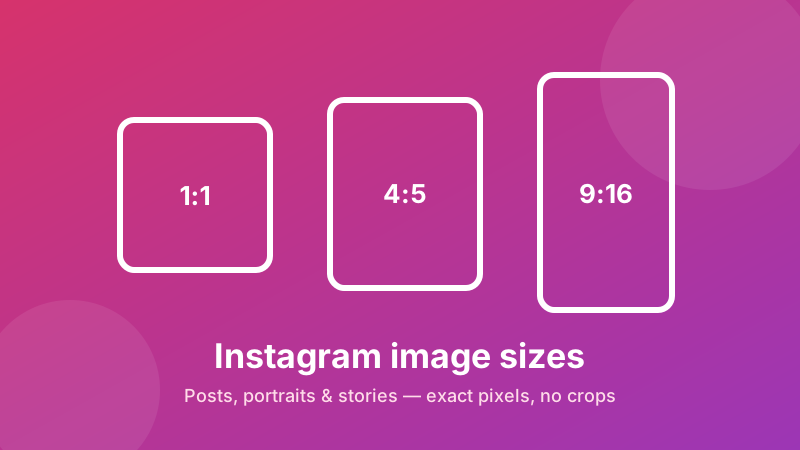
If your photos show up cropped, stretched, or slightly blurry on Instagram, the cause is almost always the wrong image size. Instagram displays every post at a fixed set of dimensions, and when your file doesn't match, the app resizes it for you — usually badly. This guide lists the exact sizes to use, explains aspect ratios in plain English, and shows how to resize any picture to the perfect pixels before you post.
Get the exact Instagram size in seconds
Drop in any photo, pick a preset like 1080×1080 or 1080×1350, and download a perfectly sized image. Free, private, no sign-up.
Open the Social Media Resizer →Instagram image sizes at a glance
These are the recommended pixel dimensions for each type of Instagram content. Uploading at these sizes gives the sharpest result because Instagram doesn't have to shrink or stretch your file to fit.
| Content type | Size (pixels) | Aspect ratio |
|---|---|---|
| Square post | 1080 × 1080 | 1:1 |
| Portrait post | 1080 × 1350 | 4:5 |
| Landscape post | 1080 × 566 | 1.91:1 |
| Story & Reel | 1080 × 1920 | 9:16 |
| Carousel slide | 1080 × 1080 or 1080 × 1350 | 1:1 or 4:5 |
| Profile photo | 320 × 320 (upload larger, e.g. 640 × 640) | 1:1 |
The width almost always stays at 1080 pixels — that is the resolution Instagram serves to most phones. What changes is the height, and that height is what decides how tall your post looks in the feed.
What an aspect ratio actually means
An aspect ratio is just the shape of your image: its width compared to its height. A 1:1 ratio is a perfect square (the width equals the height). A 4:5 ratio is a little taller than it is wide — for every 4 units across, it is 5 units tall. A 9:16 ratio is tall and narrow, the same shape as your phone screen held upright.
Here is why the ratio matters more than the exact pixels: Instagram will happily scale a 1:1 image up or down, but it will crop anything whose ratio doesn't fit the slot. Upload a wide landscape photo to a square post and the left and right edges get chopped off. Upload a very tall photo and the top and bottom disappear. Matching the ratio first is what keeps your whole picture on screen.
Which size should you use?
Portrait, 1080 × 1350 (4:5), is the size most creators reach for. It takes up the most vertical space allowed in the feed, so your post is physically larger on the screen as people scroll — more room means more attention. Use it for photos, quotes, product shots, and anything you want to stand out.
Square, 1080 × 1080 (1:1), is the classic, safe choice. It looks tidy in your profile grid and is easy to design for because every side is equal. Reach for it when you want a clean, predictable layout or when a single image will also live on other platforms.
Story and Reel, 1080 × 1920 (9:16), fills the entire phone screen. Keep any important text or faces in the middle of the frame, because the top and bottom strips can be covered by the profile icon, captions, and action buttons.
Why the right size prevents cropping and blur
Two things go wrong when your image is the wrong size. The first is cropping: if the shape doesn't match, Instagram trims your photo to make it fit, and you don't always get to choose what gets cut. Heads, logos, and edges of products are common casualties.
The second is blurriness. If your image is much larger than 1080 pixels wide, Instagram compresses it hard to shrink it down, and heavy compression softens fine detail and text. If your image is smaller than 1080 pixels wide, Instagram stretches it up to fill the space, which makes it look fuzzy and pixelated. Sizing your file to exactly 1080 pixels wide before you upload sidesteps both problems — Instagram has less work to do, so more of your original sharpness survives.
How to resize an image to the exact Instagram size in Toolyard
You don't need Photoshop or a paid app. The Toolyard Social Media Resizer runs entirely in your browser, so your photo never leaves your device and there's nothing to install or sign up for.
- Open the Social Media Resizer and drag your photo onto the box, or click to browse. It loads straight from your device — nothing is uploaded to a server.
- Choose the Instagram size you need — square 1080 × 1080, portrait 1080 × 1350, or story/reel 1080 × 1920 — or type the exact pixel dimensions yourself.
- Position the crop so the important part of your photo stays inside the frame, then click download to save the perfectly sized, ready-to-post image.
Because everything happens locally, it's instant and completely private — no queue, no watermark, no account. You can even use it offline once the page has loaded.
A few tips for crisp, correctly sized posts
Start with the highest quality original you have and resize down to 1080 pixels wide, never up from a small file — you can shrink detail cleanly but you can't add it back. Decide the shape before you shoot or design: if you know a post will be portrait, frame it 4:5 from the start so nothing important sits near the edges. When you export, save photos as JPEG for the smallest file with good quality, and keep graphics with text or transparency as PNG. Finally, preview the post before you publish; Instagram shows you the crop, and it's much easier to fix the framing then than after it's live.
Resize once, post with confidence
Turn any photo into a pixel-perfect Instagram square, portrait, or story — free and 100% private, right in your browser.
Open the Social Media Resizer →