How to Test a Regular Expression
Published July 26, 2026
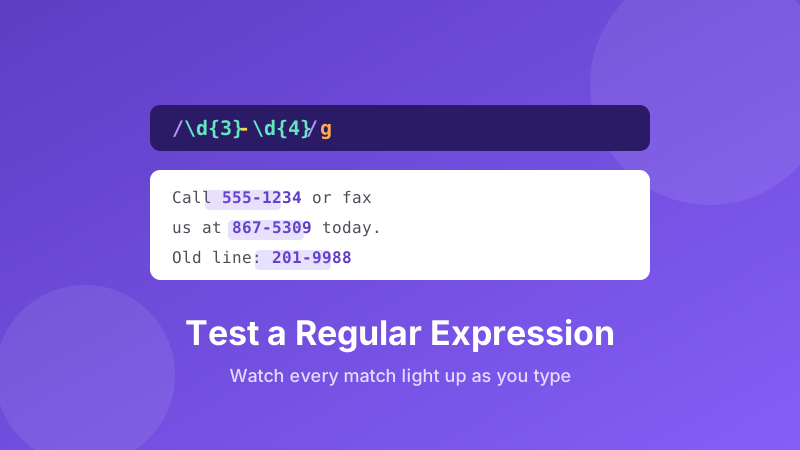
Regular expressions look intimidating — a jumble of slashes, brackets and asterisks like /^\d{3}-\d{4}$/. But underneath, a "regex" is just a way to describe the shape of text you want to find: every phone number, every email, every date in a file, all at once. The fastest way to learn one is to test it live and watch matches light up as you type. This guide shows you how, and decodes the most common patterns in plain English.
Test your regex live
Paste a pattern and some sample text, and every match is highlighted instantly. It runs in your browser — no sign-up, no upload, nothing to install.
Open the Regex Tester →What is a regular expression, exactly?
A regular expression is a compact pattern that a computer uses to search text. Instead of looking for one fixed word, you describe a general shape. "Find the word cat" is a plain search. "Find three digits, a dash, then four digits" is a regex — and it will match 555-1234, 867-5309, and every other number in that format without you listing them.
That power is why regex shows up everywhere: validating a form field, finding-and-replacing across a whole project, pulling dates out of a log file, or cleaning messy spreadsheet data. Learning even a handful of patterns pays off for the rest of your working life. The catch is that patterns are easy to get subtly wrong — which is exactly why you test them against real examples before trusting them.
How to test a regex in Toolyard
The Toolyard Regex Tester is free, needs no account, and runs entirely in your browser — nothing you paste is uploaded. Here's the whole process:
- Open the Regex Tester and type your pattern into the top box — for example
\d+to find numbers. - Turn on the flags you need. g highlights every match (not just the first), i ignores upper/lower case, and m makes line anchors work per line.
- Paste your real sample text into the second box — a few log lines, a list of emails, whatever you're trying to match.
- Watch every match highlight instantly as you edit either box. Tweaking the pattern and seeing the highlights move is how the syntax finally clicks.
- When the pattern matches exactly what you intend — and nothing you don't — copy it into your code, editor's find field, or spreadsheet tool.
Because the matching happens live in your browser, there's no "run" button and no waiting. It's the quickest way to build a pattern by trial and error.
The building blocks, in plain English
You can go a long way with just these pieces. Try each one in the tester to see it work:
\d— any digit 0–9.\w— a word character (letter, digit, or underscore).\s— a space, tab, or newline..— any single character at all (a wildcard).+— one or more of the thing before it.*— zero or more.?— optional (zero or one).{3}— exactly three of the previous item;{2,4}— between two and four.[abc]— any one of a, b, or c.[a-z]— any lowercase letter.[^0-9]— anything that is not a digit.^— start of the text (or line);$— the end. These "anchors" pin a match in place.(…)— a group, so you can apply a quantifier to several characters or capture part of a match.a|b— a or b.
Put a couple together and patterns start to read like a sentence. \d{3}-\d{4} is "three digits, a dash, four digits." [A-Za-z]+ is "one or more letters." ^\s*$ is "a line that's empty or only spaces."
Build a pattern step by step
Start with \d+, add a piece, and watch the highlights change until it matches exactly what you want.
Three patterns you'll actually use
Rather than memorize theory, keep a few practical patterns handy and adapt them:
A rough email check
\S+@\S+\.\S+ means "some non-space characters, an @, more non-spaces, a dot, and more non-spaces." It won't catch every invalid address, but it's perfect for a quick "does this look like an email?" filter. Real email validation is famously hard — for most forms, a loose check plus a confirmation email beats a monster pattern.
A date like 2026-07-26
\d{4}-\d{2}-\d{2} matches a four-digit year, a dash, two-digit month, dash, two-digit day. Paste a log file into the tester with the g flag on and watch it pick out every date at once.
Extra spaces to clean up
\s{2,} finds any run of two or more whitespace characters — handy for spotting (and later replacing) double spaces or stray tabs in pasted text.
Common gotchas to watch for
A live tester saves you from the classic mistakes, but knowing them helps:
- Greedy matching. By default
.*grabs as much as it possibly can. In<.*>against<a><b>, it matches the whole thing, not just<a>. Add a?to make it lazy:<.*?>stops at the first>. - Forgetting to escape special characters. A dot means "any character." To match a literal dot (like in a filename), write
\.instead. The same goes for?,+,*,(, and[. - Case sensitivity.
catwon't matchCatunless you turn on the i flag. - Only matching once. Without the g flag, most tools stop at the first match. Turn it on when you want them all.
Testing against real, messy sample text — not a tidy single example — is the single best habit for catching these before they reach production.
Is it private and free?
Yes on both counts. The Toolyard Regex Tester is 100% private because the pattern and your sample text are matched inside your browser using JavaScript's built-in regex engine — nothing is ever uploaded to a server. That means you can safely test patterns against real log lines, emails, or customer data. It's completely free with no sign-up and no watermark, and it works offline once the page has loaded.
Frequently asked questions
What is a regular expression?
A regex is a small pattern that describes text you want to find. Instead of one fixed word, it describes a shape — like "three digits, a dash, then four digits" — so it can match every phone number, email, or date that fits that shape at once.
How do I test a regex without writing code?
Use an online regex tester. You paste your pattern into one box and your sample text into another, and every match is highlighted instantly. Toolyard's Regex Tester does this in your browser with nothing uploaded.
What do the g, i and m flags mean?
"g" (global) finds every match instead of just the first. "i" (ignore case) matches regardless of upper or lower case. "m" (multiline) makes the ^ and $ anchors match the start and end of each line rather than the whole text.
Is it safe to test a regex online?
With Toolyard, yes. The pattern and your sample text are matched entirely inside your browser using JavaScript's built-in regex engine. Nothing you type is uploaded, so even sensitive log data stays on your device.