How to Remove EXIF and GPS Data from Photos
Published July 28, 2026
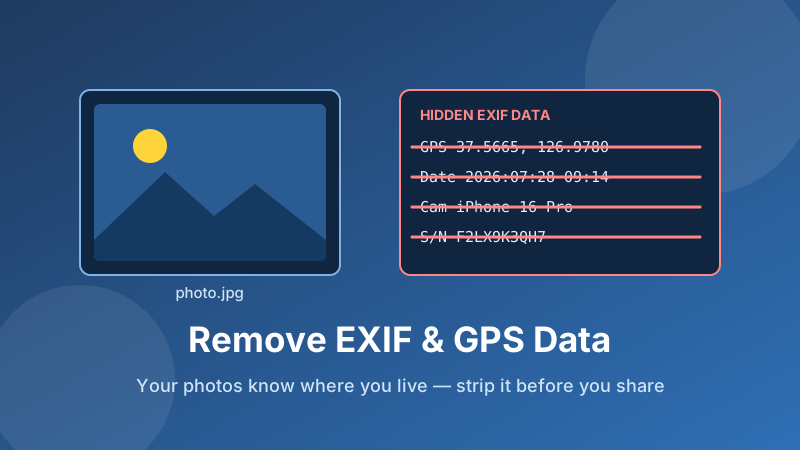
Take a picture with your phone and you don't just save an image — you save a small file of notes attached to it. That hidden block is called EXIF metadata, and it usually records the exact GPS coordinates where the shot was taken, the date and time down to the second, your phone or camera model, the lens and exposure settings, and sometimes the device serial number. You can't see any of it in the picture. Anyone who receives the original file can read all of it in seconds, with free software. This guide explains what's in there, when it actually matters, and how to strip it out before you share.
Clean a photo right now
Drop your pictures in and get metadata-free copies back — GPS, timestamps and camera details gone. It runs in your browser, and nothing is uploaded.
Open the EXIF Remover →What EXIF data actually contains
EXIF stands for Exchangeable Image File Format — a standard way for cameras to write information about a shot into the image file itself. Two related standards, IPTC and XMP, add more fields for captions, copyright and editing history. Between them, a single photo straight off a phone commonly carries:
- GPS coordinates — latitude and longitude, often accurate to a few metres, plus altitude and sometimes compass direction.
- Date and time — when the photo was taken, and in many cases when it was last edited.
- Device details — make and model of the phone or camera, lens, and occasionally a unique serial number.
- Camera settings — shutter speed, aperture, ISO, focal length, whether the flash fired.
- Software traces — the app used to edit the file, and an embedded thumbnail which, on older files, can even show the pre-crop version of the image.
None of this is sinister by design. Photographers rely on it, photo apps use dates to build timelines, and maps use coordinates to group your holiday snaps. The problem is purely that the data travels with the file, silently, wherever you send it.
Why it matters more than people think
The location tag is the one to worry about. Most of the photos on your phone were taken at home, at work, or where your children go to school — and the coordinates in the file point at those places directly. Consider a few everyday situations:
- Selling something online. You photograph a bike in your driveway and post the original file on a marketplace. The listing now quietly includes your home address in map coordinates.
- Sharing a photo of your kids. Sent to a group chat or a forum, the file can carry the exact spot and the exact time the picture was taken.
- Anonymous posts. A picture attached to an "anonymous" review, tip or complaint may contain a device model and location that link straight back to you.
- Business photos. Product shots taken in an office reveal the office. Timestamps can also reveal working patterns you'd rather not publish.
People often assume the internet handles this for them. It partly does — large social networks like Instagram, Facebook and X strip metadata when they re-process your upload. But plenty of routes don't: email attachments, most messaging apps that send "original quality" or "as a file", cloud drive links, marketplace listings, forums, blog uploads, and anything you hand over on a USB stick. If the recipient gets the original file, they get the metadata.
How to check what's hidden in a photo
You don't need special software to take a first look:
- On Windows: right-click the photo, choose Properties, then the Details tab. Scroll down to see camera info and, if present, GPS latitude and longitude.
- On a Mac: open the file in Preview, then Tools → Show Inspector and click the i tab — there's a GPS panel with a map if the photo is geotagged.
- On iPhone: open the photo, swipe up (or tap the info button). A map under the picture means coordinates are attached.
- On Android: open the photo in Google Photos and tap the info button — location and camera details appear there.
Do this once with a photo taken at home. Seeing your own street on that little map is usually all the motivation anyone needs.
How to remove EXIF data in Toolyard
The Toolyard EXIF Remover is free, needs no account, and cleans photos entirely inside your browser — which matters, because uploading a picture to a stranger's server just to protect your privacy rather defeats the point.
- Open the EXIF Remover and drag your photos onto the box — or click to browse. You can add a whole batch at once.
- Pick the output format. JPG keeps the same look at the smallest file size; PNG is pixel-perfect and keeps transparency.
- Click Download on any photo, or Download all to save every cleaned copy in one go.
- Check your work: open the downloaded file in Properties or Preview as described above. The location and camera fields will be empty.
The reason it's thorough is the method. Rather than hunting for individual metadata fields and deleting them one by one, the tool decodes your photo, draws it onto a canvas at full resolution, and re-encodes it as a brand-new file. A canvas holds nothing but pixels, so the output physically cannot contain EXIF, IPTC or XMP data. There's no field left to miss. You'll typically notice the cleaned file is slightly smaller, because the metadata block — often tens of kilobytes — is simply gone.
Habits that keep photos clean
- Turn geotagging off at the source if you don't need it. iPhone: Settings → Privacy & Security → Location Services → Camera → Never. Android: open the camera app's settings and switch off location or "save location tags".
- Clean before you share, not after. Once a file is sent, you can't recall the copy the other person already downloaded.
- Screenshots aren't a shortcut. A screenshot does drop the original metadata, but it also drops your resolution — you end up sharing a lower-quality picture. Re-encoding keeps the full image.
- Don't rely on cropping. Cropping in some editors leaves the original embedded thumbnail behind, which can still show what you cropped out.
- Keep your originals. Clean copies for sharing, untouched originals in your own library — that way you keep the dates and locations you actually want for your photo albums.
Is it private and free?
Yes. The Toolyard EXIF Remover is 100% private because every photo is decoded and re-encoded in your browser with JavaScript — nothing is uploaded to any server, so no one but you ever sees the images or the data being stripped from them. It's completely free with no sign-up and no watermark, handles batches, and keeps working even if you go offline after the page has loaded.
Sharing photos somewhere with a size limit?
Once your photos are clean, shrink them for email or an upload form without visible quality loss — also free, also in your browser.
Open the Image Compressor →Strip the hidden data now
Drop in one photo or fifty and get metadata-free copies back in seconds — free, private, no sign-up.
Open the EXIF Remover →