How to Make a Favicon for Your Website
Published July 18, 2026
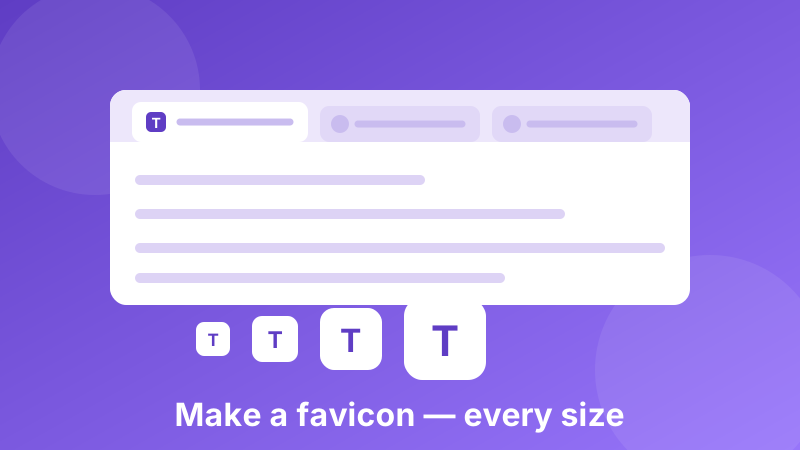
A favicon is the tiny icon that sits in a browser tab, in the bookmarks bar, and on a phone's home screen when someone saves your site. It's about the smallest piece of design on the whole web, and it's also one of the most visible — a person with fifteen tabs open finds yours by that icon alone. This guide covers what sizes you actually need in 2026, how to design something that still reads at 16 pixels, and how to generate the whole set for free without installing anything.
Generate your favicon set now
Drop in any image and get every size you need — plus the HTML to paste into your page. Nothing is uploaded and there's no sign-up.
Open the Favicon Generator →What sizes does a favicon actually need?
The old advice was "make a favicon.ico and you're done." That still works as a fallback, but modern browsers and phones ask for several sizes, and each one has a job:
- 16×16 — the classic browser tab icon. This is the size that decides whether your design works at all.
- 32×32 — used for tabs on high-resolution screens and the Windows taskbar. Most people see this one more than the 16px version these days.
- 48×48 — desktop shortcuts and some browser UI.
- 180×180 — the Apple touch icon, used when someone adds your site to an iPhone or iPad home screen.
- 192×192 and 512×512 — PWA and Android icons, referenced from a web app manifest. The 512px version is also what Android uses for splash screens.
You don't need to make six separate files by hand. Start from one high-quality square image — 512×512 or larger — and let a generator produce the rest by scaling down. Scaling down preserves detail; scaling a small icon up never does.
How to make a favicon in Toolyard
The Favicon Generator takes one image and gives you the complete set plus the markup:
- Prepare a square image at least 512×512 pixels — a logo mark, a monogram, or a simple symbol on a solid background. PNG with transparency works well.
- Open the Favicon Generator and drag your image onto the box, or click to browse for it.
- Check the preview at each size. Pay particular attention to the smallest one — if it looks like a smudge there, go back and simplify the design before continuing.
- Download the generated icon files and copy the HTML snippet the tool gives you.
- Upload the icon files to your site's root folder and paste the HTML into the
<head>of every page.
That's the whole job. Because everything runs on your own machine, there's no upload wait and no account to create.
Designing something that survives at 16 pixels
This is where most favicons go wrong. A logo that looks great on a business card becomes an unreadable grey blob in a tab, because 16×16 is only 256 pixels in total — less than a single letter of this paragraph at normal size.
The rules that actually help:
- Use one idea, not your whole logo. Take the distinctive mark, symbol or first letter and drop everything else. Wordmarks almost never survive; a single bold letter usually does.
- Go high contrast. A strong shape against a solid background reads instantly. Subtle gradients, thin outlines and drop shadows all disappear at small sizes.
- Avoid fine detail. Thin strokes vanish, and small gaps between elements close up into mush. If two parts of the design are close together, merge them or move them apart.
- Fill the square. Generous padding is fine on a website header but wasteful in a 16px icon — let the shape run close to the edges.
- Check it against both themes. A dark icon disappears on a dark browser toolbar. A solid coloured background square solves this in one step, which is why so many favicons are a rounded square with a letter in it.
The honest test: shrink your design to 16 pixels and look at it from arm's length. If you can't tell what it is, neither can your visitors.
Adding the favicon to your site
Once you have the files, browsers need to be told where they are. The generator gives you the exact snippet, but it's worth understanding what it does — a set of <link> tags in your page's <head>, one pointing at the standard icon, one at the Apple touch icon, and one at a manifest for Android and PWA icons.
Two practical notes. First, put the icon files where the snippet says they are — usually your site's root folder — because a wrong path means no icon at all, silently. Second, browsers cache favicons aggressively. If yours doesn't change after you upload it, that's almost always caching rather than a broken file. Try a hard refresh, a private window, or add a version string to the filename in your HTML.
Is it safe to upload a logo to a favicon generator?
Most favicon generators send your image to their servers to do the resizing. For a public logo that's usually harmless, but it isn't always — unreleased branding, a client's confidential identity work, or a personal photo are all things you'd rather not hand over to an unknown service.
Toolyard doesn't have that problem, because the Favicon Generator works entirely in your browser. Your image is never uploaded anywhere; the resizing happens on your own device using your own processor, and the files are created locally for you to download. Nothing is stored, and nothing can be leaked, because the image never leaves your computer. If you're working on branding that isn't public yet, that's the difference between a small risk and no risk.
Common favicon mistakes
- Starting from a small image. Upscaling a 32px logo produces a blurry 512px icon. Always start big.
- Using a non-square source. A wide image gets padded or cropped, usually not where you'd want. Crop it square yourself first with an image cropper.
- Only providing 16×16. Your site will look low-resolution on retina screens and blank on phone home screens.
- Forgetting the Apple touch icon. Without it, iOS generates a screenshot of your page instead — which looks unfinished.
- Never testing it. Open your site in a real browser tab with several other tabs beside it. That's the context your icon actually competes in.
Get those right and your site picks up a small, permanent piece of polish — instantly findable in a crowded tab bar, and properly presented when someone saves it to their phone.
Ready to make your favicon?
One image in, a complete icon set and ready-to-paste HTML out — free, private, no sign-up.
Open the Favicon Generator →