How to Compare Two Texts and Find the Differences
Published August 9, 2026
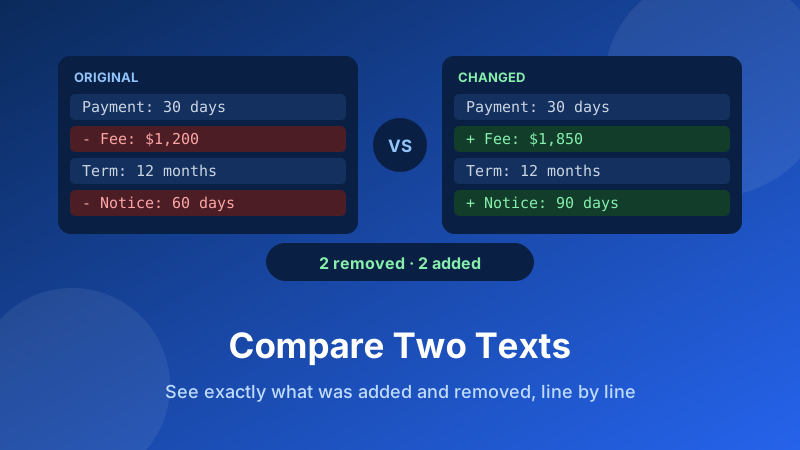
Someone sends back "the updated version" with no note about what they actually changed. Two config files behave differently and you can't see why. A client swears they only fixed a typo in the contract. Reading both versions end to end is slow and unreliable — your eye slides straight past a changed number. A diff does the reading for you: paste both versions, and every added and removed line lights up. This guide shows you how to run one and how to read the result.
Compare two texts right now
Paste the original and the changed version, hit Compare, and see exactly what moved. It runs in your browser — no sign-up, no upload, nothing to install.
Open the Text Diff Checker →What a diff actually is
A diff is a line-by-line comparison of two versions of the same text. The tool walks through both versions and labels every line one of three ways: unchanged, added in the new version, or removed from the old one. Everything identical is left alone, so what remains highlighted is precisely the change and nothing else.
This is the same idea that powers version control systems like Git, the "track changes" view in a word processor, and the review screen on any code-hosting site. It's a general text technique, not a programming one — it works just as well on a rental agreement as on a JavaScript file.
Notice what a diff does not do: it doesn't know that a line was "edited." When you change one word in a line, a line-based diff reports the old line as removed and the new line as added. That's not a bug — it's how line comparison works, and it's why the formatting tips further down matter so much.
How to compare two texts in Toolyard
The Toolyard Text Diff Checker is free, needs no account, and runs entirely in your browser — nothing you paste is uploaded. Here's the whole process:
- Open the Text Diff Checker. You'll see two boxes side by side.
- Paste the original text into the left box — the older version, the one you're comparing against.
- Paste the changed text into the right box — the new version you received or edited.
- Click Compare. The result appears underneath with additions and removals highlighted, plus a summary count of how many lines changed.
- Got them the wrong way round? Click Swap to flip the two sides and compare again — useful when you're not sure which file is newer.
- Click Copy diff to put the marked-up result on your clipboard, ready to paste into an email or a ticket so a colleague can see the same thing you're seeing.
If you're comparing files rather than pasted text, open each one in any text editor, select all, and copy. Word documents need one extra step: save or export as plain text first, or paste into a blank editor to strip the formatting, because a diff compares characters and not fonts.
How to read the result
The output uses the same convention as almost every diff tool in existence:
- Green / plus lines exist only in the changed version. Something was inserted here.
- Red / minus lines exist only in the original. Something was deleted here.
- A red line immediately followed by a similar green line is an edit. Read them as a pair — that's the "before and after" of one modified line.
- Plain lines are identical in both versions and are there purely as context, so you can tell where in the document the change sits.
The summary count is a quick sanity check by itself. If a colleague said they "fixed a typo" and the diff reports thirty changed lines, you now know to read carefully before signing anything.
Stop re-reading both versions
Let the diff find the changes so you only read the lines that actually moved.
Open the Text Diff Checker →Five things people use a diff for
1. Checking a contract that came back "with minor edits"
Paste the version you sent and the version you got back. Any quietly altered payment term, date or liability clause shows up immediately. This one use alone justifies learning the tool.
2. Finding out why one config file works and another doesn't
Two servers, two .env or settings files, one of them broken. Diff them and the missing line or wrong port number is usually obvious within seconds.
3. Comparing two drafts of your own writing
When you've edited an article across several sessions and lost track of what changed, a diff against yesterday's copy rebuilds your own edit history.
4. Verifying a copy-paste or a data export
Exported the same report twice and want to know if the data shifted? Diff the two exports rather than scanning thousands of rows.
5. Reviewing a translation or a rewritten block
Line up the previous approved text against the new one to see exactly which sentences a reviewer touched.
Tips for a cleaner, more useful diff
A diff is only as helpful as the text you feed it. These habits make a big difference:
- Break long paragraphs into one sentence per line before comparing prose. A four-sentence paragraph on a single line reports as entirely rewritten when one word changed; split into sentences, only the changed sentence highlights.
- Normalise the formatting first. Different indentation, tabs versus spaces, or a stray trailing space all count as real differences. If you only care about wording, tidy the whitespace in both versions first.
- Watch out for line endings. Text copied from Windows and text from Mac or Linux can use different invisible line-ending characters, which can make every single line look changed. Pasting both sides through the same plain-text editor usually fixes it.
- Compare like with like. Diffing a formatted Word export against raw plain text produces noise. Get both sides into the same form before you start.
- Diff in chunks for very large files. Comparing one section at a time is far easier to read than a thousand-line wall of highlights.
Is it private and free?
Yes on both counts. The Toolyard Text Diff Checker is 100% private because both versions are compared inside your browser with JavaScript — neither text is ever uploaded to a server. That's what makes it safe for the things people most often need to compare: contracts, unpublished drafts, internal logs and configuration files with credentials in them. It's completely free with no sign-up and no watermark, and it keeps working offline once the page has loaded.
Frequently asked questions
What is a text diff?
A diff is a line-by-line comparison of two versions of the same text. It marks each line as unchanged, added or removed, so instead of re-reading both versions you only look at the lines that actually changed.
How do I compare two documents without Word?
Paste the plain text of both versions into an online diff checker. Toolyard's Text Diff Checker takes an original and a changed version, compares them line by line in your browser, and highlights every addition and deletion instantly.
Why does the diff show a whole paragraph as changed?
Most diff tools compare line by line, and a paragraph with no line breaks inside it counts as one very long line, so changing a single word marks the whole paragraph as removed and re-added. Splitting long paragraphs onto separate lines — one sentence per line — gives a far more precise result.
Is it safe to compare confidential text online?
With Toolyard, yes. Both versions are compared entirely inside your browser using JavaScript. Neither text is uploaded to a server, so contracts, private drafts and internal logs never leave your device.
Can I compare two files instead of pasted text?
Open each file in a text editor, select all and copy it into the matching box. For Word documents, export or paste as plain text first, since a diff compares characters rather than formatting.